


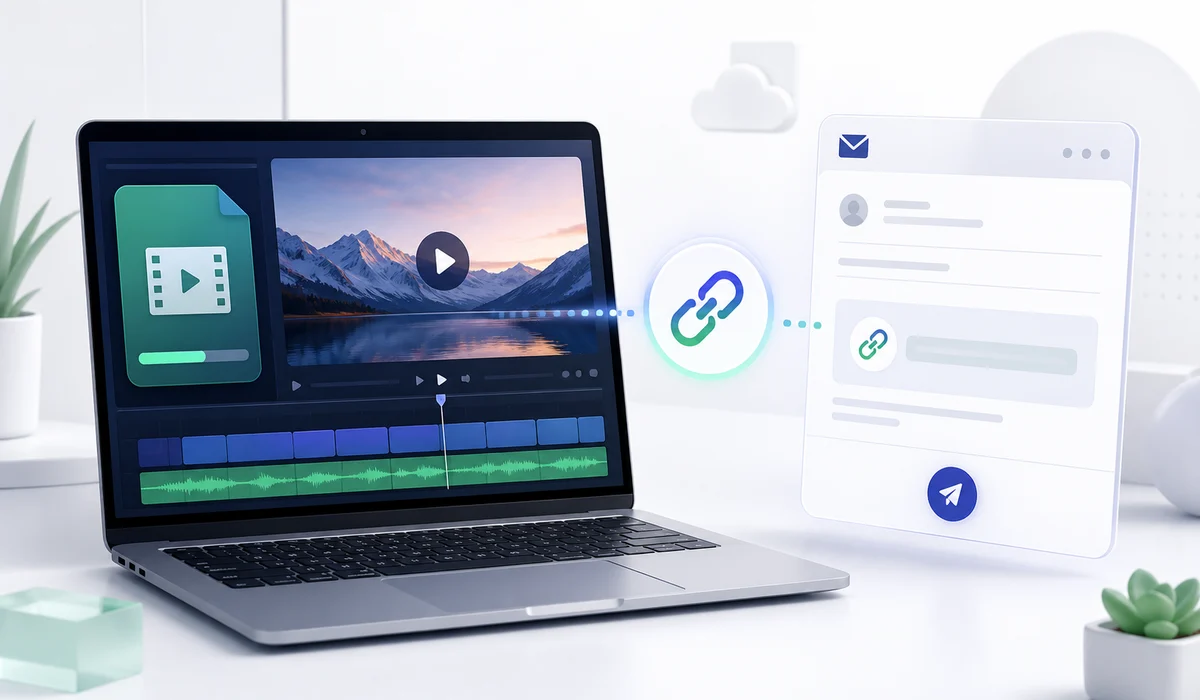
Sending a video through email seems simple enough until you look at the file size. Say you've just finished recording a six minute walkthrough for a client. The recording looks fine on your computer, but the exported MP4 is 150 MB, and Gmail won't accept it as a normal attachment.
Now you've got to decide what to do with the recording. You could compress it until it fits, though that's not particularly appealing if the video contains small text that your client needs to read. Or you could upload the original file somewhere online and send the client a link.
I'd lean towards the second option for a recording that size. There's no point spending time reducing the quality of a perfectly good video when the person receiving it only wants to watch it.
And you're not doing anything particularly unusual by sending a link. Gmail already uses a similar approach when attachments are too large, moving them to Google Drive and adding a link to the email.
Why your email won't accept a large video
Gmail gives personal accounts a 25 MB attachment limit. That might be enough for a few photographs or a small document, but it doesn't leave much room for video, especially if you've recorded your screen at a high resolution.
Outlook.com has a 25 MB limit for the entire message, including its contents and attachments. Yahoo Mail also documents a 25 MB total attachment limit. If you're using an email account provided by your workplace, its limits may be different.
| Email service | Documented limit | What happens with a larger file |
|---|---|---|
| Gmail | 25 MB for personal accounts | Gmail can upload the larger attachment to Google Drive and insert a link. |
| Outlook.com | 25 MB for the entire message | You can share larger files using OneDrive. |
| Yahoo Mail | 25 MB total attachment limit | You'll need to reduce the file size or share it another way. |
These limits are described in the official help pages for Gmail, Outlook.com and Yahoo Mail.
The 150 MB recording from our example is six times Gmail's normal attachment limit. That's a lot of quality to potentially give up just to send a six minute demonstration.
Of course, not every recording needs to remain at its original size. If a 28 MB video contains a minute of unnecessary footage, removing that section might be enough to get it under the limit. You end up with a shorter video, and you can attach it normally.
It's different when nearly every part of the recording is important. Think about a software demonstration where the client needs to read menu labels or see exactly which settings you changed. Heavy compression could make those details difficult to follow.
In that situation, I'd leave the recording alone and send a link instead.
Getting a shareable link for your recording
A video saved on your computer doesn't automatically have a web address that other people can open. Even if you copy its file location and paste it into an email, that address only points to the file on your own device.
For example, C:\Videos\client-demo.mp4 tells your Windows computer where to find the recording. It doesn't give the person receiving your email access to it.
You need somewhere online to store the video. Once it's uploaded, the hosting service gives you a URL that other people can use to reach the file.
With the Media2URL video to link tool, you can upload supported recordings in MP4, MOV or WebM format. Select your file, complete the upload and copy the link you want to share. Just make sure the recording is within your account's upload limits.
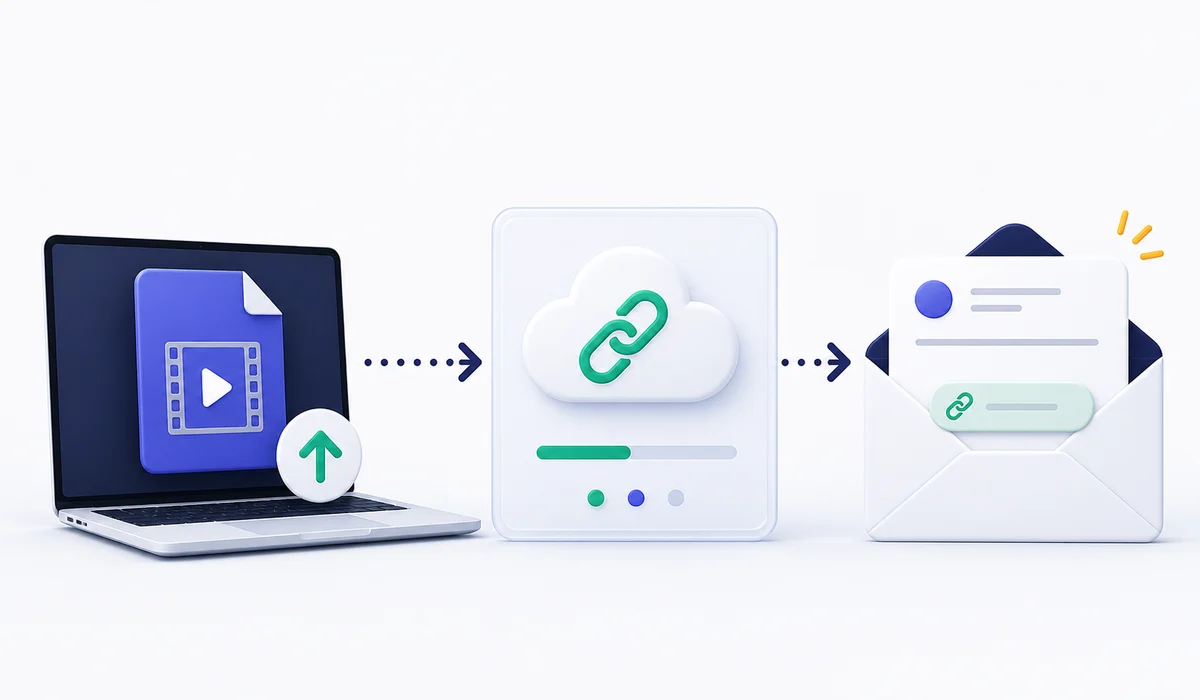
There's no need to upload the same video again every time you want to show it to somebody. As long as the hosted file and its link remain available, you can use the address in another email or share it with a colleague.
Which link should you copy?
Media2URL provides a direct URL for the hosted video and a separate share page. They aren't quite the same thing, and the distinction becomes useful when you start sharing recordings for different purposes.
Suppose the video is going to a client who wants to watch a demonstration of your latest website changes. I'd send the share page. It's a normal web page where they can open the recording without having to do anything technical.
A developer might ask for the very same recording because they want to add it to a website. In that case, the direct video URL is useful because it points to the actual hosted file. They can use that address in a compatible video player or another application that requires the video resource.
Our direct URL and share page guide covers the difference in more detail.
For a regular email, though, there's no need to complicate things. If all you're asking somebody to do is watch the video, send them the viewing page.
Your message could be as simple as this:
I've recorded the dashboard changes we discussed yesterday. The walkthrough is about six minutes long, and I've included the link below. Have a look when you're free and let me know if anything needs changing.
You don't have to explain where the recording is stored or why you've sent a link instead of an attachment. The person receiving the email can open it and watch the demonstration.
Should you compress the video before uploading it?
I wouldn't compress every video automatically. It depends on the file you're dealing with and whether making it smaller will actually improve anything.
An unusually large recording might contain several minutes you don't need. Perhaps you forgot to stop recording after finishing your explanation, or the video starts with a long wait while an application loads. Removing those sections makes sense regardless of how you intend to share the file.
You can also try modest compression when the recording is only slightly above your email's attachment limit.
But take a 300 MB video showing someone how to use a complicated dashboard. The viewer needs to read what's on screen, and you can't remove much footage without losing part of the explanation. Reducing it all the way to 25 MB may not give you a result worth sending.
If you do compress a screen recording, open the finished video and check the smaller details. Text that was perfectly readable in the original might look blurry after compression. It isn't always obvious until you play the video at its normal viewing size.
Media2URL has video tools for supported tasks such as trimming and compression. They're useful if the recording needs some work before you share it.
For a video that's already finished and looks good, however, uploading it without unnecessary changes is a perfectly sensible option.
What if you want the video to play inside the email?
A link works well enough for most ordinary emails, but you might prefer to show a video player directly inside the message, particularly when you're sending a newsletter or promoting a product.
Unfortunately, embedded video doesn't work consistently across email applications. Some email clients can't display it at all, while others may remove the code needed for playback.
Mailchimp deals with this by showing a thumbnail with a play button instead of relying on an embedded player. When the reader clicks the thumbnail, the video opens in a browser. Wistia uses a similar approach for videos shared through marketing emails.
You can do something comparable if you're preparing an email campaign. Take a suitable thumbnail from your recording, add a play button if needed and link the image to the hosted video. People can see that there's a recording to watch before they click.
For a normal conversation with a client, I'd usually skip the thumbnail.
Imagine you're sending a recording to demonstrate a checkout error. The client doesn't necessarily need an attractive preview image. They need to know where the problem appears and what you want them to check.
A message such as "Here's the recording of the checkout problem. The error appears at around 2:10" tells them far more than a video thumbnail without any explanation.
The link can sit directly below that sentence. There's nothing wrong with keeping it simple.
A link that opens for you might not open for anybody else
You've uploaded the recording and checked the URL. Everything looks fine, so you send it to your client. A little later, they reply that they can't open the video.
The problem could be your sharing permissions.
When you're signed into the account that owns the recording, you may be able to open links that aren't available to other people. Testing the video in your usual browser doesn't necessarily tell you what your client will see.
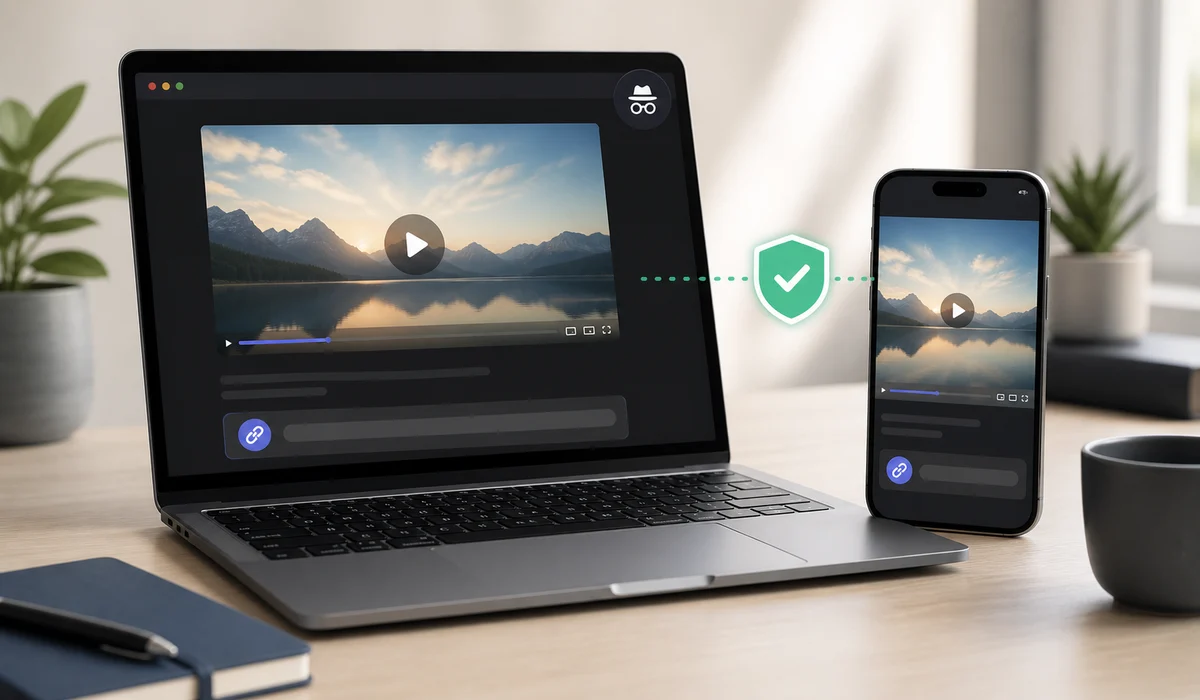
I find a private browser window useful for checking this kind of thing. Open the link there without signing into your hosting account. If you've chosen a public link, the video should open without requiring access to your personal account.
It's worth trying the link on a phone as well, particularly if your client is likely to read the email on mobile. You don't need to test it on every possible device. Just make sure the viewing page works properly on the kind of screen your recipient is likely to use.
And while you're checking the link, take another look at the recording itself.
A screen recording can capture things you didn't intend to share. Maybe a notification appeared halfway through your demonstration. Perhaps another browser tab was visible for a moment, or you left a customer's email address on screen.
These details are easy to miss while you're concentrating on recording a tutorial. Watch the finished video before uploading it, especially if it contains information from an internal dashboard or a client's account.
The link's access settings need similar attention. A public product demonstration might be fine for anybody to watch. A recording containing private business information is a different story.
Media2URL offers different access controls for supported sharing workflows. Our public and private links guide explains how they work.
Keep in mind that hiding a download button doesn't make a video completely secure. Someone who can watch a recording may still be able to save it using other methods. If the video contains confidential information, controlling who can access it is much more useful than simply hiding the download option.
Where video links are useful, and where attachments are still fine
Client walkthroughs are probably one of the most obvious uses for video links. A designer might record a website revision, while a developer could use a short video to demonstrate how a bug was fixed. Instead of writing a lengthy explanation, they can show the work and send the recording to the client.
Support conversations are another good example.
Some problems are awkward to describe in writing. You might spend several emails explaining exactly where an error appears when a forty second screen recording could show the entire problem. Once the recording has a shareable URL, you can refer to it throughout the conversation without attaching the same video again.
The same approach works for recorded team updates. People can watch the recording when they have time, and anyone who joins the discussion later can use the link if they have permission to access it.
If a walkthrough only needs to remain available during a review period, the temporary file link workflow lets you choose an available expiry option when creating it.
A product demonstration is slightly different. Someone considering your software may simply want to see how a feature works. There's no particular reason for them to keep a copy of the MP4 on their computer if watching it online is enough.
Still, I wouldn't turn every small video into a hosted link.
Suppose somebody asks you to send an 8 MB recording because they need to edit the original file. You can attach it normally, and they'll have the video on their computer as soon as they download the attachment.
There's no benefit in introducing another service when an ordinary attachment does the job.
Company rules are worth checking too. Some workplaces don't allow employees to upload internal recordings to external hosting services. If your company requires you to use its own storage system, follow that requirement even if another tool would be more convenient.
What you choose really depends on what happens after the email arrives. Someone who only needs to watch a short explanation has different requirements from someone who needs the original video for editing.
Before you send the email
The video is uploaded. You've got the link, and the email is ready.
Open the URL once more to make sure you've copied the right one. If you're sharing a public viewing page, check that it works outside your own account. For a private recording, confirm that the intended recipient has the access they need.
There's also no reason to make the recipient guess what's behind the link. Mention what the recording shows and, if it's a longer video, point them towards the part they need to watch.
That's usually enough. The recording stays online, your email stays small, and the person receiving it has a straightforward way to watch the video.
If the original file already fits within the email limit and the recipient needs a copy, attach it normally. Otherwise, a hosted link lets you share a much larger recording without reducing its quality just to satisfy an attachment limit.
Frequently Asked Questions
How do I send a video that's too large for Gmail?
Personal Gmail accounts allow up to 25 MB of attachments. When you exceed that limit, Gmail can upload the larger file to Google Drive and add a link to your message. You can also upload the recording to a suitable video hosting service and email its viewing URL.
Is it better to compress a video or send a link?
If a video is only slightly over the attachment limit, a little trimming or compression might be all you need. For much larger recordings, a hosted link is often more practical, particularly if reducing the file size would make important details difficult to see.
Can someone watch a video directly inside an email?
Some email clients support embedded video, but the results aren't consistent. Email marketing services commonly use clickable thumbnails that open the hosted video in a browser instead.
Does the person receiving my video link need an account?
It depends on your hosting service and the sharing settings. A public viewing link generally doesn't require the recipient to sign into your account, while a restricted link may require authentication. Test the link outside your own account before sending it to someone else.
Sources and further reading
The email attachment limits mentioned in this article are documented by Google, Microsoft and Yahoo. Google's Drive attachment guide also explains how sharing permissions work when you send files through Gmail.
For information about video playback in emails, see Mailchimp's video guide.