
Media2URL
Direct media links for daily workflowsLast updated: July 2026

Upload media and create links you can use anywhere

Media2URL helps you host images, videos, GIFs, PDFs, audio and safe files, then copy direct URLs, share pages, embed codes and QR codes from one upload. It is made for people who need files to work inside websites, documents, support chats, client messages and online tools.

No-code upload flow
Direct URLs and share pages
Expiry controls
Private link options
Upload mediaImages, videos, GIFs, PDFs, audio and supported files

Drag and drop files or paste from your clipboard

Uploaded files can be organised, edited and shared from your dashboard.

Quick Answer

What does Media2URL do?

Media2URL lets you upload media files and turn them into shareable links. You can upload images, videos, GIFs, PDFs, audio and safe files, then copy a direct URL, share page, HTML code, Markdown code, BBCode or QR code based on the file type. You can also choose privacy and expiry settings before the link is created.

This helps you use one uploaded file across websites, documents, support chats, client messages and internal workflows.

How Media2URL works from upload to managed asset

The process starts with an upload and continues inside your workspace. You can choose access rules, create the required link format, organise the asset and use the available editing or conversion tools later.

The original upload remains inside your media library. This allows you to update the file, create another version or change its sharing settings without starting the complete workflow again.

Stage 1: Input
Upload & Migrate
Images, Videos & PDFs
Drag, Drop & Clipboard
Remote URL Migration
Stage 2: Storage
Organise & Store
Secure Cloud Storage
Nested Folder Trees
Workspace Roles & Logs
Stage 3: Processing
Edit & Process
Layer-Based Image Editor
PDF Split, Merge & Organize
Video Trim & GIF Creator
Stage 4: Sharing
Deploy & Share
Direct URLs & Share Pages
HTML, Markdown & QR Codes
Password & Expiry Locks
Stage 5: Actions
Track & Rollback
Same-URL File Replace
Version History Rollback
Views & Country Analytics
Upload Once → Generate URL → Process Laterall assets remain managed from the same workspace login

Keep Files Organised After Upload

A batch upload can create many links within a few minutes. Without folders and search tools, those assets can become difficult to find after the first use.

Media2URL lets you place uploaded files inside folders, apply tags, bookmark important assets and move several items together. Each workspace keeps its own library, members and settings.

Nested Folders

Create folders for clients, websites, campaigns or product lines. Files can be moved between folders without uploading them again.

Search and Tags

Find assets through filenames, tags and supported media filters instead of checking old messages or upload history.

Bookmarks

Mark important files or folders so they remain easy to reach from the dashboard.

Bulk Actions

Select several assets and update their folder, tags, visibility or expiry settings together.

Custom-Domain Media Links

Connect one eligible domain or subdomain and use it for supported Media2URL links after verification. The current workflow requires the Business plan, DNS records managed at your domain provider and a successful ownership check.

This is useful for agencies, client portals, product assets and branded download workflows. On the current plan configuration, the Business workspace must add the hostname, publish the requested DNS records and pass verification before eligible links use it.

Business plan and DNS verification
Use the verified hostname for eligible links
Manage files from the same workspace
Manage eligible assets in the same workspace

Bulk Media Upload & Export

Upload several images, documents or supported media files in one batch. Media2URL processes each file and shows its upload status, file type, size and available link formats inside one results table.

You can copy individual results and use the output formats shown for each file. Before starting the batch, you can also choose the destination folder, visibility and expiry settings where those options are available.

Drag and drop batch uploader
Choose destination folder beforehand
Copy completed outputs individually
Review each result separately

Files, folders and settings remain separated between workspaces. This helps you manage different clients, teams or projects without mixing their assets inside one library.

View All Features

Your file does not stop at the URL

A direct link may be the first thing you need after upload, but the same file may later need a new size, another format, updated access rules or a different version. Media2URL keeps the asset inside your workspace so you can continue working with it.

Images can be edited from the browser. PDFs can be merged, split or organised. Supported videos, GIFs and audio files can also be trimmed, compressed or converted without moving them to another service.

Media Library

Keep uploaded files inside folders and searchable asset views.

Image and PDF Tools

Edit images and complete common PDF tasks from the same workspace.

Video, GIF and Audio Tools

Trim, compress or convert supported media files.

Team Workspaces

Keep projects separate and give members the access required for their role.

Acme Marketing Workspace
JD
AM
+2
launch-banner.webp
1.2 MB
product-demo.mp4
18.4 MB
client-guide.pdf
4.5 MB
voice-note.mp3
850 KB
Product principles

How we think about reliable media links

Media2URL was designed around a practical observation: uploading a file is only the beginning of its digital asset lifecycle. A useful media platform also has to account for origin storage, HTTP behaviour, CDN delivery, access policy, version history, and the way an asset moves through publishing, support, client, and developer workflows.

These principles guide how we approach link management, file distribution, media optimisation, and digital asset management. They also explain why the product includes diagnostic and governance tools alongside the uploader.

A browser-open test is not enough

A public URL can open in a tab and still fail as an embedded asset because it returns HTML, follows an unstable redirect, uses the wrong content type, or includes an expiring parameter. Link Doctor exists to inspect that response path, including redirects, headers, MIME type, and cache-related behaviour.

Migration must respect the source

A migration tool should retrieve only files that are already publicly accessible. It should not bypass authentication or private permissions. Each source needs its own result so the owner can distinguish an imported asset from a redirect, blocked file, or unsupported response.

A stable URL needs version history

Replacing a file should not always mean changing every place where its URL is used. Keeping the asset record separate from the active stored version supports safer updates, rollback, audit history, and a more dependable asset pipeline.

File governance starts at upload

Visibility, expiry, ownership, retention, and deletion are not cleanup details. They determine who can use a file, how long it remains available, and what happens when the asset reaches the end of its useful life.

Founder-led product and infrastructure work

The product decisions above come from hands-on work across search behaviour, user research, cloud storage architecture, media pipelines, and delivery verification. Our founders document that reasoning so visitors can evaluate how Media2URL approaches the problems behind the feature list.

Who uses Media2URL?

Media2URL is useful for people who need more than a one-time upload. A file may first need a direct URL, but the same asset may later need a new version, another format, restricted access or a place inside a client workspace.

The platform supports both quick sharing and ongoing media management. You can create a link, keep the file inside your library and continue working with it from the dashboard.

WEBSITE CONTENT

Bloggers and Website Owners

For hosted images, downloads and reusable content assets

A blog editor may ask for an image URL instead of a file stored on your laptop. Media2URL lets you upload the image, copy the direct link and use the same asset inside HTML, Markdown or a content management system.

The file can remain inside a folder for that website. You can replace it, create another size or update its sharing settings later.

BLOG ASSETarticle-banner.webp
Example output
YOUR_GENERATED_DIRECT_URL
UploadCopy URLOrganise by Website
DEVELOPMENT WORKFLOWS

Developers and Makers

For documentation, previews and hosted test assets

A developer may need a hosted image, sample file or media URL for documentation, a test page or a product preview. Media2URL provides direct links and ready-to-copy formats without requiring a separate storage setup for every small asset.

Project files can stay inside a dedicated workspace or folder. This helps you keep test assets separate from production media.

<img src="YOUR_GENERATED_DIRECT_URL" />
![Preview](YOUR_GENERATED_DIRECT_URL)
UploadCopy Embed FormatKeep Inside Project Folder
CUSTOMER SUPPORT

Support Teams

For screenshots, reports and controlled file access

A support team may need to send screenshots, PDFs, logs or short media files during a customer conversation. Media2URL helps the team create a preview page and choose expiry or password protection where the file should not remain available forever.

Issue files can stay inside a support workspace or folder. Team members can find them again without checking old chats.

issue-details.pdfPrivate access
Expires in 24 hours
UploadSet AccessShare in Support Chat
CAMPAIGN ASSETS

Creators and Marketers

For campaign media, approvals and version updates

Campaign assets may need several rounds of review before publication. Media2URL lets you upload the file, edit supported media, save another version and share a preview page with the client or team.

The final asset can remain in the same campaign folder. You can reuse the direct URL or create another sharing format based on the next step.

campaign-banner.webpVersion 3
Share page ready
UploadEdit VersionShare for Review
DAILY BUSINESS FILES

Small Businesses

For product media, documents and customer sharing

A small business may need to share price lists, service images, PDF documents or product media with customers. Media2URL provides a simple way to upload the file and create a usable link without setting up a separate storage system.

Folders can keep product files, service documents and customer resources separate. Branded domains can also be used where supported.

Product Cataloguecatalog.pdf
Share link copied
UploadPlace in Business FolderShare with Customer
DOCUMENT SHARING

Students and Office Users

For forms, assignments and internal documents

A form, email or office system may ask for a file link instead of a normal attachment. Media2URL helps you upload a PDF, image, audio file or supported document and copy a usable URL.

The uploaded file stays available in your account so you can rename it, move it or remove access later.

assignment.pdf
Direct link ready
UploadCopy LinkSubmit or Share

Media2URL can support a quick one-time link or a longer media workflow. The same uploaded asset can remain inside your account for organisation, editing, controlled sharing and later reuse.

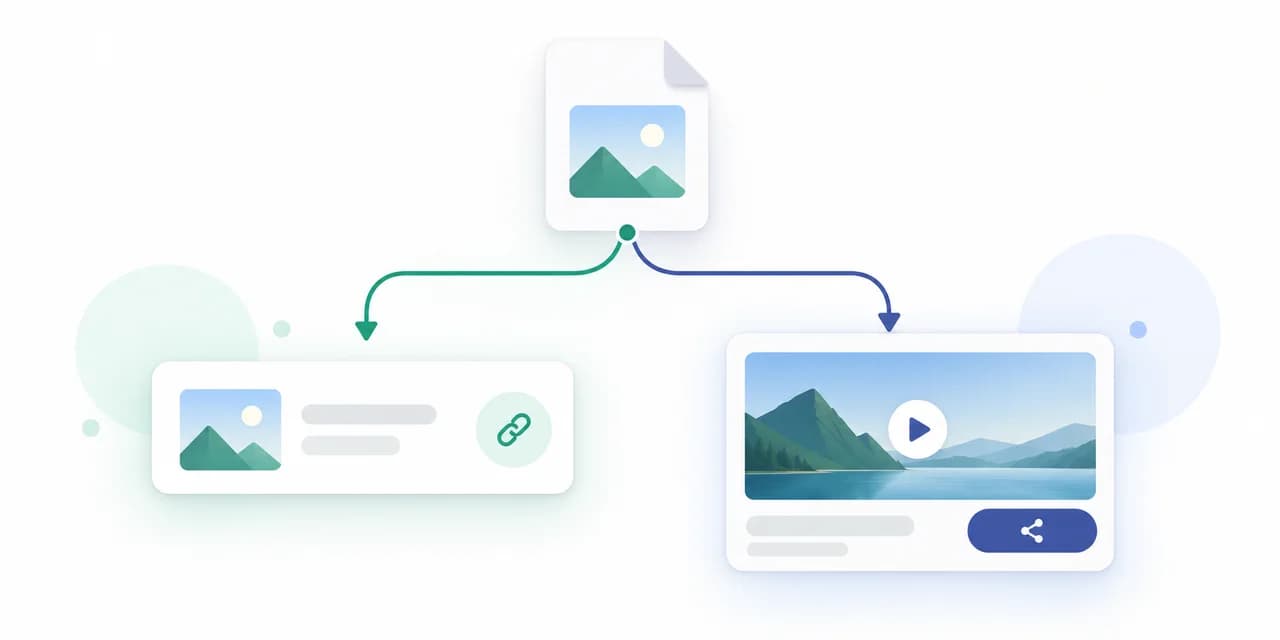
Direct URL or Share Page: Choose the Right Output

Not every file should be shared through the same type of link. A website or application may need the file itself, while a client or teammate may need a page that includes a preview and clear actions.

Media2URL can create both outputs from the same upload where supported. You can choose the format based on how the recipient or system will use the file.

DIRECT FILE LINK

For websites, applications and code embeds

A direct URL points to the actual uploaded file. It does not open a preview page. This is required when another editor or app needs the real media path, like an HTML tag, a Markdown editor, a client portal database or an online store field.

YOUR_GENERATED_DIRECT_URL
Points to the raw file
No wrapper or ads
Works in HTML & Markdown
Direct media delivery
HOSTED PREVIEW PAGE

For clients, team reviews and general sharing

A share page opens a responsive browser layout where the file is presented with more context. It is useful when sending media to a person because they can preview images, play videos, browse PDF pages, check details and choose download actions.

YOUR_GENERATED_SHARE_PAGE_URL
Browser preview wrapper
Download & Copy buttons
File metadata shown
File preview
EMBED FORMAT

For content editors and documentation

Copy ready-to-use HTML, Markdown or BBCode where the file type supports it. This saves you from writing the complete embed syntax manually.

<img src="YOUR_GENERATED_DIRECT_URL" alt="Banner">
QR CODE

For mobile access and printed material

Create a QR code for the hosted file or share page. Use it inside documents, posters, packaging or offline material where typing a URL is not practical.

Scan to open the hosted file

Which output should you choose?

Your requirementRecommended output
Place the file inside HTML or MarkdownDirect URL or embed code
Send a file to a client or customerShare Page
Add access from printed materialQR Code
Provide a direct download destinationDirect URL

You do not need to upload the same file again for every output. Media2URL can prepare several link formats from one hosted asset where the selected file type supports them.

One workspace for the supported media workflow

The Media2URL workspace connects media hosting, file organisation, processing tools and controlled delivery. Files remain inside your account so you can edit supported images, organize assets into folders, invite team members and update visibility settings.

Create separate workspaces and invite members with Owner, Admin, Editor or Viewer access. Activity logs and usage limits help you keep your projects, clients and teams separated without mixing libraries.

Upload and Import

Add files from your device, clipboard or supported external URLs. Bulk workflows can prepare several assets with shared destination and access settings.

Image UploadVideo UploadGIF UploadPDF UploadAudio UploadFile UploadBulk UploadImport from URL

Files enter the selected workspace and remain available inside the media library.

Organise and Collaborate

Keep files inside folders, collections and isolated workspaces. Team members can receive access based on the role they need for the project.

Media LibraryNested FoldersSearch and TagsBookmarksBulk ActionsWorkspacesTeam MembersRole Permissions

Client, campaign and product assets remain separated without sharing one account login.

Edit and Process

Open supported media inside its own workspace and complete common editing or conversion tasks without downloading the file first.

Image EditorPDF ToolsVideo CompressionVideo TrimmingGIF ToolsAudio TrimmingFormat ConversionFile Versions

Processed files can be saved as another version or a new asset.

Share and Control

Choose the output and access rules that match the destination. Links can be updated later from the same asset record.

Direct URLShare PageHTML and MarkdownQR CodePublic and UnlistedPrivate AccessPassword ProtectionLink Expiry

Custom domains, signed delivery and download controls can be used where supported.

Marketing Team Workspace
Plus Plan
JD
Workspace > Marketing
launch-banner.webp
Active
campaign-video.mp4
brand-guide.pdf

Media Library

Browse uploaded images, videos, PDFs, GIFs, audio and other supported files from one searchable asset view.

Folders and Collections

Group files by project, client, website or campaign. Shared folders and collections can keep related assets together.

Workspaces and Members

Create separate workspaces and invite members with Owner, Admin, Editor or Viewer access based on their role.

Edit and Process

Open supported files inside image, PDF, video, GIF or audio tools and save the result as a new version or asset.

Link and Access Controls

Update visibility, expiry, passwords, download behaviour and other supported sharing rules from the asset settings.

File Versions

Replace the active file while keeping the supported URL or save another version for review and later use.

Analytics and Usage

Review file activity, storage, bandwidth and plan limits from the dashboard. Available analytics can vary by plan.

Activity Logs

Review uploads, renaming, role changes, member actions and other recorded events. Logs can be exported as CSV.

Some workspace, processing, analytics and team features depend on the selected plan. Current limits are shown on the Pricing page and inside your account usage area.

Visible Before Upload

Security, Trust and Legal

File hosting and media processing need clear rules because uploaded content can be shared across websites, client projects and public links. Media2URL provides access settings, workspace permissions and visible policy controls so you can understand how each asset is stored and shared.

The platform also provides abuse reporting, DMCA handling and account-level controls. These protections work alongside your own responsibility to upload only files that you own or have permission to use.

Upload Rules and Abuse Controls

Upload policies are shown near the uploader widget so prohibited or unsafe content is not treated as normal platform use. Visitors can also report files that may violate platform rules or legal rights.

Acceptable Use → Abuse Report → Review

Access and Link Protection

Choose public, unlisted, private or password-protected access based on the asset. Expiry periods, download rules and other supported controls can also be applied before or after sharing.

Visibility → Expiry → Link Access

Workspace Roles and Activity

Workspace owners can invite members and assign Owner, Admin, Editor or Viewer access. Activity logs record supported actions such as uploads, renaming, role changes and member invitations.

Member → Role → Activity Record

Privacy and Data Controls

Privacy, retention and deletion information is available through the linked policy pages. Workspace deletion and file removal should follow the platform’s stated retention and storage behaviour.

Privacy → Retention → Deletion
Workspace isolation
Role-based permissions
Expiring invitation links
Activity log export

Upload only files you are allowed to use. Media2URL should not be used to host content that violates another person’s privacy or intellectual property rights.

Removing an asset or workspace may also remove its hosted files and generated versions. Temporary technical records or backups may remain for the period described in the Data Retention policy.

Popular Sharing Tools

Open a tool based on the file or task you have right now. The public upload tools create hosted links, while the editing and processing tools help you prepare the asset before it is shared.

Files created through supported tools can remain inside your Media2URL account so you can organise, update or reuse them later.

Looking for another media action? Open the complete Tools directory to browse all available upload, conversion and diagnostic tools.

View All Tools
PLANS FOR INDIVIDUALS AND TEAMS

Start with media links and add more tools as your work grows

The free plan covers basic media uploads and link creation. Paid plans add higher limits, media processing, private sharing, workspace controls and team features.

The homepage shows the main differences between plans. Storage, bandwidth, processing limits and full feature availability are listed on the Pricing page.

Free

A strong free plan for raw image, GIF, PDF, and file URLs.

$0free
  • 2 MB optimized image, GIF, PDF, and file uploads
  • Raw /free/ downloadable media URLs
  • Expiry options from 1 day to 1 year
  • HTML, Markdown, BBCode, QR, and delete link

Plus

For regular users who need larger uploads, private links, and no ads.

$5/mo
  • 100 MB media uploads
  • Video hosting up to 100 MB
  • 25-file batch upload
  • Private links & granular access controls
Popular

Pro

The main plan for creators, marketers, bloggers, and support teams.

$9/mo
  • 256 MB image, GIF, PDF, and file uploads
  • Video hosting up to 500 MB
  • 100-file batch upload
  • Permanent upload history

Business

For higher-volume teams that need larger uploads, more storage, and priority support.

$29/mo
  • 1 GB image, GIF, PDF, and file uploads
  • Video hosting up to 2 GB
  • 250-file batch upload
  • Higher monthly upload allowance

Need complete limits for storage, bandwidth, file size, processing and team members?

Compare All Plans

Frequently asked questions

Find quick answers about uploads, media tools, workspaces and sharing controls.

Media2URL is a media link hosting platform that helps you upload images, videos, GIFs, PDFs, audio and other supported files. You can turn each upload into direct URLs, preview pages or embed formats. This is useful when a website, document, support chat or customer reply needs a link instead of an email attachment.
Yes. Media2URL can generate direct media URLs for supported uploads. A direct URL points to the raw file path, making it compatible with websites, content editors, Markdown files, HTML tags or database fields. You can also generate share-page links when you want a hosted preview page with file details.
A direct URL links to the raw media file itself. This is required for systems, HTML elements or Markdown files that need the direct asset path. A share page opens a responsive browser layout containing a file preview, metadata and download options. This wrapper is recommended when sharing files with people.
Yes. You can choose to apply expiry settings to your media files before or after you upload them. This is useful for temporary screenshots, client approvals, support files or internal records. The hosted link will stop opening the asset once the selected expiry time or view limit is reached.
Yes. Password protection can be applied to files and folders to restrict access. This helps when sharing sensitive documents, private mockups or client files. Visitors must enter the correct password to open the share page or download the file, ensuring your assets remain protected from public access.
Yes. Media2URL supports images, videos, PDFs, GIFs, audio and safe files based on your plan limits. This lets you manage different media formats from the same workspace. You do not need to configure separate hosting tools for images, documents or media clips when sharing them with clients.
Yes. You can manage and delete files from your dashboard. Deleting an asset removes the file from our storage and makes the generated URLs inactive. We process file removals based on our data retention rules, which outline how backups and cached records are handled after deletion.
No. Media2URL supports quick image sharing as well as a workspace for supported uploads, library organization, image editing, PDF operations, selected media processing and team access. The available tools and limits depend on the current account and plan.

Still looking for an answer? Check the features directory for more details about uploads, media tools and workspace settings.

Explore All Features