

Product documentation
Show a short menu action, hover state or setup step inside documentation when a still screenshot would leave out the movement.
Best output
Direct GIF URL or Markdown
Sometimes a GIF is perfect for showing a quick reaction or a short action, but the place where you want to post it only accepts a URL. Saving the animation on your computer is not enough because that website cannot reach a file that only exists on your device. GIF to Link puts the supported animation online and gives it a GIF URL without turning it into a still image or video.
The movement stays part of the file, so the GIF can keep playing where remote animations are accepted. If another website only shows the first frame or refuses to load the GIF, check how that site handles remote images before assuming the URL itself is broken.
Drag and drop files or paste from your clipboard
GIF filesGuest mode · up to 2 MB per file · 10 uploads per day · sign in for more or upgrade for larger files
The completed result keeps the animated preview and the available outputs in one place. The result panel shows the outputs currently supported by the GIF workflow. You can check that the file is the GIF you meant to share, then copy the direct media URL, share page, HTML, Markdown, BBCode, QR code or delete link shown for that upload.
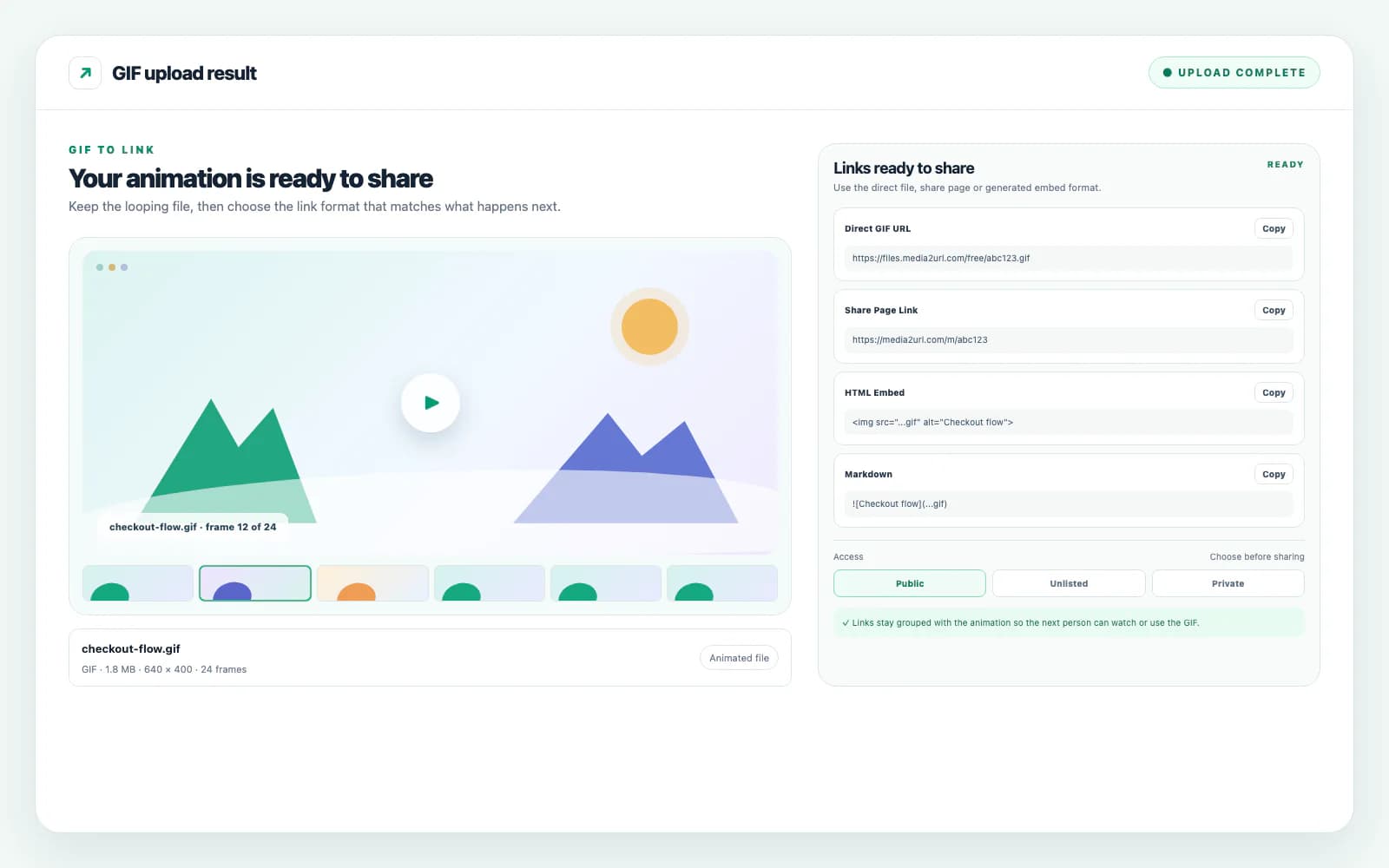
The direct GIF URL points to the hosted GIF file itself. That is the useful option when a website, CMS, forum or documentation system expects an image source rather than a Media2URL page.
The upload flow hosts the GIF you provide. It does not automatically compress the GIF, change its frames or convert it into a video as part of creating the link. If you need to prepare a smaller or different output first, use the available Media Processing tools.
The original animated file remains the source of the direct GIF response.
Visibility and expiry choices are shown by the uploader according to the current account.
https://files.media2url.com/free/abc123.gif Copyhttps://media2url.com/m/abc123 Copy<img src="...gif" alt="Checkout flow"> Copy Copy[img]...gif[/img] CopyShare page QR Copyhttps://media2url.com/delete/abc123 CopyCopy the format that matches the destination. The direct URL points to the animated GIF file itself.
The useful output depends on what happens next. A direct GIF URL belongs in an image field or markup, a share page is easier for a person to review, and the generated embed formats save you from rebuilding the syntax by hand.
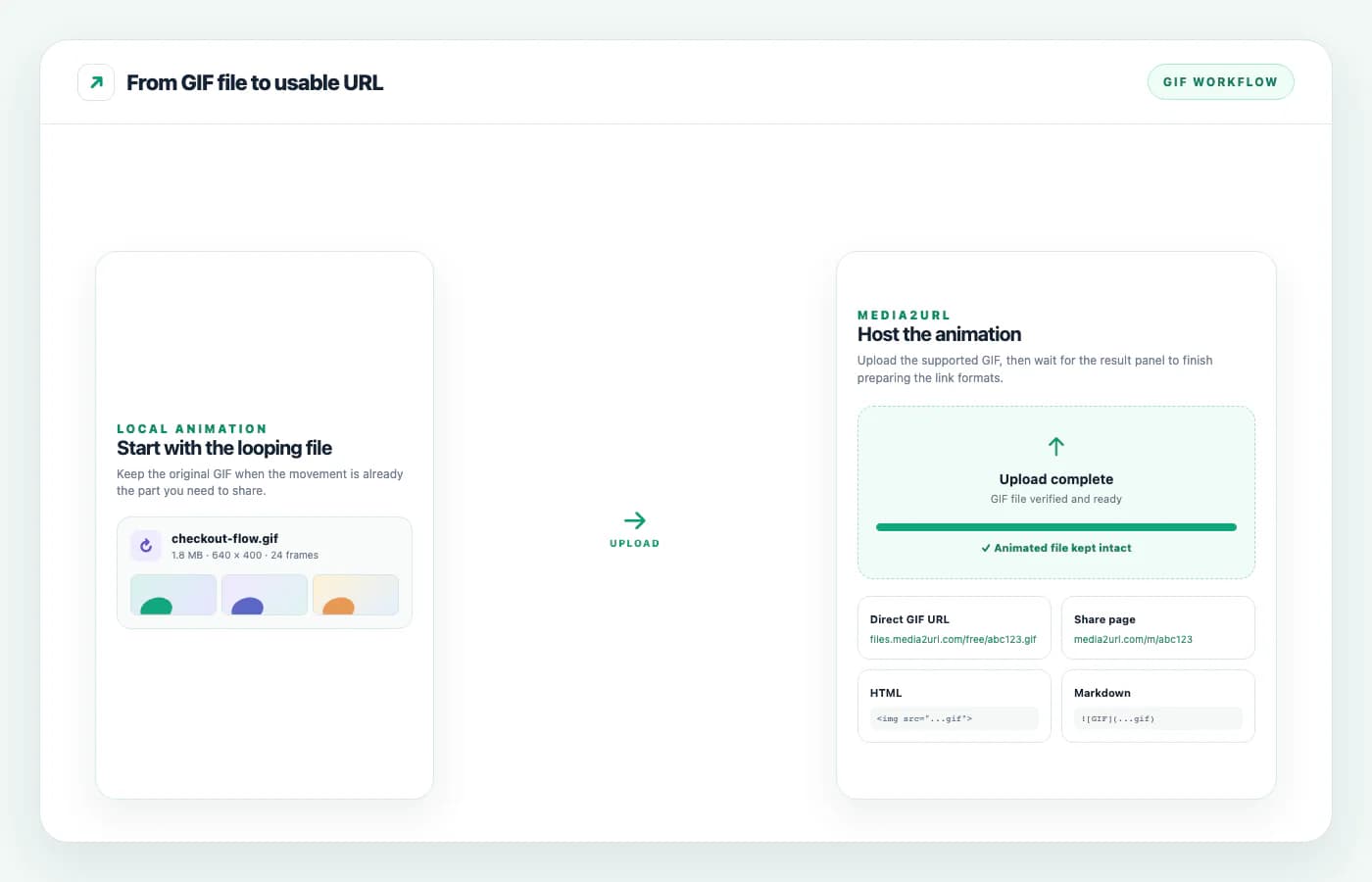
A GIF link is most useful when the animation needs to move from one place to another without another file attachment. The next destination determines whether you should copy the direct file URL, a share page or an embed format.
Show a short menu action, hover state or setup step inside documentation when a still screenshot would leave out the movement.
Best output
Direct GIF URL or Markdown
Send the animation through a normal browser page when the other person only needs to watch it and comment on the moment being shown.
Best output
Share Page Link
Keep a short repeating interaction visible in the case context, while remembering that account information or unrelated tabs may still be visible in the original GIF.
Best output
Share Page or Markdown
Use the QR output when someone should open the hosted GIF or share page from another device or printed material.
Best output
QR Code
Create a short animation
A product moment, support example or announcement
Upload the original GIF
The upload flow hosts the animation you provide
Choose the next destination
Direct URL, share page or embed format
Check the final display
Confirm the destination preserves the animation
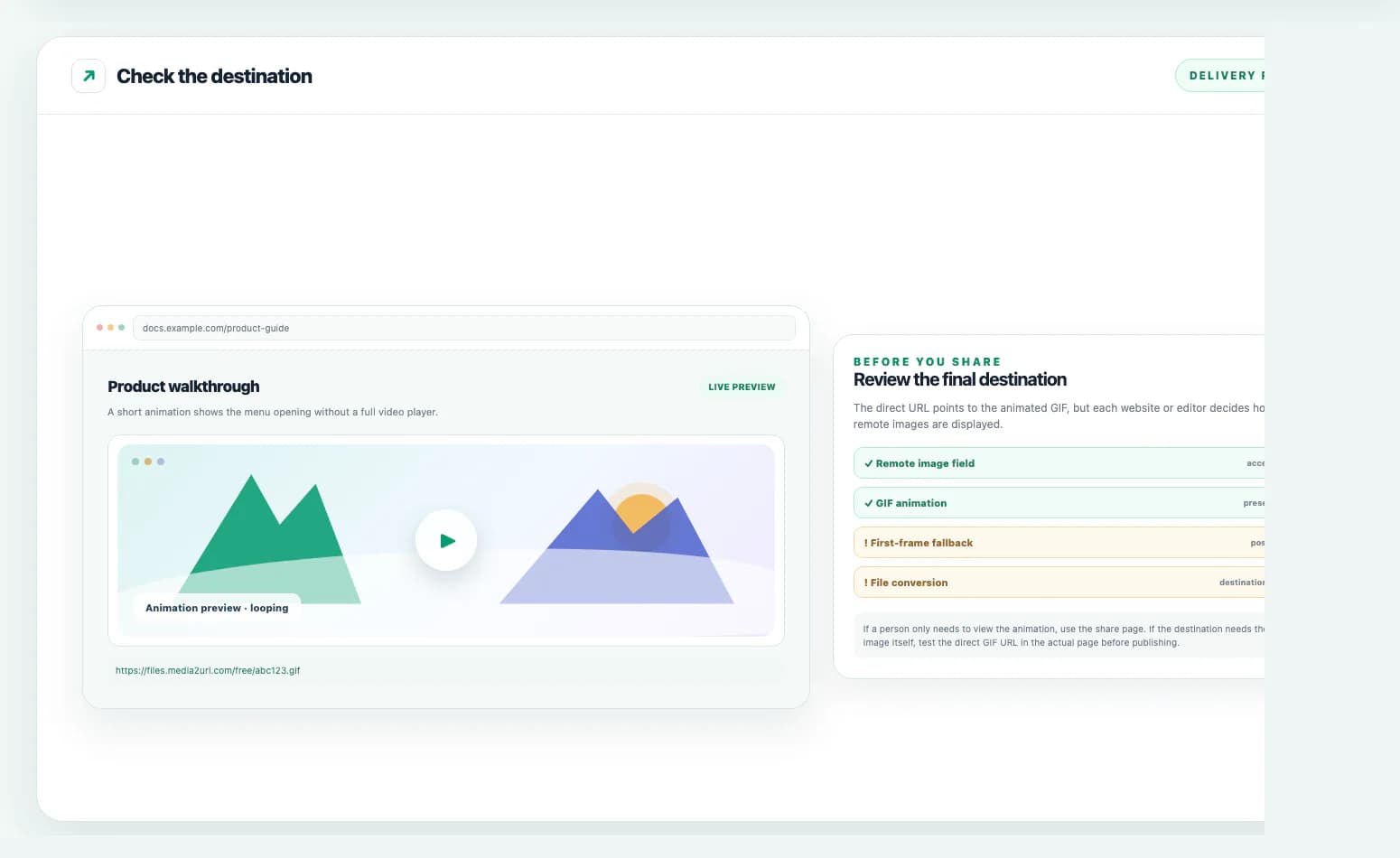
A direct GIF URL does not guarantee that every website, forum or editor will display the animation in exactly the same way. Some destinations block remote images, show only the first frame or convert uploaded media into another format.
Test the actual page where you plan to use the GIF. If the destination mainly needs a person to open and review the animation, the share page is often the clearer choice.
A GIF in public documentation may need an open link, while an animation sent only for review may not need to stay available indefinitely. The uploader shows the visibility and expiry choices available for your account. Private links and password protection can depend on the selected plan.
Public
For a destination that needs to load the animated file without a sign-in.
Unlisted
For a link that should be shared directly rather than broadly listed.
Expiry
For temporary review or support evidence where the available setting fits the case.
Keep the GIF in its animated form and upload that file through GIF to Link. Media2URL hosts the animation and gives it a GIF URL that can be used where remote GIFs are accepted. There is no need to turn it into a video or still image just to create the link.
Yes. This upload flow keeps the supported GIF as an animated GIF instead of turning it into a normal still image.
The place where you use the link still needs to support animated GIFs. Some editors or websites may change how remote GIFs are displayed.
Yes. Use the direct GIF URL where the destination expects an image response, or copy the HTML or Markdown output shown in the result panel. A share page is better when a reader should open the file in a browser first.
GIF uploads still need to pass the file checks. Guests can upload GIFs up to 2 MB with 10 uploads per day; sign in for more uploads or upgrade for larger files. The uploader shows the visibility and expiry options available for the completed link.
Yes. Upload the supported GIF and copy the direct GIF URL shown after the upload finishes. You can use that link where the website, forum or editor accepts remote animated images.
If the destination does not display the animation correctly, use the share page or check how that platform handles external GIF files.
A GIF works well for a short repeating action where sound is not needed. A longer demo, detailed walkthrough or clip with audio is usually better shared as a video instead.
If the file already exists as MP4, MOV or WebM, use Video to Link rather than converting it to GIF only for the sake of creating a URL. For a single still frame, use Screenshot to URL.
Select another specialized converter to create direct links or share pages for your files:
Upload an image and get a direct image URL or a share page.
Upload MP4, MOV, and WebM videos for direct stream links and browser player pages.
Create image links that expire after a short time, with customizable duration windows.
Capture screen frames or upload saved screenshots to get instant shareable links.