Media2URL
Video processing studio

Video processing suite: Trim, compress, convert and extract audio

A video often needs a small change before it is ready to share. You may only need to remove the first few seconds, reduce a large file, turn a short scene into a GIF or keep the audio without the video.

Media2URL brings these supported video-processing tasks into the same workspace as your hosted files. You can work with an uploaded video, review the available settings and save the result based on what you need next.

The workflow

Start with the video and choose what actually needs to change

You do not need to process a video in every possible way. Start with the problem you are trying to solve, then choose the tool that matches it.

A long screen recording may only need trimming, while a large upload may need compression. A short interface action might work better as a GIF, and a recorded interview may only need its audio track.

  1. 1

    Select a video from your library

    Open a supported video already saved in your Media Library or upload a new file. The available processing options depend on the video and your account.

  2. 2

    Choose the required operation

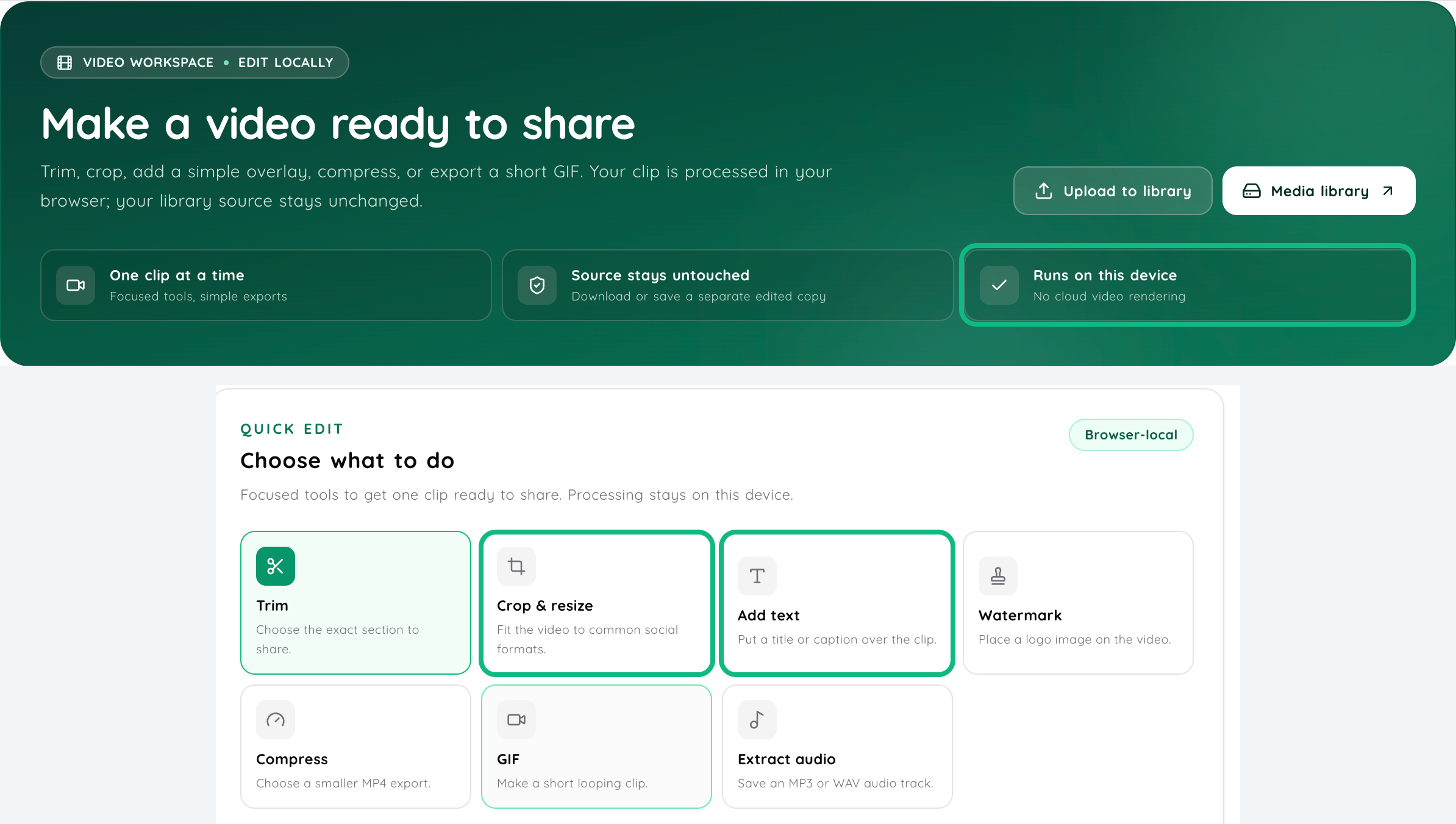
    Select from Trim Video, Compress & Transcode, Video to GIF, or Extract Audio based on the outcome you need.

  3. 3

    Review the available settings

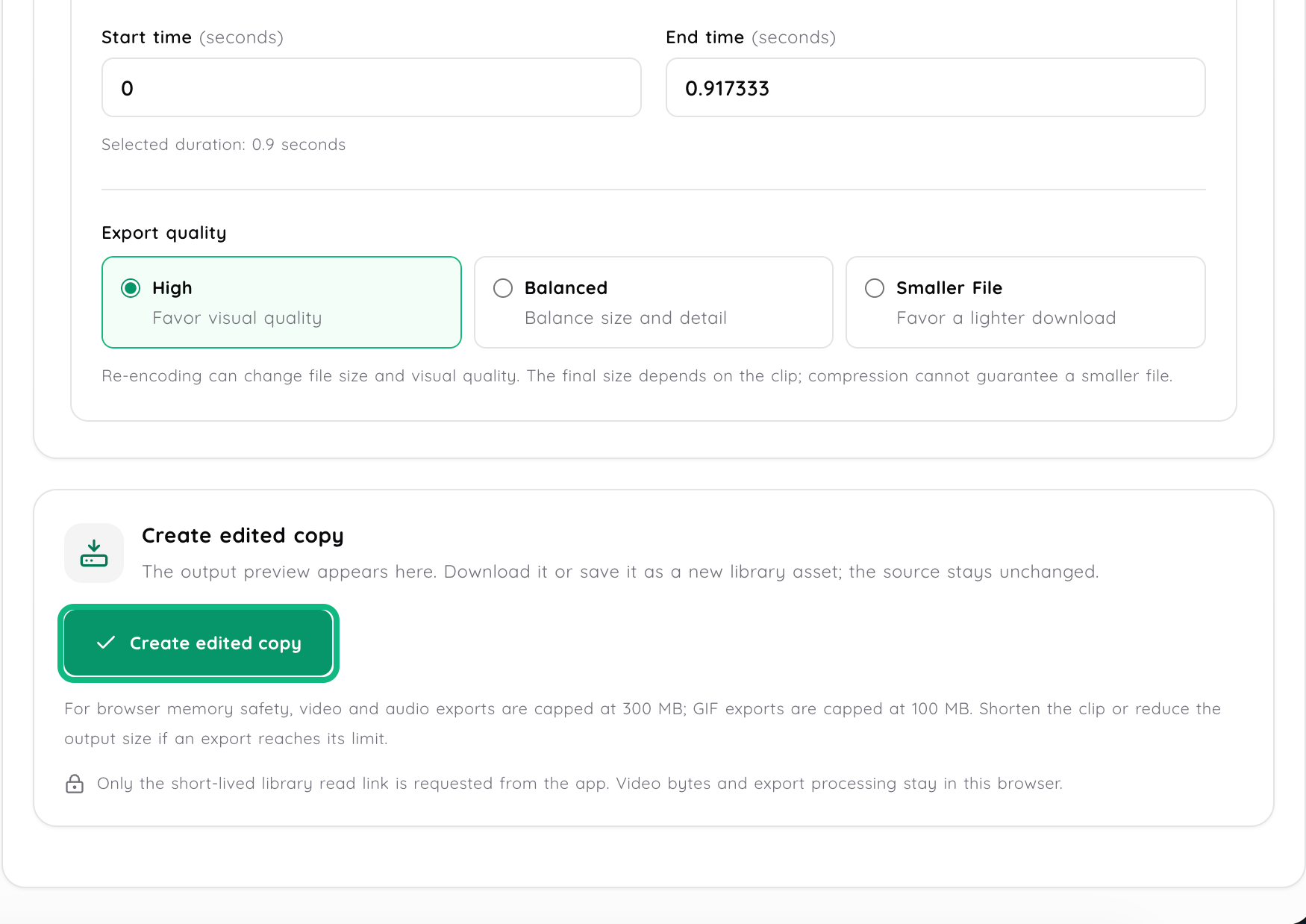
    Choose the start and end points or adjust the processing settings available for the selected operation. Preview the result where the tool provides that option.

  4. 4

    Save or replace output

    Save the processed result using the options available for that tool. Where supported, you may be able to keep it as a new library file, connect it as a new version or replace the source.

Focused utilities

Four video tasks that do not always need a full editor

A full video editor makes sense when you are changing a complete production. It can be unnecessary when the job is only to shorten a recording, reduce its size, create a quick GIF or separate the audio. The tools below are meant for those smaller processing jobs on supported videos already connected to your Media2URL workflow.

Video trimming

Remove an unwanted beginning or ending without turning the job into a full editing project. This is useful for shortening screen recordings, cutting waiting time from a demo or keeping only the section another person actually needs to watch.

Video compression and transcoding

A smaller video can be easier to upload, download and share, but reducing file size usually involves choices about bitrate, resolution or encoding. The right settings depend on where the video will be used and how much visual detail needs to be preserved. Use the compression controls available for the file instead of assuming the smallest output is automatically the best one.

Video to animated GIF

Turn a short part of a video into an animated GIF when a small repeating visual explains the action better than a still screenshot. GIFs can work well for showing a menu opening, a button state changing or a short interface sequence inside documentation.

Extract audio from video

Keep the audio track when the picture is no longer needed. This can be useful for recorded interviews, presentations or spoken clips that need to be shared as audio instead of sending the complete video.

Encoding fundamentals

Video compression is a trade-off, not a magic switch

Video files are large because they contain many frames over time, often alongside audio. Compression reduces the amount of data needed to represent that content, but the settings used during encoding affect the final size and visual result.

Resolution

Describes the dimensions of the video frame. Reducing it can lower the amount of image data that needs to be stored.

Bitrate

Affects how much data is used over time. Lower bitrate reduces file size, but pushing it too far can make visual loss noticeable.

Codecs & Containers

H.264 is a codec, while MP4 is its container. WebM is another container commonly using VP8 or VP9 codecs.

For a short support recording, a smaller file may be more important than preserving every detail. A product demo with small interface text may need a more careful balance because aggressive compression can make that text harder to read.

Format selection

A GIF is useful for short motion, not every video

An animated GIF works best when the visual is short and the movement itself carries the message. The GIF format is built around image frames rather than a normal video-and-audio playback experience.

If the clip needs sound, normal playback controls or a longer sequence, keeping it as video is usually more practical. Use Video to Link when the recipient should watch the original video format instead of converting the scene into a GIF.

Task boundaries

Extracting audio and transcribing speech are different tasks

Audio extraction keeps the sound from the video and saves it as an audio output where the tool supports that workflow. It does not turn spoken words into written text.

For example, extracting audio from a recorded interview can give you an audio file for listening or reuse. Creating a written interview transcript would require a separate speech-to-text process.

Decision framework

Choose the operation based on the problem

Trim the video

When the useful part is already there but the recording starts too early, ends too late or contains unnecessary waiting.

Compress or transcode

When the video is larger than needed for the way it will be shared or when another supported output is more suitable for the destination.

Create a GIF

When a short silent action should repeat inside documentation, a changelog or another page without requiring a full video player.

Extract the audio

When the spoken content matters but the visual part of the recording is no longer necessary.

Asset management

Keep the original when you may need it again

A compressed or trimmed copy solves the current problem, but it may remove information you need later. A shorter clip cannot restore the section that was cut, and a lower-resolution copy cannot recreate detail that was removed during processing.

Where the workflow gives you the choice, saving the processed result separately can be safer when the original video may still be useful. Replace the source only when you are sure the new version should become the file you keep. You can organize versions and source assets inside your Media Library.

Practical scenarios

Where video processing helps

Support bug reports

A five-minute screen recording may contain only a few seconds that show the actual problem. Trim the unnecessary setup so the person investigating the bug reaches the useful part faster.

Documentation and changelogs

Turn a short interface action into a GIF when the movement needs to appear directly inside documentation or a changelog. For longer demonstrations or clips that need sound, keep the content as video instead.

Podcast and audio repurposing

Extract the audio track from a recorded interview or presentation when the visual content is no longer needed. The audio can then follow the sharing options available for that output.

Client review and approval

A review recording may contain several minutes that the client has already seen. Trim the file to the section that changed, or create a smaller processed copy when the original is unnecessarily large for the review.

Processing boundaries

Video processing rules and quotas

  • Processing limits depend on your plan. File-size limits and available video operations can vary by account and workspace.
  • Larger videos can take longer to process. Duration, resolution and the selected operation can affect how much work the file requires.
  • Changing resolution is a choice, not a rule. Downscaling can reduce the amount of video data, but whether it makes sense depends on the destination and how much detail the video needs to retain.
  • Keep the source when it still matters. Where the tool offers separate save or replacement options, choose based on whether the original video will be needed again.
Questions about this workflow

Frequently asked questions

Compression is usually a balance between file size and visual quality. Reducing bitrate, resolution or changing the encoding can make the file smaller, but stronger compression can also make quality loss easier to notice. Use the settings available for the video based on where the result will be viewed rather than aiming only for the smallest possible file.

The available video tools work with the supported formats shown for your account and selected operation. MP4, WebM and MOV are among the formats referenced in the current workflow, but processing availability can still depend on the file and plan. Check the controls shown after selecting the video rather than assuming every operation is available for every format.

No. A GIF is an animated image format rather than a normal video container with an audio track. Use the GIF output when the visual movement is enough on its own. If sound matters, keep the clip as a supported video instead.

Audio extraction requires a supported video that contains an audio track and can be processed by the current tool. The available output and limits depend on the selected file and account. A silent recording does not contain an audio track to extract.

Trimming changes the part of the timeline you keep. Compression changes how much data is used to store or deliver the remaining video. A file can need one, both or neither depending on the problem you are solving.

No. MP4 is a media container, while H.264 is a video codec commonly stored inside MP4 files. WebM is also a container and commonly uses video codecs such as VP8 or VP9.

Only when the lower resolution still fits how the video will be used. A smaller frame can reduce the amount of data that needs to be encoded, but fine text or interface details may become harder to see if the resolution is reduced too far.

Not automatically in every workflow. The current page shows save and replacement choices for supported operations. Use the option shown by the tool based on whether the source video still needs to remain in your library.

Next steps

Explore related video and media tools