

Convert a PDF to a Link or Direct PDF URL
Once a PDF is finished, attaching the same file again can feel more annoying than simply sending a shareable PDF link. If you need to convert a PDF to a link, Media2URL hosts the document as it already exists and gives it an online address without changing the pages inside the file. A proposal can go to a client for review, while the same PDF URL can sit behind a website download button.
The share page suits a person who wants to open the document in a browser and review it before downloading. A direct PDF URL serves a different job when a website or another compatible system needs the document file itself. DOCX or ZIP files belong in File to Link because they follow the general file workflow instead.
Drag and drop files or paste from your clipboard
PDF filesGuest mode · up to 2 MB per file · 10 uploads per day · sign in for more or upgrade for larger files
AFTER THE DOCUMENT UPLOAD
One PDF can be opened in different ways
After the PDF finishes uploading, the result keeps the direct PDF URL, share page and other supported outputs together. The right link depends less on the document itself and more on what should happen when someone opens it.
A website download button usually needs the PDF file address, while a client reviewing a proposal may be better served by the share page. A printed brochure creates another situation because the QR code can move someone from paper to the online document.
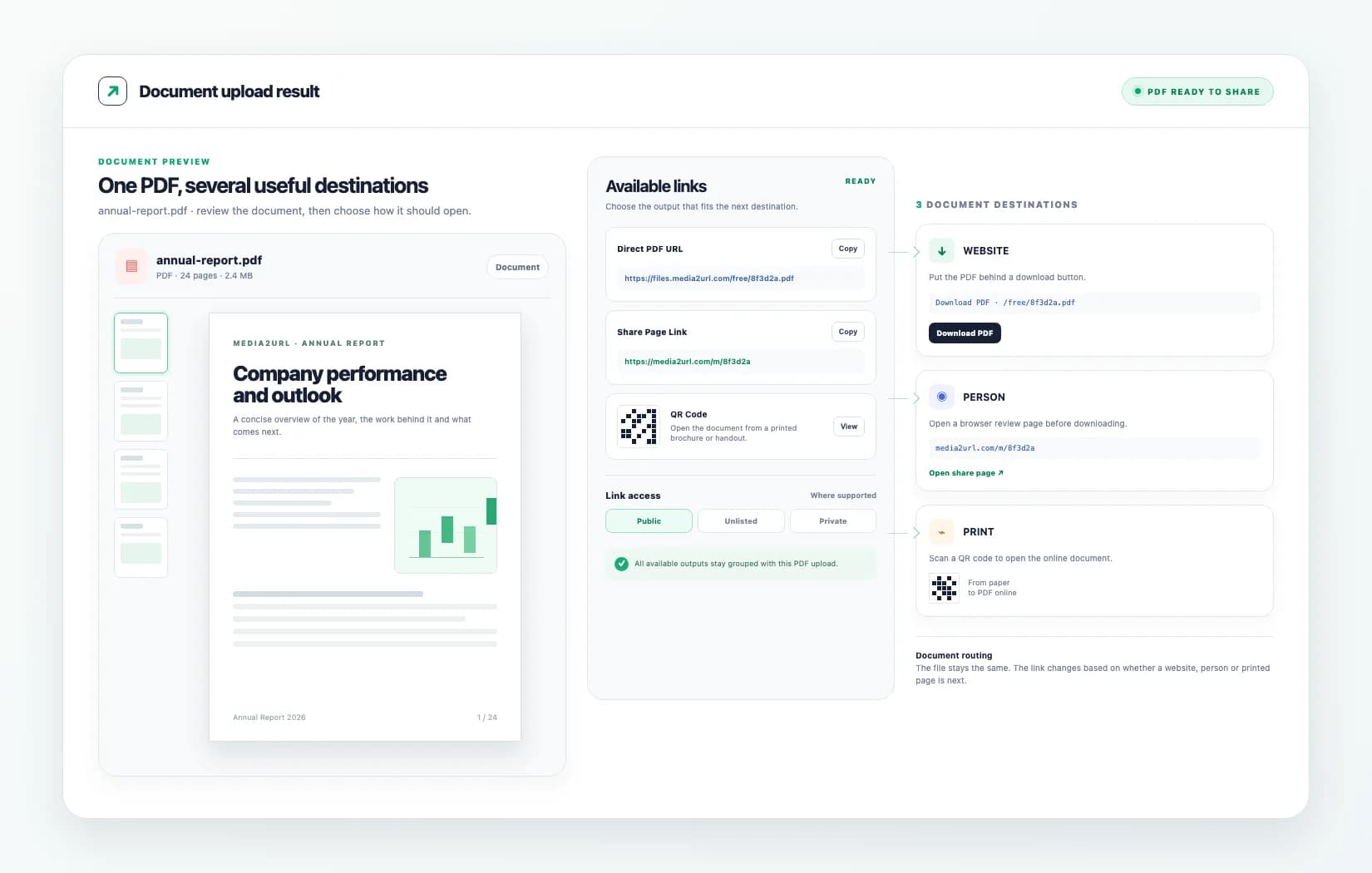
Available outputs after upload
Copy or open the format you needhttps://files.media2url.com/free/8f3d2a.pdf
https://media2url.com/m/8f3d2a
<a href="...">Download PDF</a>
[Open PDF](...)
Mobile access
Remove upload
FILE OR REVIEW PAGE?
Choose the PDF link based on what should open
A direct PDF URL points to the hosted document file itself. It is useful when a website, download button or compatible system expects the PDF response rather than a Media2URL viewing page.
A share page is different because it gives the recipient a normal page around the document. When browser preview is supported, someone reviewing a proposal or report can open the PDF there before deciding whether to download it.
Does another system need the PDF file itself?
https://files.media2url.com/free/8f3d2a.pdf
Use
Direct PDF URL
Does a person need to inspect the document?
Browser preview · Download
Use
Share Page
Does somebody need to open it from paper?
Scan to open the document
Use
QR Code
Should access stop later?
1 Day · Where supported
Use
Expiry or available access settings
ON A WEBSITE
Put the PDF behind a download button
A direct PDF URL becomes useful when the website should open or download the document itself rather than sending the visitor through another sharing page. A brochure, annual report or product catalogue can use the hosted PDF address behind a normal website button.
The same document link can also be referenced from documentation or a resource page when the browser should open the PDF directly. In that workflow, the direct PDF URL is usually more useful than a page designed primarily for human review.
Annual Report 2026
Financial overview and company updates.
CLIENT HANDOFF
Send the proposal as a link instead of attaching it again
A proposal often moves through more than one review. Sending another attachment each time can leave several versions of the same PDF spread across an email thread, especially when the client returns with changes.
The share page gives the recipient one browser link to open for that handoff. When the latest PDF has been uploaded, the message can stay short because the document itself remains separate from the email.
Hi Sarah,
Here is the latest proposal:
https://media2url.com/m/8f3d2a
Let me know if you want anything changed.
Scan to view the latest PDF
FROM PAPER TO PDF
Let a printed handout open the document online
A printed brochure, menu or event handout cannot carry a clickable PDF link. A QR code gives the reader a way to move from the printed page to the online document using a phone.
The QR code should lead to the output that fits the situation. A share page works well when someone should see a normal browser page around the PDF, while another workflow may use the direct document URL.
DOCUMENT LIFE AFTER SHARING
PDFs often change after they are shared
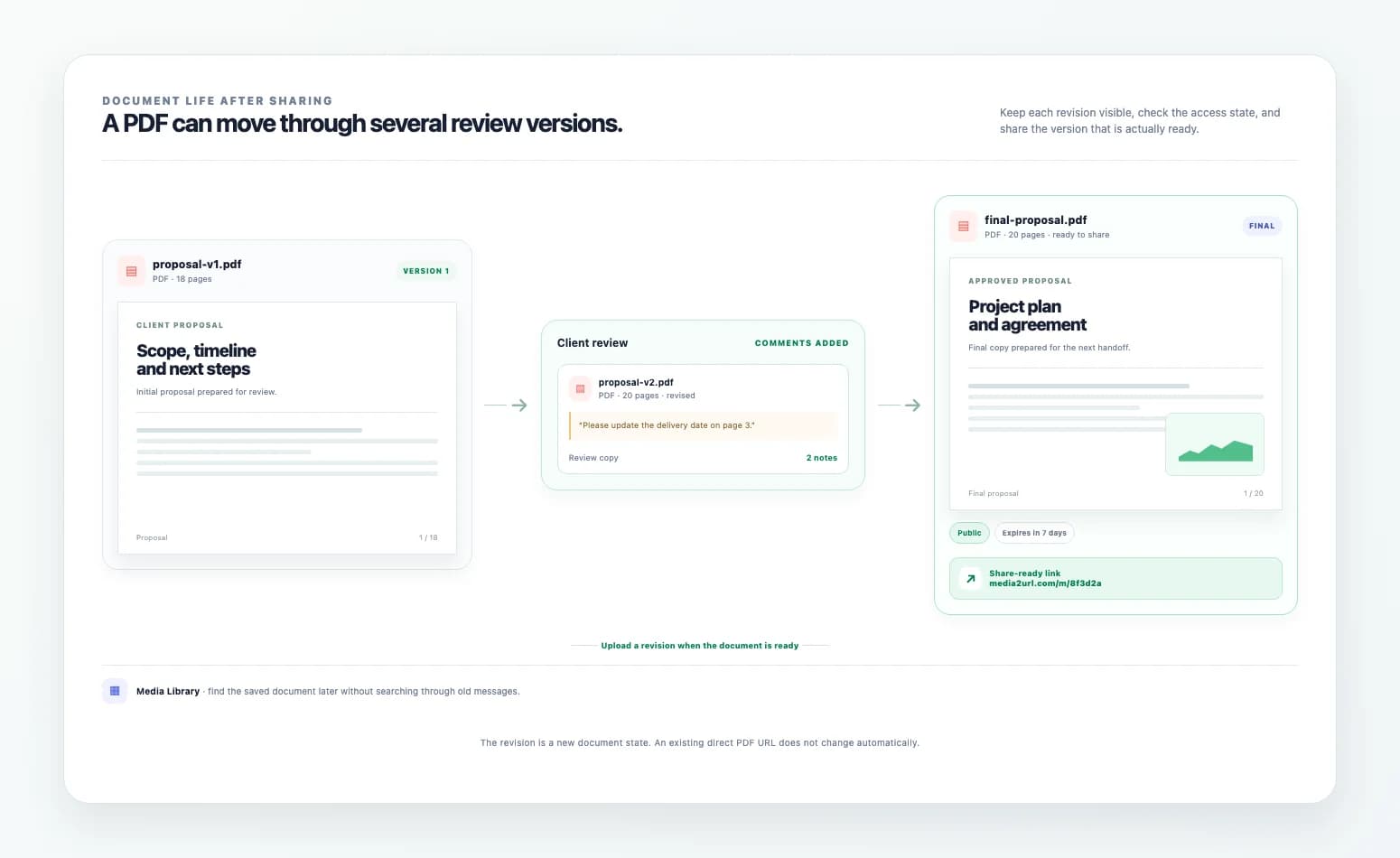
A PDF is rarely useful only once. A price list may change next month, while a proposal can go through another review before the work is approved. The document may already be linked from a website or sitting inside an old client message by the time those changes happen.
Keeping the PDF in your Media2URL account makes the file easier to find when it needs attention later. You can return through the Media Library instead of searching through old messages just to locate the original upload.
This example shows a document revision workflow. It does not mean that an existing direct PDF URL automatically changes when a different file is uploaded.
Cover page
Summary
Internal notes / old contact information
BEFORE IT LEAVES YOUR ACCOUNT
Check more than the first page
A PDF can look perfectly fine from the cover while information deeper in the document should not be shared publicly. Old contact details or internal notes can remain on later pages, especially when the file has already been edited several times.
Open the final document and check the pages that matter before creating a public PDF link. When the file is only meant for a short review, choose the available expiry or access controls instead of leaving it reachable longer than necessary.
Platform rules and file removal details remain available through Privacy, Data Retention and Acceptable Use.
DOCUMENT ACCESS
Control who can open the PDF after upload
A public brochure may be fine with an open link, while a client proposal or financial document can need tighter access. The right setting depends on who should receive the document and how long it needs to remain available.
The uploader shows the visibility and expiry choices available for your account. Password protection and additional download controls can depend on your plan, so use the settings shown for the actual file rather than assuming every option is available everywhere.
Visibility
Public
Expiry
1 Day
Password
Available where supported
Download
Available where supported
LINKING IS NOT DOCUMENT EDITING
The PDF to Link tool does not change the document itself
The normal PDF to Link workflow provides PDF hosting for the supported document and creates the available links for it. It does not automatically run OCR, rewrite the contents or make scanned pages searchable as part of the upload.
When the document needs page changes before it is shared, use the PDF Workspace instead. That is where supported PDF preparation tasks belong, while this page stays focused on creating a PDF URL for a document that is already ready.
Creates the available PDF URL and share page
The document stays as uploaded.
TURN THE DOCUMENT INTO A LINK
A finished PDF can use the same upload flow
A completed document does not need another round of editing just because the destination asks for a URL. Once the PDF is uploaded, the file gets an online address that can be copied into the place where the document needs to go. The pages stay as they were in the uploaded file, so any OCR or page changes still belong in the PDF Workspace before sharing.
A website button can point to the direct PDF URL when the visitor should receive the document itself. For a proposal or report being reviewed by a person, the share page keeps that handoff inside the browser.
If you are comparing dedicated PDF link services, read our PDFToURL comparison.
PDF LINK QUESTIONS
Which PDF files can I upload?
The uploader accepts PDF files that pass Media2URL's current upload policy. The available file size depends on the limits for your account, and the document still needs to meet the platform rules before a link is created.
Guest limits, when available, are shown near the uploader so you can check them before choosing a file.
How do I turn a PDF into a link?
Start with the finished PDF rather than a draft that still needs page changes. After the document is uploaded, Media2URL gives that file its available link options, including the direct PDF URL and the share page. The direct address is useful for a website button, while the share page suits a person who needs to review the document in a browser.
How do I turn a PDF into a URL?
Upload the supported PDF and wait for the result panel to appear. Media2URL hosts the document and gives you the available PDF URL for that upload, along with the other sharing outputs supported by the tool.
A PDF to URL workflow does not automatically edit the document or run OCR. Prepare the PDF first if its pages or contents still need changes.
Is Media2URL a PDF link generator?
Yes. Media2URL can host a supported PDF and give the document its own online address. That address can point straight to the PDF file, while the share page gives a reader a browser page around the document when preview is available.
Should I use the direct PDF URL or the share page?
Use the direct PDF URL when a website, download button or compatible tool needs the hosted PDF file itself. Use the share page when the document is being sent to someone who should open and review it in a browser.
Can someone preview the PDF in a browser?
The share page can show the uploaded document in the browser when PDF preview is supported there. The recipient may also see a download option when the file settings allow it, so the share page can work well for review before download.
Preview behavior can vary by browser and device, so do not treat it as a guarantee for every environment.
Can I control PDF access after upload?
Access depends on the settings available for the account that owns the PDF. A public brochure may need an open link, while a client proposal can use expiry or tighter access when those controls are available. Password and download choices depend on the plan, so the controls shown for that PDF are the reliable guide.
Does the PDF to Link tool run OCR or make a scanned PDF searchable?
No. The PDF to Link tool is focused on hosting the uploaded document and creating its available links. It does not run OCR or turn scanned pages into searchable text as part of the normal upload flow.
If document preparation is needed first, use the relevant PDF Workspace tools where those capabilities are supported.
Other media tools
Continue with another focused upload tool:
Image to Link Converter
Upload an image and get a direct image URL or a share page.
Video to Link Converter
Upload MP4, MOV, and WebM videos for direct stream links and browser player pages.
File to Link Converter
Create a link for supported documents, archives and other files.
Temporary File Upload
Share a file with a link that expires after the time you choose.
HTML to URL Converter
Convert HTML code, HTML files, or ZIP projects into live website links with edge CDN hosting.