

Audio formats
Upload an MP3, WAV, M4A, OGG or another supported audio format. The file type and size are checked against the limits available on your current plan.
Sometimes the audio file is ready, but the website, message or app where you need it asks for a URL instead. This audio to link tool lets you upload a supported file and get the available sharing links once the upload is complete.
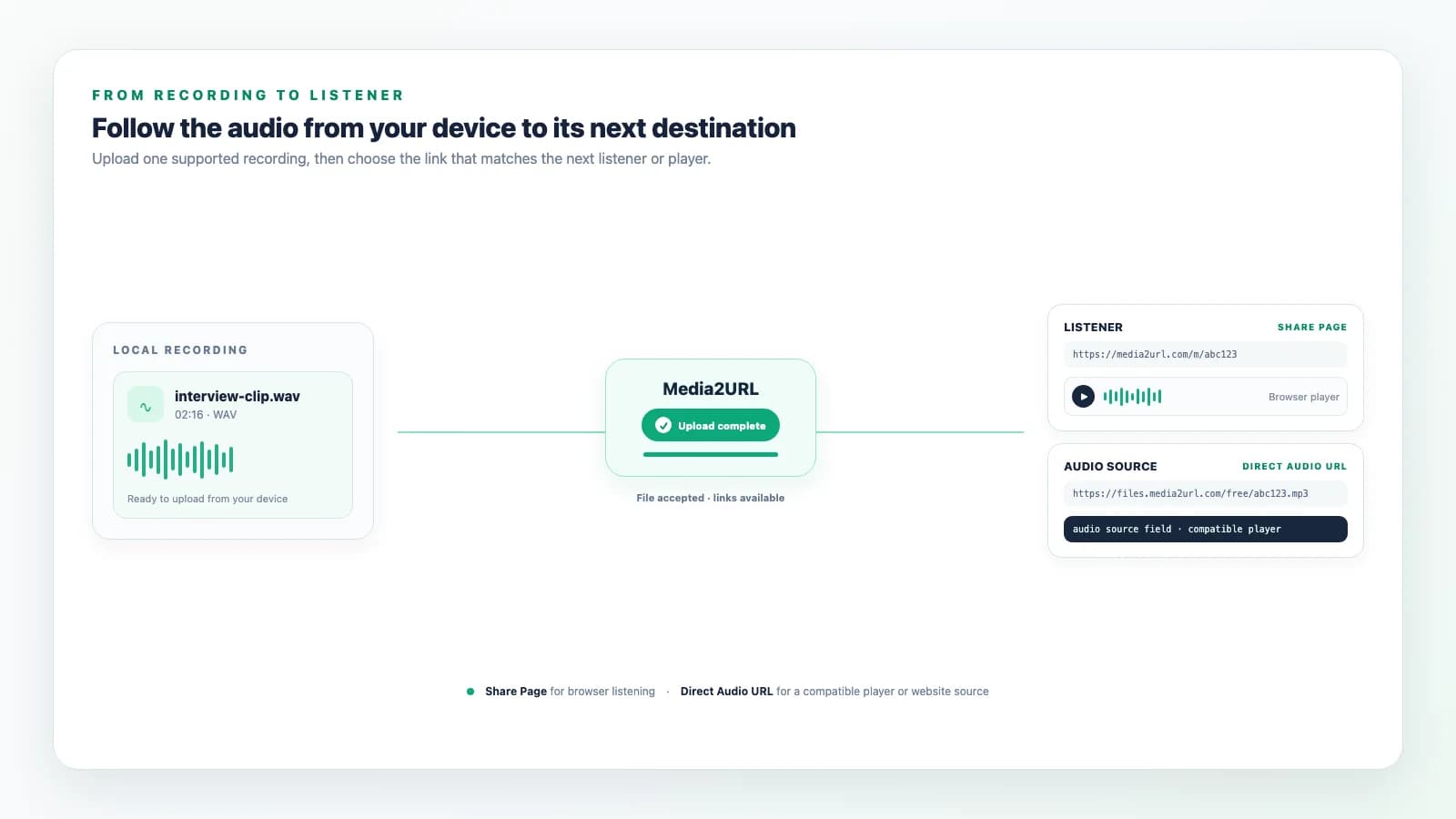
Use the direct audio URL when a website or another tool needs the audio file itself. A share page works better when you are sending the recording to someone who should listen to it in a browser.
Drag and drop files or paste from your clipboard
MP3, WAV, M4A, OGG, and other accepted audio filesThe listening workflow
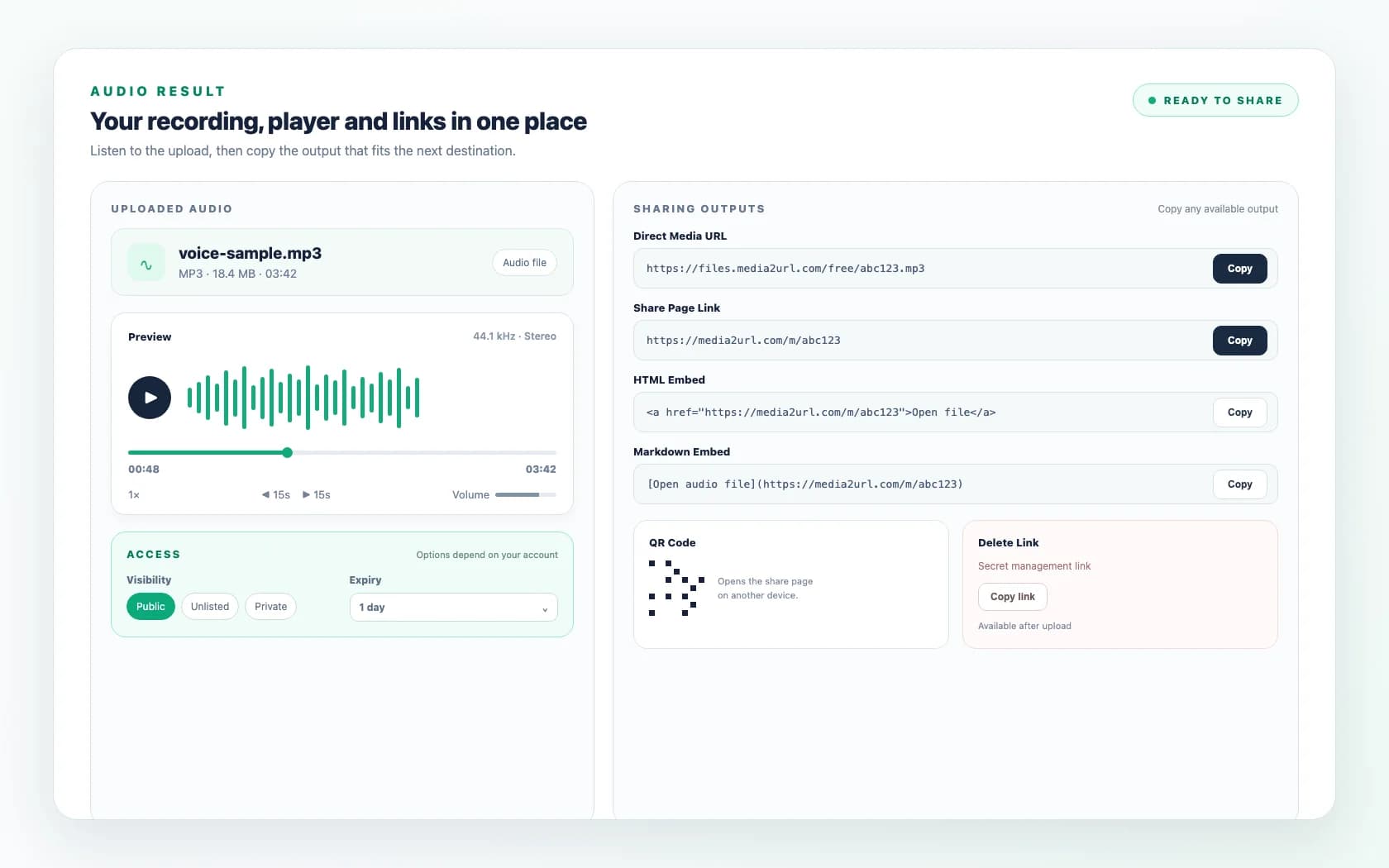
Once the audio finishes uploading, the result panel keeps the available links and sharing options in one place. You can copy the direct audio URL, use the share page or choose another supported output for the same file.
HTML and Markdown snippets are also available where supported, while the QR code opens the share page from another device.
A client message or review usually works better with the share page because the listener gets a browser audio player. Use the direct URL when documentation, a website or another tool needs the actual audio file.
Upload an MP3, WAV, M4A, OGG or another supported audio format. The file type and size are checked against the limits available on your current plan.
The share page can play the uploaded audio when the listener’s browser supports its format and encoding.
Use the direct audio URL when a website, compatible player or documentation page needs the audio file itself instead of a share page.
The uploader shows the visibility and expiry options available for your account. Additional preview or download controls can appear where your plan supports them.
A share page is meant for a person who wants to listen in a browser. The direct audio URL points to the hosted file itself, which is more useful when another website, player or system expects the audio file address.
If you are unsure which type of link belongs in another website or tool, the Direct Links guide explains the difference between hosted file URLs and normal sharing pages.
An audio file is often shared because someone needs to listen to it, not download and organise the original file first. A voice sample, interview clip or review recording can be sent through the share page so the listener can open it in a browser and start playback from there.
The direct audio URL has a different role. A documentation page, compatible web player or another online tool may need the MP3 or audio file itself rather than a Media2URL page.
This is also useful when the same recording needs to be shared more than once. Files saved to your account remain easier to find later, which helps when a client asks for the same sample again or an older recording needs to be reused.
MP3 is usually easier to share when file size matters and the listener only needs normal playback. WAV files are often larger, but they may still be required when the original audio quality or file format needs to be preserved for another workflow.
Media2URL does not decide which format is better for the recording. The Audio to Link tool hosts the supported file you provide and gives you the available link options for that upload.
If the file needs trimming or format work before it is shared, the Media Processing tools are more relevant than the normal Audio to Link upload flow.
Some recordings are only meant for one client, a short review or an internal handoff. In that situation, leaving the link openly available for longer than needed may not make sense.
Use the visibility and expiry controls available for your account when the recording needs limited access. Private Links and Expiring Links explain the broader access options available across Media2URL, while Temporary File Upload is useful when the main goal is a short sharing window.
Audio can also contain names, private conversations or background information that is easy to miss during recording. Listen to the final file before sharing it publicly and only upload audio that you have permission to use.
Media2URL supports audio formats such as MP3, WAV, M4A and OGG where they are accepted by the current upload policy. The maximum file size depends on your account and plan.
Upload the MP3 through the Audio to Link tool and wait for the upload to finish. The result panel will show the available direct audio URL, share page and other supported sharing options for that file.
The maximum MP3 file size depends on your Media2URL plan.
Yes. If the WAV file is accepted by the current upload policy and fits your plan limits, upload it through the Audio to Link tool. Once the upload finishes, you can copy the available link or share-page option for that audio file.
Yes. The share page can show a browser audio player when the listener’s browser supports the uploaded format and encoding.
The listener can play the file from the share page without returning to the Media2URL upload screen.
Yes. The result panel shows a direct audio URL alongside the share-page link. Use the direct URL when a website, compatible player or documentation page needs the audio file itself.
Yes. The uploader shows the visibility and expiry options available for your account. Password-protected audio links can depend on the selected plan.
Additional audio access or download controls may also be available from the dashboard where supported.
Yes. Upload the supported audio file and use either the share page or direct audio URL, depending on how the listener should open it.
The share page is usually easier when you want someone to play the audio directly in a browser.
Comparing dedicated MP3 link tools? See how Media2URL and MP3ToURL differ in their audio-sharing workflow.
Need a link for something other than audio? Use Video to Link when the file needs browser video playback, or File to Link for other supported documents and downloadable files.
Select another specialized converter to create direct links or share pages for your files:
Turn JPG, PNG, WebP, and photo files into direct image URLs or share pages.
Upload MP4, MOV, and WebM videos for direct stream links and browser player pages.
Host and share PDF documents, proposals, and brochures with direct or preview links.
Turn animated GIFs into direct delivery URLs and shareable browser links.
Generate direct links, QR codes, and preview pages for any supported file type.
Batch upload multiple image files simultaneously and collect link outputs.
Create short-lived, self-expiring image links with customizable duration windows.
Capture screen frames or upload saved screenshots to get instant shareable links.
Share files and documents with automatic time-based link expiration.
Crop, annotate, or prepare screenshots and photos before uploading and sharing.
Organize, tag, and search uploaded image assets across workspace folders.
Password-protect or restrict access to shared files and media links.
Set time-based expiration windows for temporary file access.
Diagnose, test, and repair broken or expiring external media URLs.