Can I get a direct image URL?
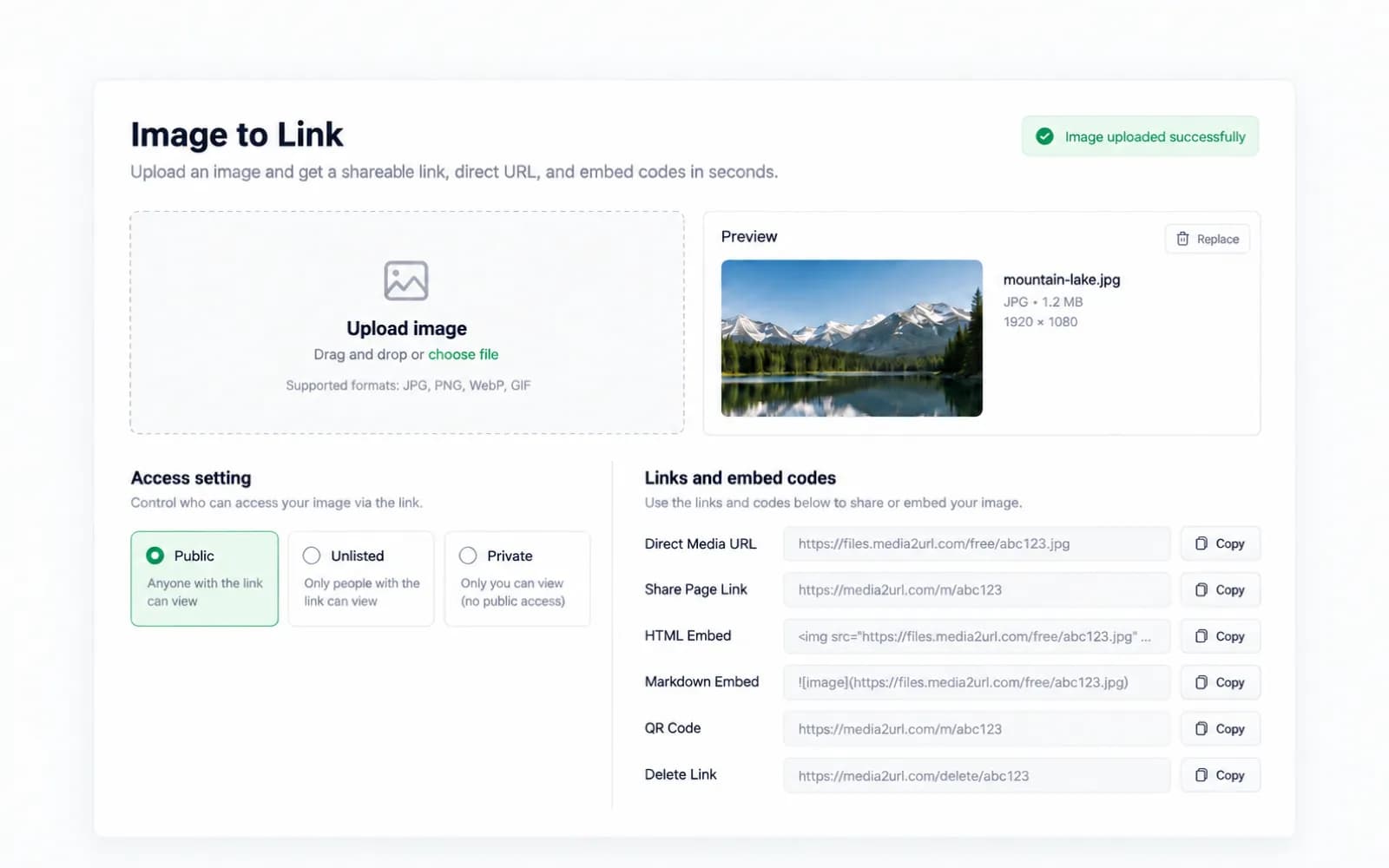
Yes. Each uploaded image returns a direct file URL and a share page URL, so you can choose the output that fits the next step.
Convert JPG, PNG, WebP, GIF, and allowed SVG images into direct URLs, share pages, HTML embeds, Markdown, BBCode, and QR codes.
Strict upload policy: do not upload malware, viruses, NSFW content, illegal content, phishing files, executable payloads, abusive content, or copyrighted material you do not own. Violations may lead to immediate file removal, link disabling, account deletion, and permanent bans.
An image sitting on your phone or laptop is still just a local file. It becomes useful in a website, a support ticket, a document, or a chat only after it gets a proper hosted link.
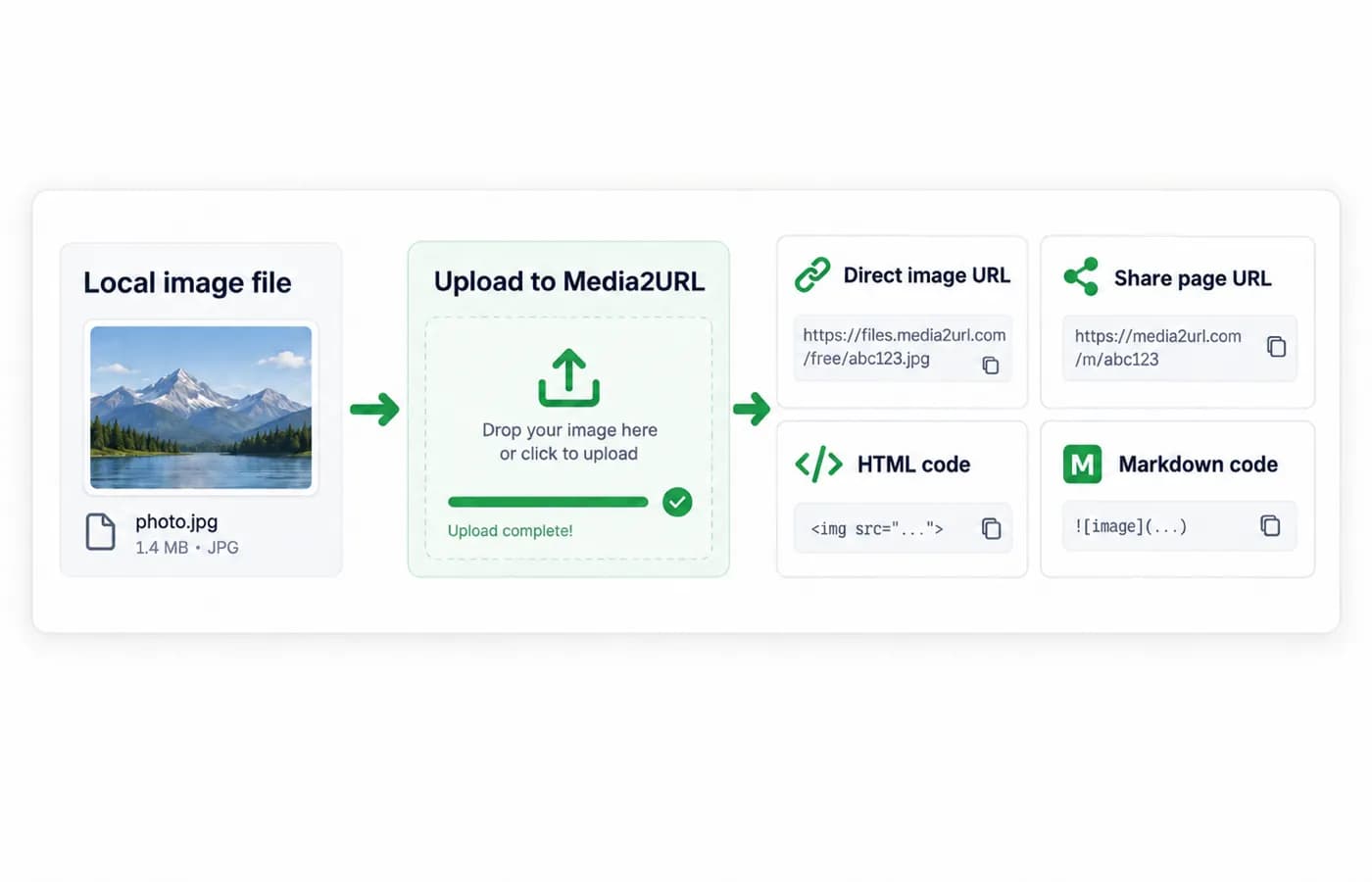
Using our tool, you can upload the file once and copy the format that fits the next step. If you only need the raw file link, you can use the direct URL. If you want something easier to share with other people, you can use the share page.
Get the direct, hosted asset URL perfect for hotlinking, markdown, and website code integrations.
Create client-friendly, structured preview pages complete with copy formats and delete tokens.
Instantly obtain pre-generated HTML tags, Markdown notation, BBCode, or QR codes.
This page is built for one clear job. You upload an image, choose the privacy setting, select the expiry, and generate the output without dealing with storage setup or manual hosting.
That is the reason people search for image to URL in the first place. They do not want a technical process. They want to upload image to URL and get something they can use right away.
If you want to test it properly, you can try it on your own device with a screenshot, a banner, or a small product image. That makes it easy to see which output fits your use case best.
A file on your device does not come with a public URL by default. Once you upload it through our image to URL converter, the file gets hosted and the page returns the link formats you can copy.
The flow is simple and easy to follow. You choose the image, set the visibility, pick how long the link stays active, and click Generate URLs.
After that, the page returns more than one output. You can copy the direct image URL, the share page URL, or the embed formats depending on where the image is going next.
This is also the easiest answer to people who search for how to get image URL or how to get a URL for an image. The URL appears after upload because the image is no longer sitting only on your device. It is now hosted and ready to open through a link.
Pick your JPG, PNG, WebP, SVG, or GIF image, adjust visibility bounds, and select the expiry term.
Our pipeline processes your asset, optimizes standard formats, and hosts them securely on our Cloudflare R2 bucket.
Copy direct CDN hotlinks, markdown code, BBCode, or scan QR codes from the generated outputs.
A lot of image upload tools stop after giving one basic link. That sounds enough at first, but the problem appears later when the same link does not fit the platform where you want to use it.
Using our tool, you can upload once and copy the exact output you need. That saves time and avoids the usual back-and-forth where the user has to upload the same image again just to get another format.
| Output | Best use |
|---|---|
| Direct URL | Raw file access, embeds, websites, apps |
| Share page URL | Chats, docs, support tickets, simple sharing |
| HTML code | Blogs, landing pages, CMS editors |
| Markdown code | GitHub, documentation, README files |
| BBCode | Forums and community boards |
| QR code | Mobile sharing and quick scan access |
That is where this page starts feeling more useful than a basic uploader. The image goes in once, but the result stays flexible for normal users, bloggers, developers, and support teams.
These two searches are close, but they are not the same in practice. A user searching for image to URL often wants the raw hosted file link, while a user searching for image to link usually wants something that opens cleanly in chat, docs, or a ticket.
Our uploader solves both needs. After the file is processed, you get the direct URL for technical use and the share page URL for normal sharing.
This matters because the wrong output creates friction. A direct link works well for HTML, Markdown, and apps, while a share page feels easier when the image is being passed to a client, teammate, or customer.
Points straight to the file on the storage CDN. Ideal for web developers inserting image tags, hotlinking in layouts, or setting up background elements in application builds.
Points to a structured page showing the image. Ideal for copy-pasting to chats, messaging apps, and email chains where viewers need to preview files securely.
A link is only useful when it matches the place where it will be used. That is why the page does not stop at one generic URL.
If you are working on a website, the HTML embed is the natural choice. If the image is going into GitHub or docs, Markdown is easier. If the same file needs to be shared in a forum, BBCode saves time.
This is also why people search for phrases like how to create a link for an image, how to make an image link, or how to link an image. They are not always asking for hosting alone. They are trying to get the image into a real workflow without breaking format.
Using our tool, you can move from upload to final output in one place. You do not need one tool for hosting and another tool for code formatting.
Not every image needs to stay open forever. Some files are only needed for a short review, a support issue, a temporary document, or a quick internal discussion.
That is why privacy and expiry appear before the upload process ends. You choose whether the image stays public and how long it remains available before generating the final URLs.
Using our tool, you can keep the image public when wide sharing is the goal. You can also choose tighter control when the image is more sensitive or only needed for a limited time.
Expiry is useful because it keeps temporary uploads from staying active longer than necessary. A lifetime link works when the image is part of a long-term page or asset flow, while a shorter expiry works better for one-time sharing.
Delete control matters for the same reason. Logged-in users can remove files from the dashboard, and anonymous uploads receive a delete token after upload so the file does not stay behind without control.
Switch links from public preview to private access, or require security passwords for viewing.
Choose lifetimes from 1 day up to 1 year. File links expire automatically according to the rule.
Anonymous uploaders get immediate delete codes to drop files directly after sharing runs complete.
Image uploads usually come from normal daily work, not from perfect technical planning. One person uploads a phone photo, another uploads a screenshot, and someone else uploads a web asset that already uses a modern format.
That is why the tool supports the formats people actually use every day. JPG works well for photos. PNG is common for screenshots and transparent graphics. WebP is useful for web delivery. GIF is needed for animation, and SVG is allowed where your safety rules support it.
Format support sounds like a small detail, but it decides whether the tool feels practical or frustrating. People searching for convert image to URL expect the page to work with the file they already have.
The value of an image URL becomes clear only after the upload is done. The link has to fit the place where you want to send it or place it.
You can use the direct URL inside a website, a product page, or an app field that accepts hosted media. The share page works better in chats, support tickets, internal docs, or client messages where a clean openable link is enough.
Markdown output helps when the image needs to go into documentation or GitHub. HTML code makes life easier when you want the image to appear in a page without writing the tag yourself.
BBCode is still useful in forums and community platforms. QR code output helps when the image needs to move quickly from desktop to mobile or from a printed surface to a phone.
One upload is often only the beginning. After a few days, the same file may need a better name, a folder, a new expiry choice, or a full replacement without changing the URL already being used somewhere else.
That is where Media2URL becomes more than an image uploader. The page handles the quick image to URL task, but the wider platform helps you manage files, folders, link history, and usage when uploads start becoming part of regular work.
Using our tool, you can start with a single screenshot today and still move into a more managed workflow later. That matters when uploads begin repeating across blogs, support flows, app screenshots, or product catalogs.
A single upload is fast when the task is small. The process starts slowing down when you have a set of product images, blog visuals, screenshots, or campaign creatives that all need hosted links.
That is the point where bulk image to URL becomes the better path. It keeps the same basic logic, but it removes repeated work and gives you a way to generate many URLs together.
If your current task is bigger than one file, you can move to the bulk flow instead of repeating the same upload again and again.
Log in to rename shared assets, group them into nested directories, audit real-time analytics, and configure custom domain rules.
Need hosted links for multiple visuals, product graphics, or banners? Bypass single uploads and batch generate URLs at once.
Answers regarding link formats, upload configurations, and platform logic.
Yes. Each uploaded image returns a direct file URL and a share page URL, so you can choose the output that fits the next step.
Once the upload finishes, the tool returns the generated outputs on the page. You can then copy the direct URL, share page URL, or other formats from the result section.
Yes. That is the main purpose of this tool. You upload the file, choose privacy and expiry, and generate the link outputs.
Image to URL usually refers to the raw hosted file URL. Image to link often refers to a shareable link that is easier to send in chats, docs, and support workflows.
After the image is uploaded, the result area shows the direct URL and other output formats with copy buttons so the right version can be copied in one click.
Yes. Logged-in users can manage uploads from the dashboard, and anonymous uploads receive a delete token after upload.
Yes. The tool returns HTML embed code and Markdown output so the image can be used in websites, documentation, and supported editors.
Yes. Those controls are part of the upload flow, not hidden after the fact.
Most users do not come here because they want to think about hosting. They come here because they need a usable image link and want to get back to the real work.
Using our tool, you can upload the image, choose the right settings, and copy the output that fits your next step. That may be a direct URL, a share page, HTML, Markdown, BBCode, or a QR code, depending on where the image needs to go.