

Media2URL
Animation workspace

GIF studio for speed, frame reduction, optimization and video conversion

A GIF can be perfectly usable and still feel too slow, too large or longer than the place where you want to use it can handle.

GIF Studio gives you a few focused ways to work on that animation. You can change its playback speed, reduce frames, adjust the available colour settings, reverse the animation or prepare a video version when keeping the file as a GIF no longer makes sense.

The workflow

Start with what feels wrong about the GIF

You do not need to change every part of an animation just because the controls are available. A GIF that feels too slow may only need a speed change, while a large animation may need fewer frames or a different output format.

Open the GIF first, decide what actually needs fixing and then choose the tool for that job.

  1. 1

    Pick an animation from your library

    Open a supported GIF already saved in your Media Library or upload another animation you want to work on.

  2. 2

    Choose what you want to change

    Select speed control, frame reduction, colour adjustment or GIF-to-video conversion based on the problem you are trying to solve.

  3. 3

    Check the result before saving

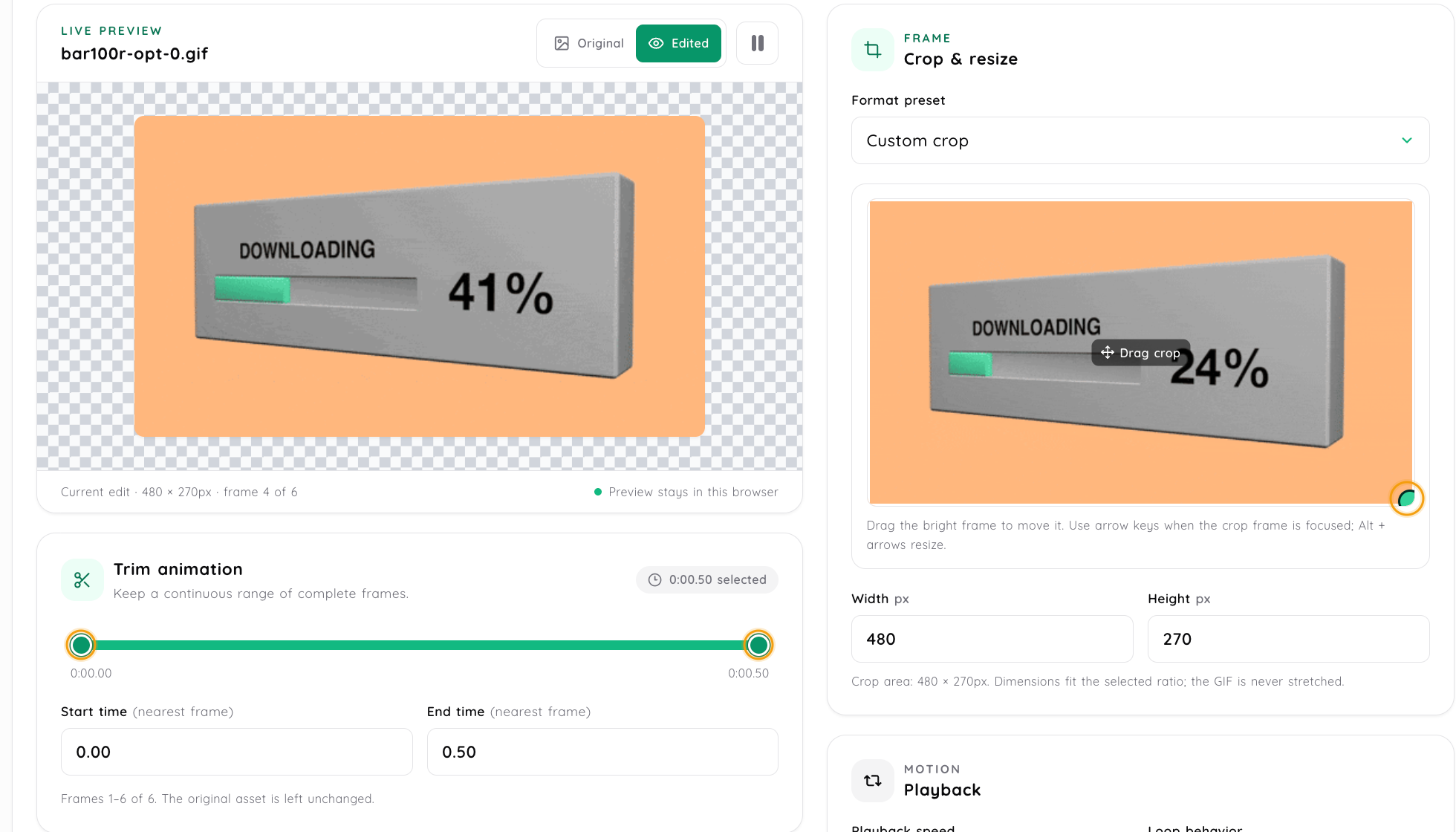
    Preview the available changes before creating the new file. Look at the movement itself, not only the estimated size.

  4. 4

    Save the version you want to use

    Save the processed result using the options available for that tool. Once it is ready, continue with the supported link or sharing options for the new file.

Animation mechanics

Why an animated GIF can become difficult to share

A GIF is made from a sequence of image frames. The longer the animation runs, the more frames it may need to carry, and large dimensions or complex visuals can add more data to the file.

That is why two GIFs of the same length can still have very different file sizes. Instead of applying every optimisation setting, it usually makes more sense to find what is making the particular animation heavier than it needs to be.

Change the speed when the timing feels wrong

A short interface GIF can feel painfully slow when there is too much waiting between actions. The opposite also happens when an animation moves so quickly that the viewer cannot understand what changed. Speed control lets you adjust the timing without changing the basic sequence of the GIF. Use it to make the action easier to follow rather than simply choosing the fastest setting available.

Fewer frames can reduce work the GIF has to carry

Not every frame in an animation contributes the same amount of useful movement. If several frames show almost the same visual state, reducing some of them can help make the GIF smaller. There is a trade-off. Remove too many frames and the movement can start looking rough or jumpy, so check the animation itself before deciding that the smaller file is the better result.

Colour reduction can help, but it changes the picture too

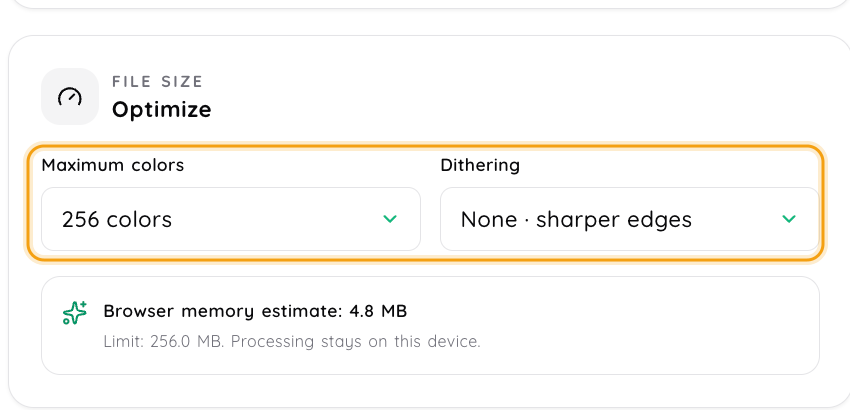
GIFs work with a limited colour palette, so colour choices can affect both appearance and file size. An animation with gradients, shadows or photographic detail may react differently from a simple interface recording with flat colours. If the available tool lets you reduce the colour palette, compare the result with the original before saving it. A smaller file is not useful if text, icons or important visual details become noticeably worse.

When keeping the animation as a GIF stops making sense

Sometimes the better answer is not another round of GIF optimisation. A long or visually complex animation may be more practical as a video file instead. GIF-to-video conversion changes the type of media you are working with. The result is no longer a GIF, so the way it is embedded or played can also change.

Format decision

GIF or video: which one should you keep?

Keep the GIF when...Consider video when...
The animation is short and simpleThe animation is long or visually complex
It does not need soundAudio or normal video playback matters
It needs to behave like an animated imageThe destination works better with video
A repeating visual is the main purposeFile efficiency matters more than keeping GIF format

There is no need to convert every GIF into video. A short UI animation inside documentation may still make more sense as a GIF, while a longer demonstration can be easier to handle as video.

If you decide to keep the result as video, use Video to Link when you need a hosted video URL or browser playback page.

Playback behavior

Reverse or repeat only when it helps the action make sense

Reversing an animation can be useful when you need to inspect the movement in the opposite direction. Loop controls matter when the same action should repeat instead of stopping after one pass.

A continuous bounce effect can work for some interface examples, but it should not be added just because it looks interesting. The loop should make the action easier to understand.

Decision framework

Which change should you try first?

Change the speed

When the GIF is already the right length but the action feels too slow or too fast.

Reduce frames

When the movement contains more steps than the viewer really needs to understand.

Adjust colours

When file size matters and the animation can tolerate a simpler palette without losing important details.

Create a video version

When the animation has become too long or complicated for GIF to remain the sensible format.

Practical use

Where these changes are actually useful

Documentation and help guides

A short GIF can show a menu opening, a setting changing or a small interface action without requiring the reader to start a video. If the file becomes distracting or slow to load, reduce what the animation is trying to show rather than keeping every frame from the original recording.

Product updates and changelogs

Product updates often need one small visual rather than a complete screen recording. Adjust the speed or trim down the animation so the reader can see the changed behaviour without waiting through unnecessary steps.

Bug reports and developer discussions

A repeating animation can be useful when the problem only appears during a particular interaction. Keep the GIF focused on that behaviour so the person investigating the issue does not have to search through unrelated movement.

Forum and chat sharing

Some forums, chats and other platforms place limits on uploaded media. If the original GIF is too large, reduce what the file contains or prepare another format, then check the actual requirements of the place where you plan to share it.

Processing guidelines

Before changing an important GIF

  • GIF does not carry a normal audio track. If sound is part of the experience, keep the media as video or use the relevant Video Processing workflow.
  • Longer animations can take more work to process. Duration, frame count and the selected operation can all affect how much processing the GIF needs.
  • A video conversion changes the embed behaviour. An MP4 result is a video file and should be handled as video rather than as an image.
  • Keep the original when you may need it later. Frame reduction, colour changes or speed adjustments may produce a useful sharing copy, but the original can still be valuable for another version.
Questions about this workflow

Frequently asked questions

Converting a GIF to video can make sense when the animation is long, detailed or simply no longer practical as an image file. Video encoding can handle this type of moving content differently from GIF. The trade-off is that the result becomes a video. It will use video playback and embedding behaviour rather than behaving like an animated image.

It depends on what you change. Reducing frames affects motion, while reducing colours can affect gradients and fine visual detail. Check the processed GIF at its normal viewing size before replacing the original. A smaller file is not automatically a better file.

Yes, where speed controls are available for the selected GIF. Adjust the timing and preview the animation before saving the result. The useful speed is the one that makes the action easy to understand, not necessarily the fastest setting.

A direct GIF URL can be used where the Markdown renderer allows remote images. The animation itself still depends on how that website or documentation platform handles GIF files. If the destination blocks remote media or changes the file, test the final page rather than assuming every Markdown environment will behave the same way.

GIF size can grow with longer duration, more frames, larger dimensions and visually complex content. A short interface animation can therefore behave very differently from a longer screen recording even when both use the same .gif extension.

Not necessarily in the same way as changing playback timing. Frame reduction changes how many visual steps remain, while speed control changes how quickly the animation moves through its timing. Use the control that matches the problem instead of treating them as the same optimisation.

No normal GIF animation includes an audio track. If the media needs sound, keep it as video or use the Video Processing workflow instead.

Yes when you may need to make another version later. Frame, colour and timing changes can be useful for one destination but may not be suitable for another. Saving the processed copy separately gives you something to return to if the requirements change.

Next steps

Explore related animation and media tools