

Website asset
A website image was uploaded months ago and now needs a corrected version. Find the managed asset first, check how it is already being used, then choose the save or replacement action that fits the existing link.
Uploading a file solves the first problem. The next problem usually appears later, when you need the same image, PDF or recording again and the original link is sitting somewhere inside an old message or document.
The Media Library keeps the hosted asset attached to something you can return to. Search for it, organise it around the work it belongs to, inspect the current file, then copy the link again when another page or person needs it.

A file can remain online for much longer than the moment when it was uploaded. A website image may need replacing several months later, while a client PDF might return for another round of review after everyone thought the work was finished.
That is where a saved library becomes different from an upload history. The important question is no longer whether the upload succeeded. It is whether you can identify the right asset, understand what has happened to it, and use it again without starting from another copy.
Keep the file in the personal or team workspace where the work belongs. The active workspace determines which library you are looking at, while Team Workspaces handles the people and project boundary around that library.
A growing library becomes difficult when finding a file depends on remembering the exact folder or filename. Search gives you another way back to the asset when you only remember part of its name, its type or something about how it was organised.
The current library can narrow results using the information available for the asset, including its location, tags, visibility or processing state. This is especially useful when several similar uploads exist and opening every file would take longer than finding the right one.
Bookmarks and favourites solve a slightly different problem. They are useful for files or locations you return to often, rather than for building another permanent folder hierarchy.
Not every group of files needs the same kind of organisation. A folder is useful when the files belong to one clear place, while collections and tags can connect assets for another reason without forcing the whole library into a deeper folder tree.
| Use | Useful when |
|---|---|
| Folder | The files belong to one clear client, project or area of work. |
| Collection | Several related assets need to stay together without depending only on their folder location. |
| Tag | The same idea, status or campaign appears across files stored in different places. |
| Bookmark or favourite | You need a faster way back to something you use repeatedly. |
The useful structure is the one that makes the next retrieval easier. A small library may need very little organisation, while a larger account can use these controls as the number of projects and stored assets grows.
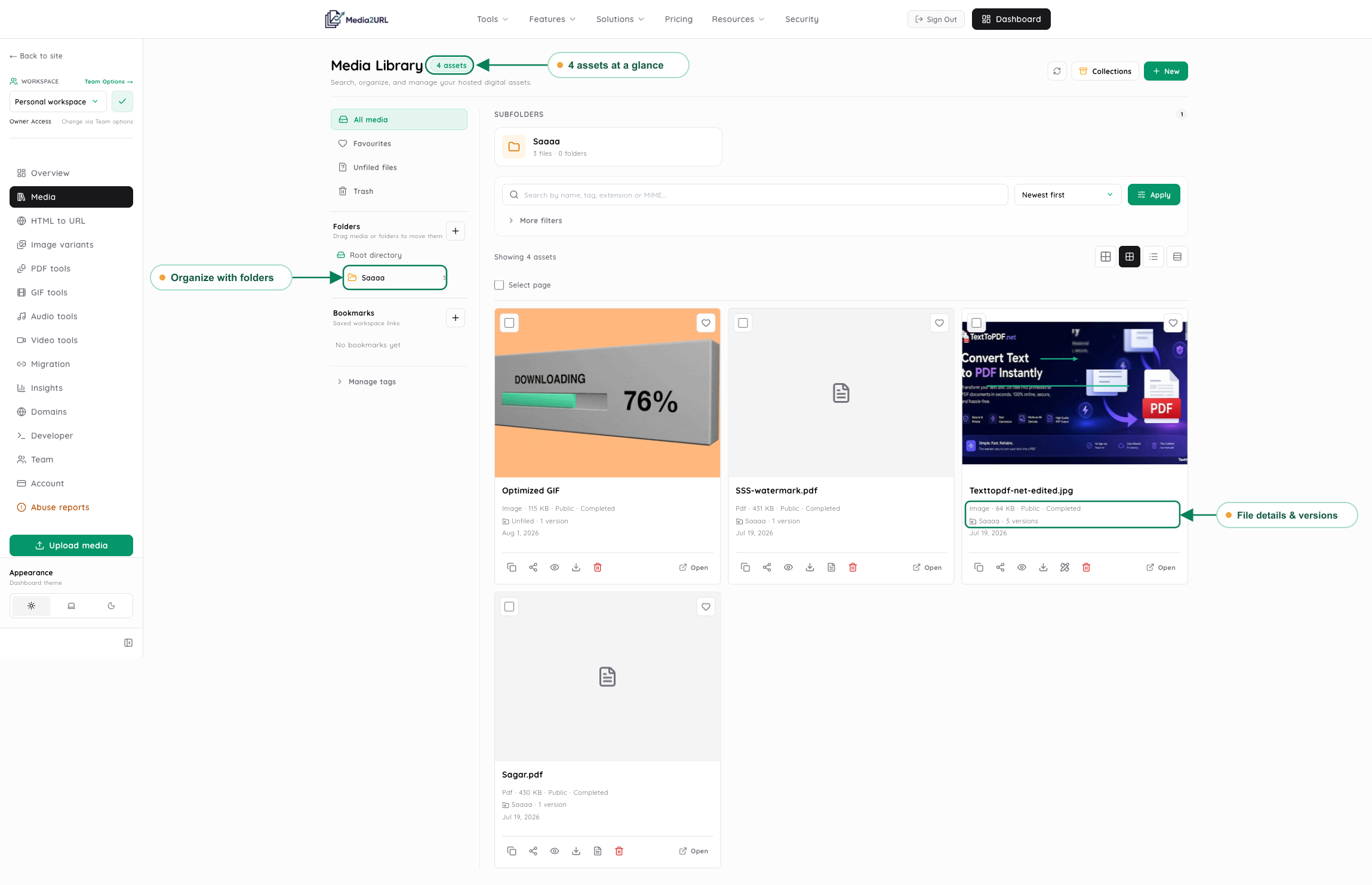
Two assets can have similar names and still be different files. Before copying a link or replacing something already in use, open the asset details and confirm that you are working with the right one.
Depending on the file, the library can show details such as its type, size, dimensions or duration, visibility, processing state and available metadata. Version information becomes useful when the asset has already changed once or another person in the workspace needs to understand which copy is current.
A preview can help with supported file types, but not every format behaves the same way in a browser. When a preview is not available, use the file information and the supported open or download action instead of assuming that the upload failed.
A corrected image does not always need to become another unrelated upload. The same is true when a PDF is prepared again or a supported media tool produces a new result from an existing asset.
Where the current workflow supports it, the result may be saved as another asset, kept as a related version, or used to replace the managed file. Those choices solve different problems. A separate asset keeps both files independent, while a version preserves useful history around the same piece of work.
Replacement needs more care because the file may already be used somewhere else. Check the save choice before changing an asset that another website, document or team depends on, and do not assume that every kind of edit preserves every URL.
The first copied URL is easy to lose because it can end up in a CMS field, a spreadsheet or somebody else's message. The saved asset gives you somewhere to return when that link is needed again.
Open the file in the library and use the output that matches the next destination. That may be the direct URL, a share page or an available download action. Changing access or processing the file is a separate decision from simply retrieving its link again.
This becomes useful during maintenance. You do not need to recreate a hosted asset simply because the original message containing its URL is gone.
Moving a file to Trash marks the asset as deleted and stops its normal delivery. Its associated links should not continue serving the file while it remains in that state.
Restore is available where the current account workflow supports it, which means moving something to Trash is different from permanently purging the stored asset. Permanent deletion is the separate action that removes the file and its stored versions or variants.
This distinction matters when a file was removed by mistake. It also keeps deletion separate from membership changes inside a Team Workspace, because removing a person from a project should not silently delete the project's shared media.
Team WorkspacesA website image was uploaded months ago and now needs a corrected version. Find the managed asset first, check how it is already being used, then choose the save or replacement action that fits the existing link.
A client asks for the PDF that was approved earlier in the project. Open the correct workspace, find the saved asset and copy the required link again instead of searching old conversations for the first handoff.
Several images belong to different projects but share the same campaign or status. Keep the project structure in folders and use tags when the same label needs to connect files across those locations.
A screenshot or recording used during a support case may still need to be found while the issue is open. Keep it somewhere recognisable, then use the appropriate access controls if the material should not remain broadly available.
The Media Library is where the asset is found and managed. It does not replace Team Workspaces when the real question is which people belong to a project or what each member can do there.
A folder also does not create a new membership boundary. If several clients or teams need separate people, permissions and shared libraries, use workspaces for that separation and folders inside the library for file organisation.
Yes. The Media Library provides search and filtering around the information available for stored assets. The exact filters can depend on the current library and file data, but you do not need to rely only on remembering the original upload location.
A folder gives files a clear location inside the library. A collection can keep related assets together for a particular piece of work, while a tag can connect the same idea or status across files stored in different places.
Yes. Open the saved asset in the Media Library and use the link output currently available for that file. This is useful when the original URL was copied into another service or conversation and is no longer easy to find.
Supported workflows can keep version information or save another result in relation to the existing asset. The exact save choices depend on the tool being used, so check the current action before assuming that a new edit will replace the existing file.
The asset is marked as deleted and its normal delivery is disabled. Restore and permanent deletion are separate actions where supported, so moving a file to Trash should not be treated as the same thing as immediately purging every stored object.
Use a folder when the problem is organising files inside the same library. Use another Team Workspace when the project also needs a separate boundary for people, shared files and permissions.
Open the Media Library when the file already exists in Media2URL and the next job is to find it, organise it, check its current state or retrieve its link again. If the problem is instead about who belongs to the project, move to Team Workspaces rather than trying to solve membership with folders.