


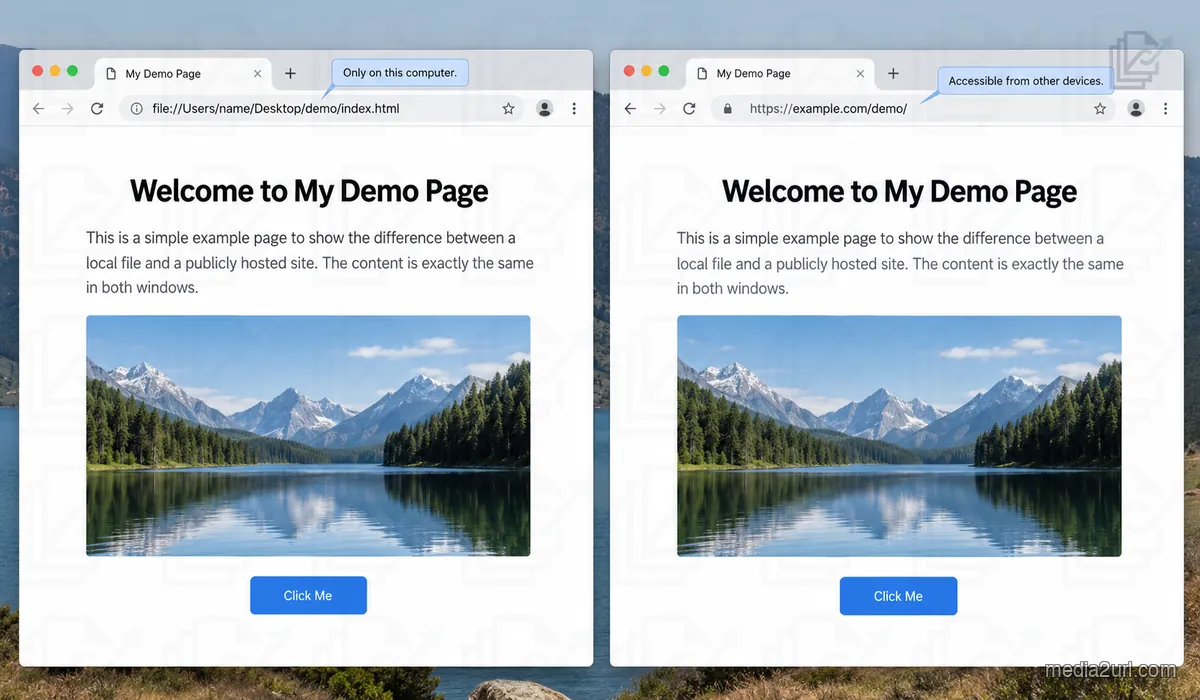
file:///Users/yourname/Desktop/project/index.html
That one line explains a surprising amount of the confusion around sharing an HTML page.
It looks like a web address because Chrome puts it in the address bar. You can refresh it. You can bookmark it. You can open developer tools beside it. The page itself may look exactly like something you would normally visit online.
But Chrome is not visiting a website there.
It is opening a file from your computer.
That difference is easy to miss until you copy the address, send it to somebody, and get a message back saying the link does not work.
I usually start there when looking at this kind of problem. Before checking the HTML, JavaScript, hosting, or anything else, look at what the browser is actually opening.
If the address starts with file:///, the page has not become public simply because it appears inside Chrome.
MDN makes the same distinction in its documentation for local testing. A page opened directly from your disk uses a file:// address, while a page received through a web server normally uses http:// or https://. MDN Web Docs
That sounds like a small technical difference. In practice, it changes quite a lot.
Chrome can open an HTML file without the internet
Try this with the simplest possible file.
<!DOCTYPE html>
<html>
<head>
  <title>Test</title>
</head>
<body>
  <h1>Hello</h1>
</body>
</html>
Save it as index.html and double click it.
Chrome will open the page.
Now disconnect your internet connection and reload it.
For a file this simple, the page still works.
Chrome already has access to index.html because the file is sitting on your computer. It does not need to contact Google, your hosting provider, or any other server just to display the heading.
This is where the idea that "it works in my browser" becomes misleading.
The browser is only the viewer. It can display something stored on your laptop just as easily as it can display something received from a server thousands of kilometres away.
Those two pages may look identical on screen.
They are not being delivered in the same way.
Suppose the file is here:
file:///Users/amit/Desktop/birthday/index.html
If Amit sends that text to Riya, Riya's browser does not connect to Amit's laptop and open his Desktop folder.
Amit has shared the location of the file from his own environment.
The file itself has gone nowhere.
A normal internet address solves a different problem. If both Amit and Riya can reach something such as:
https://example.com/birthday/
their browsers have a common place from which to request the page.
That is what a local file path does not provide.
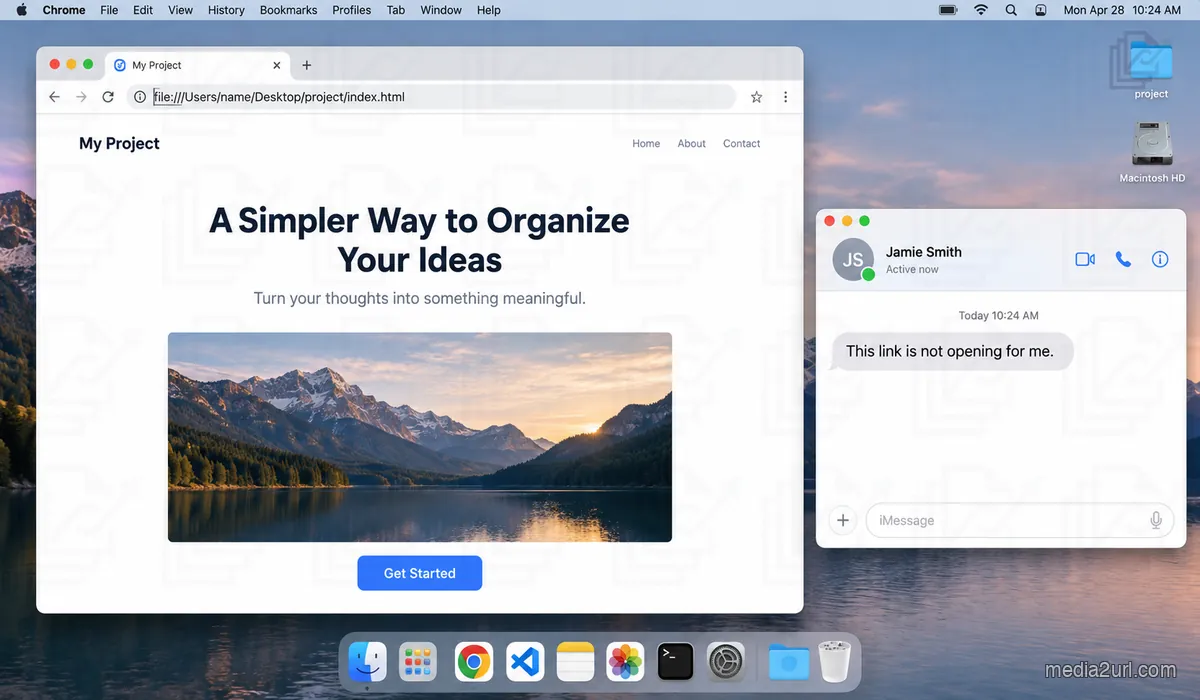
Sending index.html is not the same as sending its address
There is a useful distinction here because people often try both things and get two different failures.
You can attach index.html to an email.
In that case, the other person really does receive the HTML file.
They download it. Their browser opens their own copy. If everything the page needs is contained inside that single file, it might work perfectly.
A page like this travels quite well:
<!DOCTYPE html>
<html>
<head>
  <style>
    body {
      font-family: Arial;
      background: #f7f7f7;
    }
  </style>
</head>
<body>

  <h1>Birthday Party</h1>
  <p>Saturday at 7 PM</p>

  <script>
    console.log("Page opened");
  </script>

</body>
</html>
The CSS is inside the HTML. The small piece of JavaScript is also inside it.
Now compare that with the kind of folder people actually end up with after working on a page for a while:
birthday/
    index.html
    css/
        style.css
    js/
        effects.js
    images/
        hero.jpg
        cake.png
If you want someone to download and open the project, send the related files together:
index.htmland every CSS or JavaScript file it references- images, fonts, JSON files, and other assets the page loads
- the original folder structure, so relative paths still point to the right files
- a ZIP of the whole project when email or chat cannot attach a folder
The visible page comes from several files working together.
index.html might contain:
<link rel="stylesheet" href="css/style.css">
and farther down:
<img src="images/cake.png" alt="Birthday cake">
When the page opens on your laptop, the browser finds those files in the surrounding folders.
If you send only index.html, the browser on the other computer receives instructions to find css/style.css and images/cake.png.
It does not receive the files themselves.
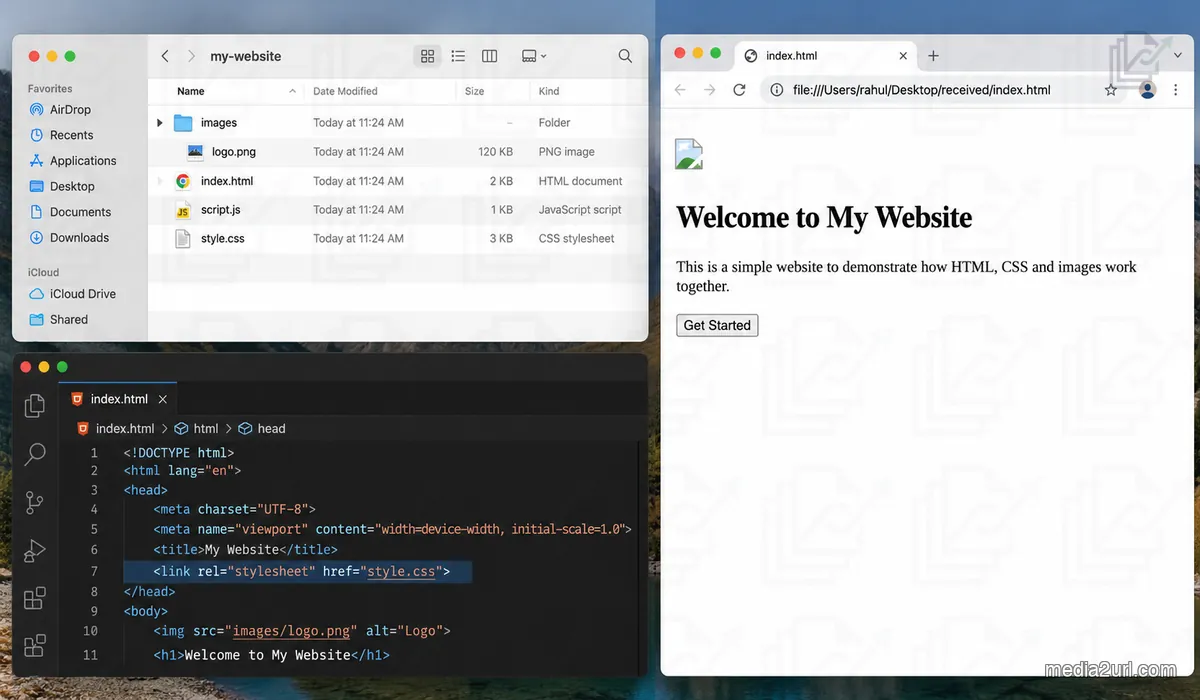
That is how you end up with the slightly strange result where the page opens but suddenly looks like a plain document from 1998.
The text is there.
The design is gone.
Sometimes the images show broken icons.
The person who sent it naturally thinks, "But I checked it before sending."
They did. They checked it in an environment where all the missing pieces were still present.
I would check the paths before touching the design
This is a good point to inspect the asset paths before changing the design.
I would check these in order:
- Compare each
hrefandsrcpath with the real filename, including capitalisation. - Open the browser's Network panel and reload the page to find missing requests.
- For a CSS
url(...), resolve the path from the stylesheet's folder.
When a page looks right through Live Server but loses styling or scripts when opened from disk, compare how each version resolves the CSS and JavaScript references.
Nothing dramatic had happened to HTML.
The browser had simply been told to look in a different place.
You can create the same problem with an image.
Imagine this line:
<img src="C:/Users/Sourav/Desktop/project/images/banner.jpg">
On the computer where that file exists, it can work.
Now copy index.html to another laptop.
The HTML still asks for:
C:/Users/Sourav/Desktop/project/images/banner.jpg
but that location belongs to the original computer.
Even the username is part of the path.
The second computer cannot invent the image.
Keeping project files together avoids a lot of this trouble.
For example:
project/
    index.html
    images/
        banner.jpg
and inside the HTML:
<img src="images/banner.jpg" alt="Banner">
Now the page is interested in where banner.jpg sits relative to index.html, rather than where Sourav happened to save the whole project on his laptop.
MDN explains how these relative references are resolved against a base URL, including references to the current folder, parent folders, and the root of a site. MDN Web Docs
You do not need to memorise all of that before sharing a small page.
What is useful is understanding that a path is not just a filename.
It tells the browser where to look.
If the location changes, the result can change too.
CSS has its own little surprise
Here is something that catches people even after they have understood relative paths.
Suppose your files are arranged like this:
project/
    index.html
    css/
        style.css
    images/
        background.jpg
Inside index.html, this can make sense:
<img src="images/background.jpg">
Now you try to use the same image from style.css.
Perhaps you write:
.hero {
  background-image: url("images/background.jpg");
}
It looks reasonable because images/background.jpg worked in the HTML.
But a relative URL inside an external CSS file is resolved relative to the stylesheet itself, not relative to the HTML page.
Your stylesheet is inside:
project/css/
so the starting point is different.
This is why one image can appear correctly through an <img> element while the CSS background using what looks like the same path disappears.
It is the kind of bug that feels much bigger until you see what the browser is actually requesting.
That is also why I prefer looking at the Network panel in developer tools before rewriting code. If Chrome says it requested a file from the wrong location and received a 404, you already have a useful answer.
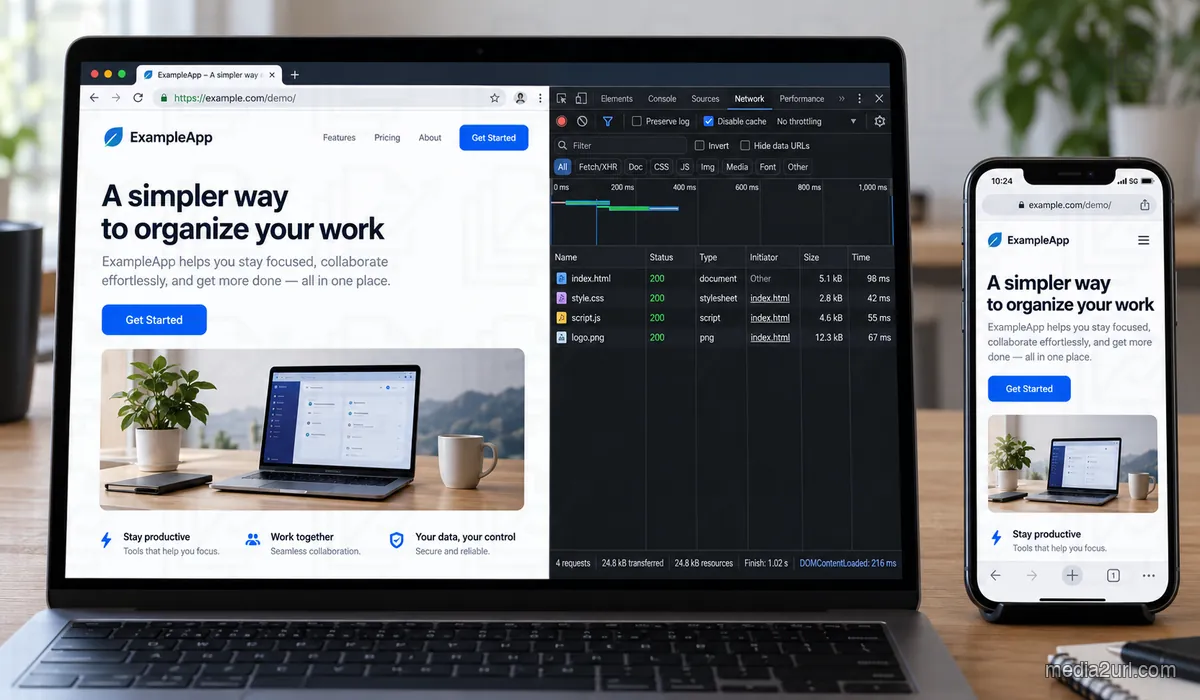
And then Live Server makes everything look fixed
This is usually where somebody starts wondering whether opening an HTML file directly is somehow "wrong."
You install Live Server or run a development tool.
Instead of:
file:///Users/name/Desktop/project/index.html
the browser now shows:
http://127.0.0.1:5500/
or:
http://localhost:3000/
Suddenly the page behaves better.
That is not necessarily because Live Server repaired anything.
It changed the way the browser receives the project.
Your files are being served over HTTP instead of opened directly from disk.
For a basic HTML page, the difference can be invisible.
As soon as JavaScript starts requesting other files or using features affected by browser security rules, the difference becomes easier to see.
Some JavaScript features do not behave the same when a page is opened directly as a local file. Asynchronous requests and local resources can run into browser security restrictions. Code that depends on server side processing also needs a server.
JavaScript modules provide a nice example.
This looks perfectly normal:
<script type="module" src="app.js"></script>
Loading JavaScript modules through a file:// URL can produce CORS errors because of the security rules applied to modules. Test them through a local HTTP server instead.
That explains a situation that can otherwise feel completely random.
The same files are present.
The HTML has not changed.
One way of opening the page works and another one does not.
The environment changed.
A small fetch() call can expose the same thing
Suppose the project has:
index.html
data.json
app.js
and app.js contains:
fetch("data.json")
  .then(response => response.json())
  .then(data => console.log(data));
From your point of view, data.json is sitting right beside the rest of the project.
The browser still has security rules to follow.
When the page runs through a local HTTP server, the request happens in a normal server context.
When you open the same page directly through file:///, the browser may treat the request differently.
This is one reason I would be careful with advice such as "just double click the HTML file to test your website."
That is fine for many simple pages.
It is not a reliable copy of how every web feature behaves once the page is actually served.
A local server gives you a more realistic environment without publishing the project to the internet.
Localhost solves one problem and creates another misunderstanding
Once the page works on localhost, people naturally try to share that URL.
The address can look like a shareable link, but localhost always refers to the computer making the request.
Look at this:
http://localhost:3000
It looks much more like a real web address than file:///Users/....
It uses HTTP.
The page can have CSS, JavaScript, routes, and everything else you associate with a website.
But localhost has a very particular meaning.
It refers back to the machine making the request.
If you open:
http://localhost:3000
your browser looks for a server on your computer.
If I copy exactly the same address and open it, my browser looks for a server on my computer.
It does not somehow understand that you wanted me to connect to your laptop.
These address types behave differently:
| Address | What it points to | What happens on another device |
|---|---|---|
file:///.../index.html | A file on the computer opening it | The recipient needs the file and its dependent assets |
http://localhost:3000 | A server on the computer opening it | The recipient looks for a server on their own device |
https://example.com/page | A page served from an internet host | It opens if the host is reachable and access is available |
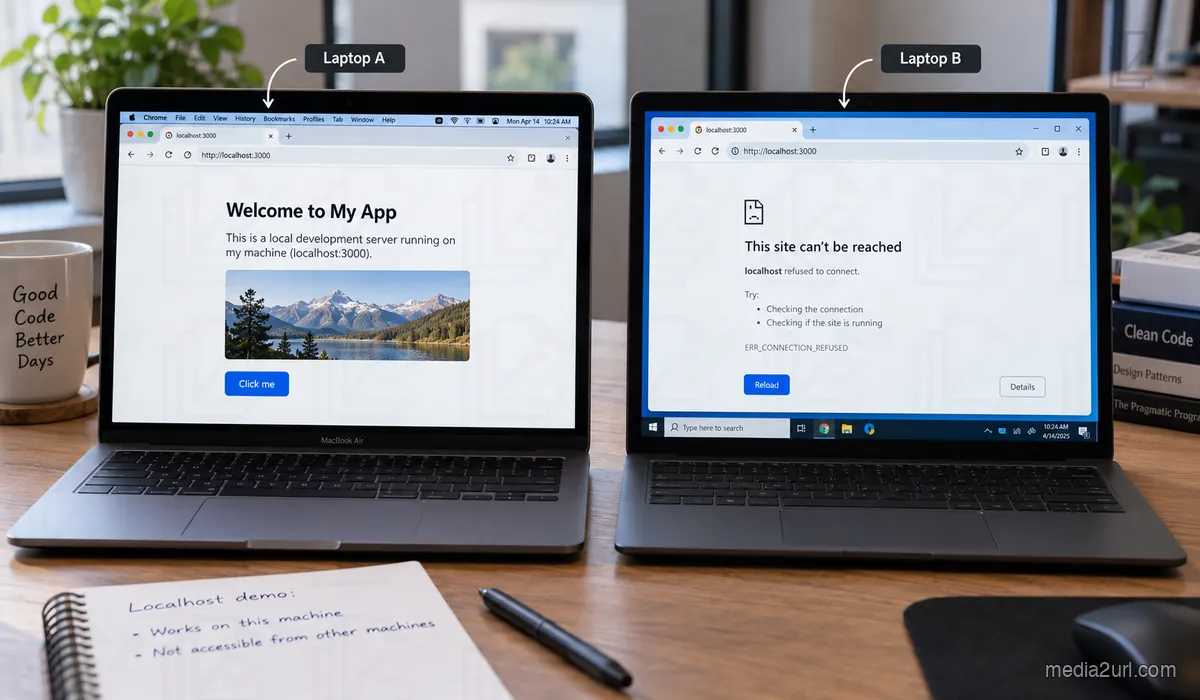
This is why sending a localhost URL to a client normally ends with:
"It isn't opening."
There are ways to let another device on the same network access a development server. There are also services that create temporary internet access to something running locally.
Those approaches are useful when you are testing.
They are different from publishing the page so that it has a normal address another person can return to later.
One of the nastier problems is a page that is online but still depends on your computer
Getting an https:// address does not guarantee that every part of the project has actually left your development machine.
Consider this JavaScript:
fetch("http://localhost:3000/api/products")
During development, you might have an API running at port 3000.
Everything works.
Then you upload the front end.
The visitor can open your public page.
The script runs and requests:
http://localhost:3000/api/products
Whose localhost?
The visitor's.
The HTML is online, but one of the services it needs is still expected to exist locally.
You can get similar problems with images, fonts, JSON files, and scripts.
A page might contain a reference to something inside your Downloads folder.
A stylesheet may expect an image that was never uploaded.
A script might depend on a development server you forgot was running.
When I see a project that works locally and fails somewhere else, I would rather trace those dependencies than immediately conclude that the hosting is bad.
The working version had access to something.
The useful question is what.
Sometimes Windows hides a problem until the project reaches a server
This is a smaller issue, but it has wasted enough people's time that it deserves a mention.
Suppose the file is:
Flower.jpg
and your HTML says:
<img src="flower.jpg">
Depending on the operating system and file system, that difference in capitalisation can go unnoticed locally.
Then the project is uploaded to an environment where filename case is treated strictly.
Flower.jpg and flower.jpg are no longer the same thing.
Filename case is easy to miss during local work and can break a resource reference after upload.
This is one of those checks that costs almost nothing.
If style.css has disappeared, compare the real filename with the spelling used in the HTML.
Do the same for scripts and images.
Before investigating something complicated, rule out the boring problem.
The boring problem wins surprisingly often.
There is a very simple way to find out whether your page has really left your laptop
After publishing something, I like the idea of testing it from a device that has no knowledge of the original project.
A phone on mobile data is useful for this.
If the page still loads there, your Desktop folders clearly are not doing the work anymore.
VS Code is not quietly helping.
Your local web server is not answering requests on the same machine.
The phone only has the address you gave it.
That makes failures easier to interpret.
If the layout appears but an image is missing, inspect that image path.
If the page loads but a button depending on JavaScript does nothing, check the Console.
If the page itself never appears, you have a different problem from a missing resource.
Use the symptom to choose your first check:
| What you see | Likely cause | Check first |
|---|---|---|
| The page opens without its styling | The stylesheet path or file is missing | Check the <link href> path and filename case |
| Images show broken icons | The image was not uploaded or its path changed | Check the <img src> request in the Network panel |
| It works in Live Server but fails on double click | The page depends on HTTP behavior unavailable to file:// | Open it through a local HTTP server |
| A shared URL tries to open the visitor's own machine | The page or script still uses localhost or 127.0.0.1 | Replace the local address with a hosted URL |
I would also search the project before publishing it. Four things are worth checking because they show up repeatedly in real problems:
- references beginning with
file:///or pointing into Desktop and Downloads folders localhostor127.0.0.1inside scripts and API requests- drive specific paths such as
C:/Users/... - CSS, JavaScript, image, or font files that are named in the code but absent from the project you are uploading
The point is not to declare every one of those wrong.
localhost belongs in many development setups.
The search simply tells you where your project still knows something about your own computer.
This is also why an HTML publisher needs to think about the files around index.html
When we were deciding how HTML publishing should work in Media2URL, a single file upload would have covered the easiest case.
It would not cover a lot of real pages.
Someone may have:
index.html
style.css
script.js
assets/
and expect all of it to work together.
So the HTML to URL workflow is intended for static HTML projects rather than pretending that every page is one isolated document.
If your page really is self contained, a single HTML file is enough.
When it relies on other project resources, those files need to remain available in the structure the page expects.
That is a very different problem from running an entire application backend.
An HTML publisher can serve static HTML, CSS, browser JavaScript, images, and other files used by the page.
It cannot make a missing Python application suddenly exist.
It cannot run a PHP backend merely because the front end contains an HTML file.
A project using templates can expose this difference clearly. Template files can contain placeholders or server-side code that must be rendered by the application before the browser receives finished HTML. Uploading the template as a static page does not run that application code.
That is the sort of situation where you need the actual application environment rather than a different way of sharing index.html.
The phrase "works on my computer" is actually useful information
Developers sometimes joke about that sentence because it sounds like an excuse.
I think it is a good debugging clue.
If the page works somewhere, ask what that environment contains.
Maybe it has the missing image.
Maybe Live Server is running.
Maybe the computer has a backend process listening on port 3000.
Maybe an absolute path happens to point to a real folder there.
Maybe the browser is receiving the page over HTTP locally while the failing version is being opened through file:///.
Once you compare the working environment with the failing one, the problem becomes much less vague.
You are no longer asking:
Why is my HTML broken?
You are asking something more useful:
What is this page trying to load that is available here but missing there?
That question can lead you straight to a filename, path, script, request, or local service.
A realistic example
Suppose you create a small portfolio.
Your folder contains:
portfolio/
    index.html
    css/
        main.css
    js/
        gallery.js
    images/
        me.jpg
        project1.jpg
You open index.html from your laptop.
Everything is fine.
Then you send only index.html.
Your friend sees the headings and paragraphs, but the layout is plain and the photographs are gone.
There is nothing mysterious happening. You gave them one file from a five file project.
So you zip the whole folder and send that.
Now they can extract it and open the page locally.
That solves the missing file problem, but they still have to download the ZIP, extract it, find the correct HTML file, and open it.
What you really wanted was probably this:
"Here is the link. Open it."
For that experience, the portfolio has to exist somewhere the other browser can request it.
The HTML needs to be there.
So does main.css.
So does gallery.js.
So do the images.
And all the paths between them still have to point to the right places.
That is what publishing changes.
It does not make HTML more valid.
It moves the page and its required resources out of a private local environment and into one that the intended visitor can reach.
There is one last distinction worth keeping in mind.
A locally opened HTML file, a page running on localhost, and a publicly hosted page can look completely identical in your browser.
Visually, there may be no difference at all.
The difference only becomes obvious when another device tries to open the same thing.
So the next time somebody says your HTML link is not working, look at the address before changing the code.
If it begins with file:///, they do not have your file.
If it says localhost, their browser is looking at their own machine.
If the public page opens but pieces are missing, follow the paths and requests.
That usually tells you far more than the phrase "it worked perfectly on my computer."
Frequently Asked Questions
Why does my HTML file work on my computer but not on someone else’s?
The page works on your computer because the browser can access the files stored there. If the HTML depends on CSS, JavaScript, images, fonts, or local services, those things also need to be available when someone else opens the page. A page can therefore look perfect locally and still fail somewhere else because the second computer does not have the same environment.
Can I send a file:/// link to someone?
You can send the text of the address, but it does not normally give the other person access to the file on your computer. A file:/// address points to a local file system location rather than a public web server. The recipient would need the actual file or a hosted version of the page.
Why does my HTML file open but the CSS and images are missing?
This usually happens when index.html has been moved or shared without the files it depends on. A line such as href="css/style.css" or src="images/photo.jpg" only works if those files still exist in the expected folders. It can also happen when a path points to a location that only exists on the original computer.
Why does my HTML work with Live Server but not when I double click the file?
Live Server serves the project through HTTP, while double clicking the file normally opens it through file:///. Browsers treat those environments differently, especially when JavaScript modules, local data requests, or other browser security rules are involved. That is why the same project can behave normally through Live Server and fail when opened directly from the disk.
Can I share my localhost URL with another person?
Not as a normal public link. localhost refers to the computer that is opening the address. If you send http://localhost:3000 to somebody else, their browser tries to find a server on their own computer, not yours.
Why does my page work locally but break after I upload it?
The problem is often related to paths, missing files, filename capitalisation, or references that still point to your local computer. Check whether the uploaded version contains every CSS file, script, image, and font the page expects. It is also worth searching the code for localhost, file:///, or paths such as C:/Users/....
Do I need hosting for every HTML file?
No. If you only want to open the page on your own computer, a local HTML file can be enough. Hosting becomes useful when you want another person to open the page through a normal web address without downloading the project first.
What is the difference between file:///, localhost, and a public URL?
A file:/// address opens a file from a local file system. localhost opens something being served from the computer that is currently making the request. A public https:// URL points to a location that other people can reach over the internet, assuming there are no access restrictions.
How can I check whether my HTML page is really shareable?
Open the published URL from another device, preferably one that does not contain the original project files. A phone using mobile data is a simple test because it removes your laptop folders and local development setup from the equation. If the page works there, you know it is no longer relying on something available only on your computer.
Can Media2URL publish a complete web application?
Media2URL is more suitable for static HTML projects where the browser receives HTML, CSS, JavaScript, images, and other related files. If your project needs PHP, Python, a database, or another server process, you need hosting that can actually run those parts. The HTML page alone cannot replace the missing backend.