


There is a particularly annoying kind of broken image problem where nothing actually looks broken at first.
You copy the image URL, open it in Chrome, and there it is. The photograph loads immediately. Then you paste exactly the same address into a website, product listing, Markdown file, or image field and get an empty space or broken image icon instead.
Copying the URL again rarely changes anything. Uploading the photograph again may not help either.
The reason is simple, although finding the exact cause can take a little digging. Opening an address yourself and having a webpage request the same address are not always equivalent. Your browser may be opening a page around the image, using an account you are already signed into, or making the request in a way the image host accepts while requests from another website are refused.
The photograph can be perfectly healthy throughout all of this.
What I would investigate is the request.
Before touching the image, find out which part actually failed
Broken image problems become much easier once you stop treating all of them as one problem.
There are really a few very different situations hiding behind the same empty box on a webpage.
| What happened | What I would investigate first |
|---|---|
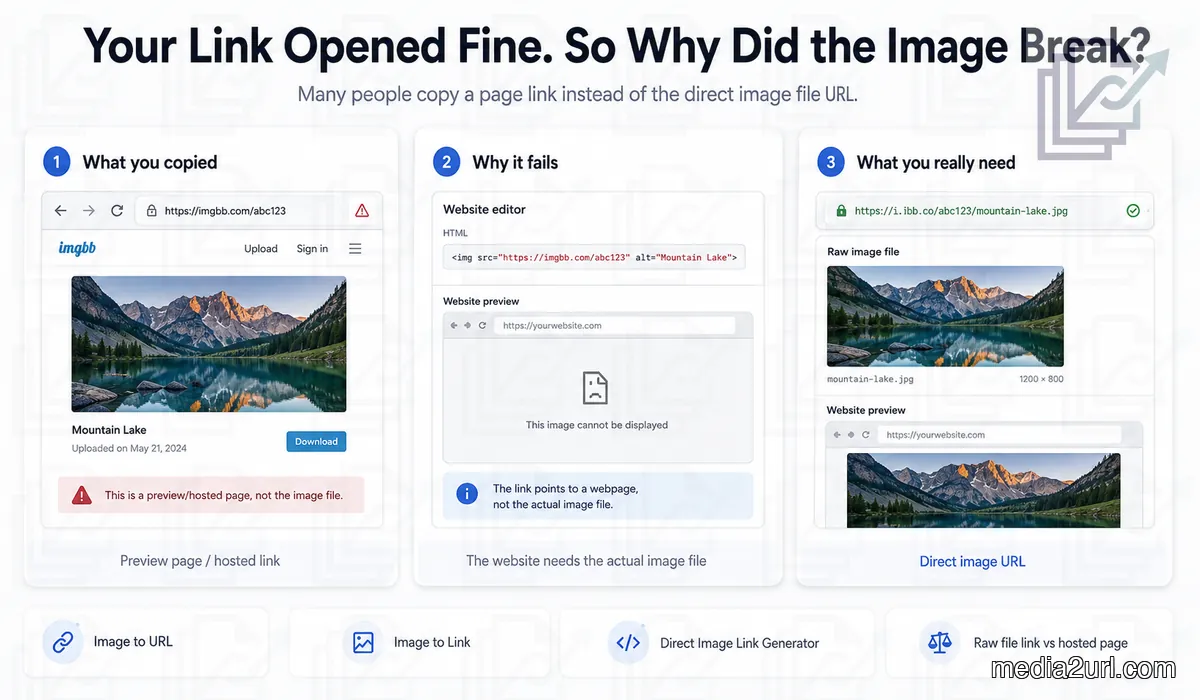
| Your browser opens a nice page containing the photograph, but the website cannot display it | Check whether you copied a viewing page instead of the image source |
| It works in your normal browser but not for another person | Check whether your account or saved login is providing access |
| The image opens directly but disappears only when another website embeds it | Look for restrictions on use from other websites |
| The browser receives the image successfully but nothing appears on the page | Stop blaming the image host and inspect the page itself |
That last case is easy to overlook. An image can reach the browser and still be invisible because CSS hides it, another element covers it, or the page requests a different image on smaller screens.
So before uploading another copy, I would first work out whether the browser failed to get the image or whether it got the image and failed to show it.
Those lead you in completely different directions.
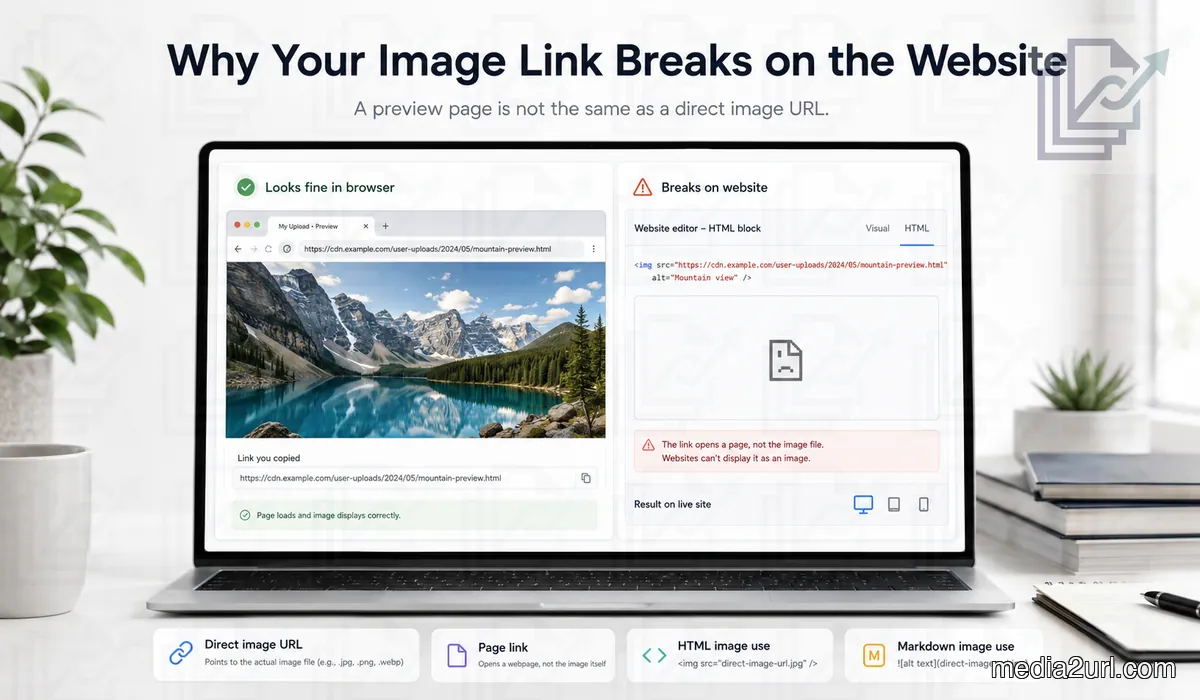
The link that shows the photograph may not be the photograph's URL
This is where I would start when somebody says, “But the link works when I open it.”
Imagine you upload a product photograph and the hosting service gives you a large Copy link button.
You copy this:
https://example.com/photo/blue-chair
Opening the address shows the chair. There is also a filename, the site's logo, perhaps a Share button, and an option to download the original.
Nothing looks wrong.
But what opened was a webpage.
Your product catalogue may instead need something closer to:
https://cdn.example.com/media/blue-chair
When the product page uses that address inside an image element, the browser can request the media itself:
<img src="https://cdn.example.com/media/blue-chair" alt="Blue chair">
Notice that the second URL does not end in .jpg.
It does not need to.
Generated image addresses are common, and a valid image response does not have to expose the original filename or extension. Looking for .jpg, .png, or .webp at the end can therefore send you in the wrong direction.
What comes back from the server is more useful than what the address looks like.
The same mistake can show up in Markdown:

If you place a normal viewing page inside those brackets, the Markdown renderer may fail even though clicking that address manually shows the photograph.
This is exactly why Media2URL keeps direct file URLs separate from share pages. When another website needs the image itself, use the direct output. When a person needs to open a page around the upload, the share page has a different job.
The distinction is covered in more depth in our Direct URL vs Share Page URL guide.
Your browser may be giving you special treatment
A correct looking link can also work only because the hosting service knows who you are.
You uploaded the image while signed into an account. Ten seconds later you copy its link and test it in another tab. The service sees the same login session and serves the photograph without asking anything else.
A visitor on your website does not inherit that session.
Neither does somebody opening the page from another phone.
This is one of the reasons I like using a private browser window early in the troubleshooting process. Paste the exact same image URL there without signing into the host.
If a login page suddenly appears, you have learned something useful. The URL was not as publicly accessible as your normal browser made it look.
Making the file public is not automatically the right solution, of course. A private photograph should remain private. What changes is the way you need to deliver it.
Media2URL separates this question from the type of link itself. Our Public Link vs Private Link guide goes into that part separately.
If the photograph works normally in a private window, you can move on. Your own login probably was not the reason it failed on the website.
And that is where things get more interesting.
The host may be happy to show you the image but refuse to serve it on another site
Suppose the URL is definitely pointing to the image. It opens in a private window too.
Then you embed it on your blog and it disappears.
At this point I would look at whether the image host allows its files to be displayed from other websites.
Hotlink protection is one reason this can happen.
Cloudflare's current Hotlink Protection, for example, checks the HTTP Referer information on image requests. Requests that appear to come from another website can be refused, while a request with your own domain as the referrer, or no referrer, is treated differently.
That produces a result which feels almost backwards:
You paste the image URL directly into the address bar and it works.
Your website requests the same image and gets refused.
The URL did not change. The context around the request did.
Hotlink protection exists largely to stop other websites from consuming a site's image bandwidth by embedding its files. If you control the image host, check whether such a rule is enabled and whether the intended website should be allowed.
If you do not control the host, there may be nothing useful to “fix” in your HTML. Repeatedly copying the URL will not change the server's decision.
For an image you are entitled to use, hosting it somewhere that supports the way you plan to display it is normally cleaner than trying to work around another service's restriction.
A link that worked last week can still be the problem today
Not every broken image fails from the beginning.
A product listing can look perfect when it goes live and lose its photograph three days later.
Temporary URLs are one reason.
You may see an address containing information such as:
https://cdn.example.com/photo.jpg?expires=1800000000&signature=example
The exact format differs between services, but the idea is common. Part of the URL proves that access is authorised, and that permission may have a limited lifetime.
When it expires, the photograph can remain safely stored in the account while the old address stops working.
Generating another temporary URL may make the picture reappear. If the new address also expires, however, you have only postponed the same failure.
That is fine for a temporary preview. It is a poor fit for a product photograph expected to remain on a catalogue for months or years.
Deletion causes a more obvious version of the same problem. If somebody removes or moves the original file and its old location is no longer valid, your website may receive 404 Not Found.
A migration can create this too. The new media library works, but dozens of old pages still point to URLs on the previous host.
There is another variation that initially looks like the opposite problem. You replace the photograph, yet somebody still sees the old version. In that case the address may be fine and a browser or content delivery network may simply have cached an earlier copy.
So “it changed yesterday” is useful information.
A link that has never worked and a link that stopped working after six months should not automatically send you through the same troubleshooting path.
Check what the page actually received
If the earlier checks have not explained the problem, open the page where the image is missing and look at the Network panel in your browser. Reload the page and find the request for that image. You do not need to understand everything shown there; first check whether the page actually asked for the image and what came back.
When no image request appears, the page may be using another URL or waiting before it tries to load the file. A request that gets refused points back to access or the image host. If the request succeeds but returns a normal webpage instead of an image, there is a good chance the copied address points to a viewing page or login page rather than the image itself.
Sometimes the image reaches the browser and still does not appear on the page. The element may be hidden or have no usable size. A responsive layout may also be choosing another image on the device where the problem appears, so check the URL that the browser actually requested before uploading the photograph again.
For a public URL, Link Doctor can make this check easier by showing where the address redirects and what the final response contains. If the problem goes deeper into response headers or browser security rules, that belongs in the technical troubleshooting guide rather than turning this article into a reference for every possible browser issue.
Think differently about images that are used in ten places
A temporary screenshot shared with one colleague does not have the same requirements as a product image used across hundreds of pages.
Long lived images become dependencies.
Suppose a company uses the same logo URL on its website, documentation, email templates, and another application. If somebody deletes that file or its public address changes, the problem is no longer one broken picture.
Every place depending on it can fail.
This was an important consideration for us while working on Media2URL. Once an asset is being reused, keeping its address stable becomes much more useful than simply being able to upload another copy.
For eligible Media2URL assets, managed file replacement lets the active file be updated while its existing managed URL remains in place. Previous versions are retained through the supported version history, so a replacement can also be rolled back when needed.
That changes the workflow quite a bit.
Without a stable address, replacing one photograph may mean finding every page where the old URL was used.
With a managed URL, the references can stay where they are while the file behind them changes.
Caching still exists, so an older copy may remain visible temporarily in some browsers or delivery layers after a replacement. But that is a different problem from having to update the actual URL everywhere.
For important website assets, I would think about this before the first link gets copied into dozens of places.
Before uploading the photograph again
When a link works in one place and fails in another, uploading another identical image feels productive because something has changed.
Usually, very little has changed.
I would first open the exact URL used by the page in a private browser window. If a full hosted page appears, look for the direct image address. If authentication appears, you have an access problem.
Then check the request from the actual webpage.
A 403, 404, HTML response, security error, or successful image response each sends you somewhere different.
And when the image has clearly downloaded, move your attention to the webpage itself.
That is often the point where the mystery disappears.
The important question was never simply, “Does the image link open?”
It is:
What happens when this particular webpage asks for this particular image?
Those two tests can produce very different answers.
Frequently Asked Questions
Why does my image link work in a browser but not on my website?
Opening a URL manually can succeed even when that address is not suitable for embedding. You may be opening a share page, using an existing login, or making a request that the host treats differently from an embedded request.
How do I know if I copied a share page instead of the image URL?
Look at what opens around the photograph. A complete page with navigation, branding, a filename, or viewing controls is a strong clue. Testing the address in the actual image field is even more useful.
Does a direct image URL have to end in .jpg or .png?
No. A generated CDN or hosting URL can return a valid image without displaying its original filename or extension.
Why does the image open directly but fail when another website displays it?
The image host may restrict requests coming from other websites. Hotlink protection is one possible reason, particularly when direct viewing succeeds but an embedded request is refused.
What does a 403 error on an image mean?
The server received the request but refused it. Permissions, hotlink protection, or another access rule could be involved, so the status code is a clue rather than a complete diagnosis.
Why does my image work on desktop but disappear on mobile?
The page may choose a different image through responsive markup such as srcset. The desktop URL can work while the image selected for a smaller screen is missing or blocked.
Is every external image problem caused by CORS?
No. Ordinary external images can often be displayed without CORS permission. CORS becomes especially relevant when an application wants access to the image data, such as drawing the image onto a canvas and reading its pixels.
Can a working image URL expire?
Yes. Some links contain temporary access information and stop working after a defined period. For an image that needs to remain on a website for a long time, use a hosting arrangement intended for that use.
Why is the image request successful but the picture is still invisible?
The problem may be inside the page. CSS can hide the element or give it no usable dimensions, another element may cover it, or the responsive layout may be using different settings.
Can Media2URL help me inspect a strange image URL?
For supported public URLs, Media2URL Link Doctor can help inspect redirects and the final response. If your problem is choosing between a viewing page and the media address, the Direct URL vs Share Page URL guide covers that distinction.
Related resources
If you need to choose between the addresses provided after an upload, read our Direct URL vs Share Page URL guide.
You can also use Link Doctor to inspect supported public URLs.