


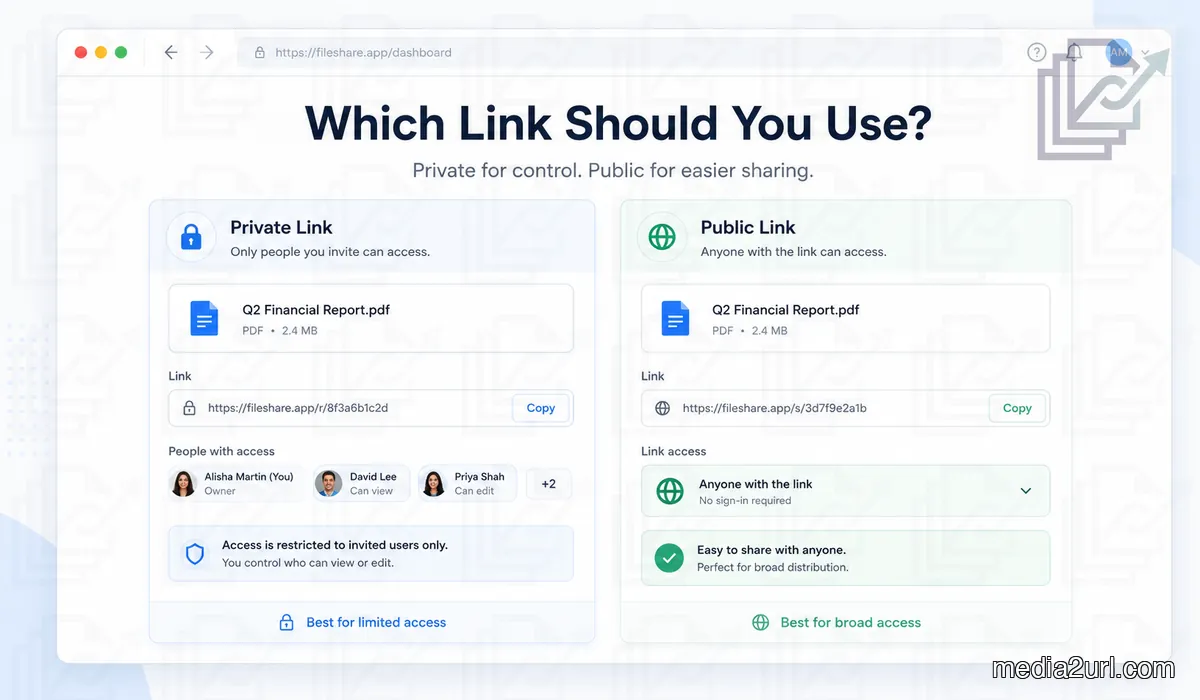
A client is waiting for a proposal, so you upload the PDF, copy the link, and send it. A few minutes later they reply saying the file is asking for access. That problem is annoying, but at least you know it exists.
The opposite mistake is easier to miss. The client opens the file without any trouble, forwards your message to somebody else, and the same link opens for that person too. Nobody sees an error, so there may be nothing that makes you look at the sharing settings again.
That is really the choice behind public and private links. It is less about which label sounds safer and more about who should still be able to open the file after the URL starts moving around.
A brochure on your website is supposed to be shared. A proposal written for one customer is different. Both may be PDFs, but they do not have the same audience.
What changes when you choose Public or Private?
With a broad sharing setting, the URL itself can be enough to get someone to the file. A person receives the link in an email or message, opens it, and sees the document without being added individually.
That is useful when the file was meant for general distribution. A media kit, public brochure, approved press image, or downloadable resource becomes unnecessarily difficult to use if every new visitor has to ask for permission.
Private sharing adds another check. The service may look at the account that is signed in, whether that account was invited earlier, or whether the person already has access through a shared folder.
Google Drive shows this through choices such as Restricted and Anyone with the link. OneDrive uses different names, including Anyone, People in your organisation, People with existing access, and Specific people. The labels are different, but the practical choice is familiar.
If someone forwards the URL, do you want the next person to open the file too?
For a company brochure, probably yes. For a quotation containing a price agreed with one customer, maybe not.
That small difference is more useful than assuming Private is always the correct option.
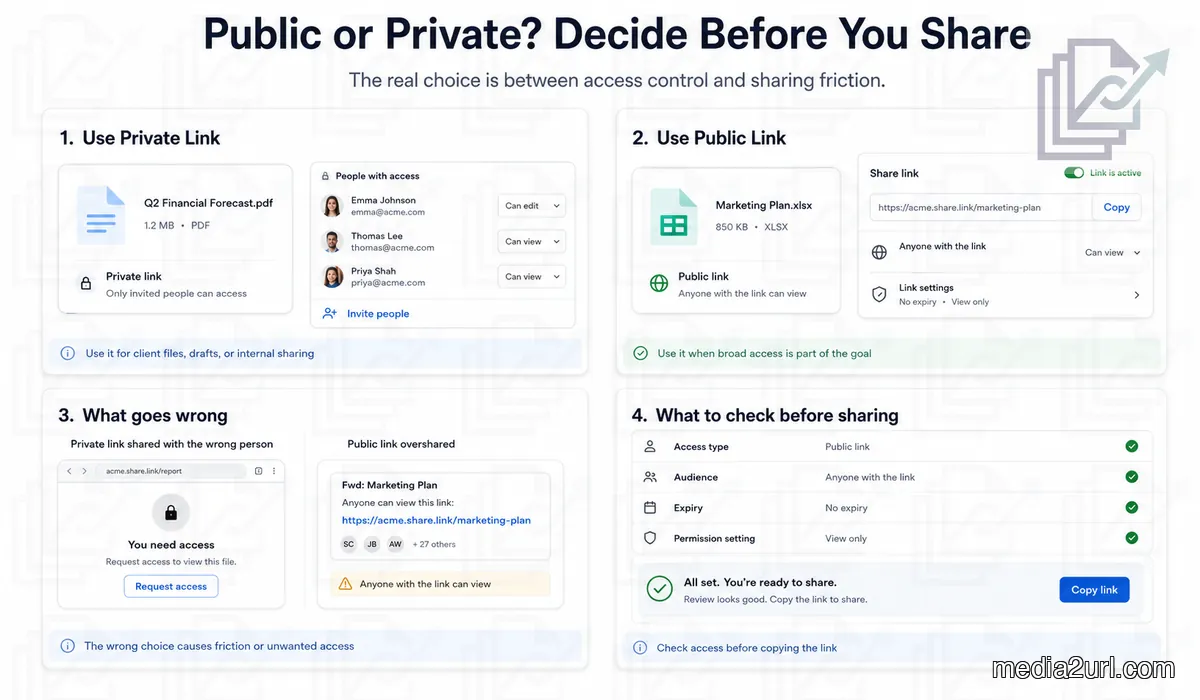
Public sharing can be exactly what you need
A media kit is a good example because the link is expected to travel. A journalist may download your logo and send it to an editor. The editor may pass an approved image to somebody building the article page later that day.
You probably do not want every person in that chain emailing you for access. The files are already approved for public use, so easy access is part of the reason the media kit exists.
The same applies to a brochure linked from a website. If normal visitors are allowed to read it, making them sign in does not protect anything useful. It only adds another place where someone can get stuck.
Where things become messy is when public material and unfinished work sit together. A marketing folder may contain eight approved photographs and a couple of drafts that are still being discussed. Giving the whole folder broad access is much easier than separating those drafts, but it also gives them the same audience as the finished images.
That setup can be forgotten surprisingly quickly. A few months later, another person sees the folder as a collection of public assets and adds something there without knowing that some files were supposed to stay inside the team.
The access did not suddenly become wrong. The contents changed while the old permission stayed in place.
The link can travel further than you expect
Most people do not treat forwarding an email as a security decision. They simply need another colleague to look at the document.
A proposal sent to two people may be forwarded by both of them. If each person sends it to two colleagues, six people now have the URL. You still only sent two original messages.
Whether all six people can open the document depends on the access behind the link.
With broad access, receiving the URL may be enough. With a restricted link, the four new people can have the exact address and still see an access request because nobody gave their accounts permission.
For some files, that difference is useful. A media kit can continue moving through a company without anyone coming back to you. A document containing customer information may need a smaller audience even when the email itself gets forwarded.
The wider issue shows up in cloud security research as well. Tenable reported in its 2025 Cloud Security Risk Report that 9 percent of the publicly accessible cloud storage resources it analysed contained sensitive data. Among those sensitive resources, 97 percent included information classified as restricted or confidential.
Those figures describe the cloud environments Tenable studied. They are not saying that 9 percent of ordinary sharing links on the internet expose confidential files.
Still, the situation behind the numbers is easy to recognise. A file can be sensitive while the place containing it has much wider access. That can happen because a folder was reused, more people were added later, or nobody revisited an old permission after the file changed.
Sometimes the link is not the reason someone can open the file
Shared folders are worth checking because they can give people access before you create another link.
Suppose ten people can open a project folder. Later, somebody places a financial document inside it, even though only two people need that document. Changing the newest share link does not necessarily remove the access the other eight people already have through the folder.
Google Drive normally passes folder access down to the files inside it. Once a workspace becomes busy, it is easy to forget which permission came from a file and which one came from the folder around it.
This is one reason separating files by audience saves trouble later. Public marketing files can live together, while private customer documents do not have to rely on a growing collection of exceptions inside the same folder.
Removing a link has a similar limitation. Somebody may have been invited directly before, or they may still have access through another shared folder. Deleting the latest URL does not automatically cancel every other route to the file.
When a document is sensitive, looking at the actual people who can access it tells you more than looking only at the link you most recently copied.
Private links have their own annoying problems
A restricted link can be set up correctly and still confuse the client.
One of the most common examples is a person with more than one Google account. You share the file with their company email, but they open your message on a phone where the browser is signed into their personal account.
They get an access request.
On your side, the work email is already there, so the file looks correctly shared. The problem is simply that the service is checking another account.
For a document that genuinely needs to stay private, asking the client to switch accounts is usually better than changing the file to Anyone with the link just to make the warning disappear. The extra account check is the reason another person with the same URL cannot immediately get in.
A public brochure is different. There is no real benefit in checking the identity of every visitor when everybody is already allowed to read it.
Editing is another setting sitting close to this one. It is easy to mix the two because they often appear in the same sharing panel.
Someone being allowed to open a document does not mean they should be allowed to change it. A public brochure can stay read only, while a private spreadsheet shared between colleagues may need editing.
Google Drive separates these through Viewer, Commenter, and Editor roles. Other platforms do something similar, even if the names are different.
There are really a few separate choices happening on the same screen.
| Setting | What it changes |
|---|---|
| Audience | Who can open the file |
| Permission | What those people can do after opening it |
| Lifetime | How long that access stays useful |
| Link type | Whether they open a share page, the file itself, or another available URL |
They do not all need the same level of restriction.
Sometimes the link only needs to work until Friday
A designer sends a draft at the beginning of the week and expects feedback before Friday. Once the final version is approved, the old review link has done its job.
There is no particular benefit in leaving that URL active for another year.
This is where an expiry setting becomes useful. Dropbox and OneDrive provide expiration controls in eligible sharing situations. Google Drive also supports expiring access in some work and school account workflows.
Media2URL has temporary sharing and expiring link controls for supported files and plans.
While we were deciding how Media2URL should handle these controls, separating expiry from privacy made sense because they answer different questions. A public event document may need easy access for ten days. A private internal document may need to stay available for several years.
The first file has a broad audience and a short useful life. The second has a small audience and a long one.
Old links are where this becomes easy to ignore. People pay attention to a link while a project is active, but the same URL may keep working long after the email thread has been forgotten.
Keeping the original file for records is fine. Keeping every temporary sharing link active is a separate choice.
Passwords and Unlisted links are useful, but they are not Private
A password protected link works well in some situations. An outside reviewer may need the file for a few days, and asking them to create an account just for that review may be unnecessary.
They receive the URL, enter the password, and open the file.
The password tells the service that the person knows the password. It does not prove who the person is.
If the first reviewer sends the link and password to somebody else, that person may be able to open the file too. A private link tied to an approved account works differently because the identity itself is part of the access check.
Neither approach is automatically better. They are useful for different situations.
Unlisted is different again.
In Media2URL, an Unlisted sharing page is intended to stay outside normal search engine indexing while still working for someone who has the URL. That can be useful for a client preview where you do not want the page appearing through normal search.
It is not a private link.
If an Unlisted URL has no additional access restriction and somebody forwards it, the next person may still be able to open the file. Keeping a page out of search results is not the same as limiting it to named people.
The phrase Anyone with the link can create the same confusion. A file can be available to people who know its address without being intentionally published for search. That still means the address itself can travel.
Hiding the Download button only changes part of the problem
Some platforms let you remove the normal Download option. That can be useful when a person is meant to review a document in the browser and does not need to save the original.
It does not give complete control over what happens after the file appears on their screen.
Dropbox notes that disabling downloads does not prevent people from saving the content in other ways. A screenshot is an obvious example. Someone could also photograph the screen with another device.
For many ordinary reviews, that may be completely acceptable. The control still discourages casual downloading and keeps the expected use clear.
A highly sensitive document is different. If there is a page the recipient should never see, sending the full document and hiding Download is not a good substitute for removing that page before sharing it.
Once information is visible, you have already crossed a different boundary.
Public or Private does not tell you which kind of URL to copy
There is another set of terms around hosted files that gets mixed into this discussion: Direct URL and Share Page.
Those links answer a different question.
Public and Private are about access. Direct URL and Share Page describe what the address opens.
A share page opens a normal webpage around the file. It may show a preview, filename, and other controls. A direct URL points to the hosted file itself, which is useful when another website or application needs the media.
A private file can have a share page. A public image can have a direct URL.
Inside Media2URL, we keep these choices separate because restricting only the page around a file would not be enough if the underlying file remained freely accessible through another route.
If the main confusion is which URL belongs in HTML and which one is better for sending to another person, the Direct URL vs Share Page guide covers that separately.
How we handle access inside Media2URL
The same setting would not work for every file hosted on Media2URL.
A product photograph used on a public website needs to load for normal visitors. An internal PDF may only belong to people inside a workspace. A design preview might need to open easily for a client this week without being something you want indexed by search engines.
For supported workflows, Media2URL provides Public, Unlisted, and Private access. Password protection is available where supported, while expiry and supported view or download limits deal with other parts of sharing.
We do not expect every file to use every control. That would make ordinary sharing harder without adding anything useful.
A public brochure usually does not need a password. A customer document should not become public simply because one client opened it with the wrong account.
The Security & Access Controls page explains the available Media2URL options in more detail.
A file can also move between these situations. A design may begin as an internal draft, go to the client for review, and later become the public version used on a website.
When the purpose changes, checking the old permission again is sensible. The setting that was right during the draft stage may not be the one you want after publication.
What if the wrong link has already been sent?
A link that is too private usually tells you quickly because the recipient cannot open it. Check the account they are using and give the correct account access if that person is supposed to see the file.
A link that was too open needs a little more checking. Changing or removing the public link is useful, but also look at the folder and any direct invitations because someone may still have another way into the file.
If a person already downloaded a copy, closing the original URL will not remove the copy from their device.
For an ordinary brochure, that may not be a concern. If confidential company or customer information was exposed, the situation needs to be handled through whatever process your organisation uses for that kind of incident.
Before copying the link, picture it being forwarded once
That is the check I would use.
Imagine the person receiving your message forwards it to one colleague. Should that colleague be able to open the file straight away?
For a public brochure, media kit, or approved website asset, yes may be exactly right. For a proposal, internal report, or unpublished document, you may want the file to stop at an access screen.
After that, check the rest of the sharing setup in the context of the file. Maybe the person only needs to view it, maybe the link only needs to last a week, or maybe the folder already gives more people access than you realised.
The best setting is not the one with the most restrictions. It is the one that lets the intended people use the file normally without giving the same access to everyone who happens to receive the URL.
Frequently Asked Questions
What is the difference between a public link and a private link?
A broadly accessible link can let people open a file without being added individually first. A private or restricted link normally checks whether the person or account already has permission.
When should I use a public link?
Public access works well for files made for wider distribution, including brochures, media kits, approved website assets, and downloadable resources. Requiring every visitor to ask for permission would make those files harder to use.
When should I use a private link?
Private access fits files that need a limited audience, such as client proposals, financial documents, internal reports, or unpublished work. Someone receiving the URL should not automatically mean they can open the file.
Is an Unlisted link private?
No. Unlisted mainly affects whether the sharing page is intended to appear through normal search indexing. Someone who receives the URL may still be able to open it.
Can a public link expire?
Some services support link expiry or expiring access in eligible situations. This is useful when easy access is needed for a limited period and the same URL does not need to stay active later.
Is a password protected link the same as private access?
No. A password checks whether somebody knows the password. Private account access can check whether the person or account itself has permission.
Does disabling downloads stop somebody from saving the file?
Not completely. It can remove the normal Download option, but a person who can view the content may still be able to capture it another way.
Why can somebody still open my file after I remove a shared link?
They may already have access through a folder, direct invitation, workspace membership, or another route. Removing one URL does not always remove the permissions that already exist.