

Dropbox Direct Link vs Media2URL

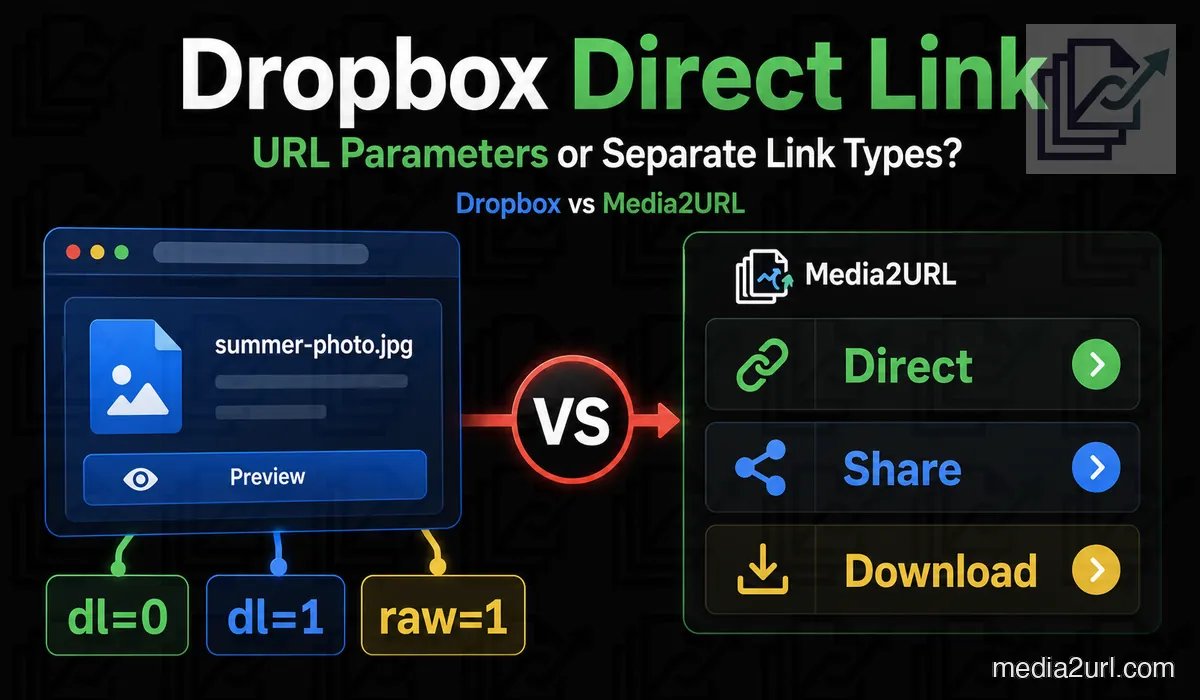
A Dropbox shared link can open a preview, start a download or ask the browser to render the supported file. The result depends on the parameter placed at the end of the URL.
Use dl=0 for the normal Dropbox preview. Change it to dl=1 when the file should download. Use raw=1 when an image, PDF or another supported file should render through the browser.
The raw=1 version still passes through a Dropbox redirect. This may work in a browser but fail inside an application that does not follow redirects.
These parameters are useful when the file should stay in Dropbox and you only need to change how its shared link behaves. Media2URL starts from a different point. The file can become a separately hosted asset with its own direct image link, share and download options, while the original can remain in Dropbox for internal work. Supported images can also provide other website sizes or formats through URL transformations. This becomes useful when the same image appears in several layouts and you do not want to save a separate copy for every version.
Quick answer
Use a Dropbox shared link when the file already belongs in Dropbox and the recipient mainly needs to preview or download it. dl=1 is useful for a forced download, while raw=1 can render supported content after Dropbox redirects the request.
Choose Media2URL when the public copy will continue to need work after the link is created. The asset can stay inside a workspace where it is organised, edited, replaced or shared under the available access rules.
You do not always need to move the original file. A team can keep working files in Dropbox and use Media2URL only for the copies that need a different public-delivery workflow.
The normal Dropbox sharing link
A Dropbox shared URL may end like this:
?dl=0
This opens the normal Dropbox preview page.
For example:
https://www.dropbox.com/scl/fi/example/photo.jpg?rlkey=example&dl=0
This is suitable when you want the recipient to view the file through Dropbox.
It is not always suitable inside an HTML image field because the URL may initially return a Dropbox page.
Force the file to download with dl=1
Change:
dl=0
to:
dl=1
Example:
https://www.dropbox.com/scl/fi/example/report.pdf?rlkey=example&dl=1
Dropbox documents dl=1 as the option for forcing the browser to download the shared file.
Use this for:
- Download buttons
- ZIP archives
- Documents meant to be saved
- Software or resource files
It is not suitable when you want the file to display directly inside the page.
Render supported content with raw=1
Change the parameter to:
raw=1
Example:
https://www.dropbox.com/scl/fi/example/photo.jpg?rlkey=example&raw=1
Dropbox says this asks the browser to render supported file content.
A normal browser usually follows that redirect automatically. Another application may handle redirects differently, which is why the same Dropbox URL can work when opened manually but fail when it is used as an embed or import source.
Quick parameter comparison
| Parameter | Main behaviour |
|---|---|
dl=0 | Opens the Dropbox preview |
dl=1 | Forces the file to download |
raw=1 | Renders supported content after a redirect |
Do not place more than one of these final behaviour parameters in the same URL.
Keep required values such as rlkey unchanged.
Which Dropbox link should you use for an image?
Use raw=1 when you need the browser to display a supported image through Dropbox.
For example:
<img
  src="https://www.dropbox.com/scl/fi/example/photo.jpg?rlkey=example&raw=1"
  alt="Photo"
>
Test it in the actual website or application.
The browser may follow the redirect correctly. Some APIs, import tools, or third-party platforms may not.
Why the image may still fail
A correct raw=1 parameter only changes how Dropbox tries to deliver the shared file. It does not remove the other conditions attached to that link.
The link may stop working if:
- The owner removes public access
- The file or shared link is deleted
- Dropbox restricts the shared link
- The receiving application refuses redirects
Moving or renaming a file does not always produce the same result as deleting the shared link. The safest approach is to test the exact URL after making changes inside Dropbox.
High traffic can temporarily disable Dropbox sharing
A Dropbox link may work perfectly during testing and still become unavailable after receiving much more traffic than expected.
Dropbox applies daily bandwidth limits to shared files. The current limit is 20 GB for Basic accounts and trials. Plus, Family, Professional, Essentials, Standard and Business accounts receive 1 TB per day, while Advanced, Business Plus and Enterprise accounts receive 4 TB per day.
The bandwidth includes data transferred when other people view or download shared files. Dropbox says that when the limit is exceeded for the first time, sharing activity and affected links or file requests are normally paused for 24 hours. Repeated issues can lead to longer suspensions.
This matters when a Dropbox raw=1 link is placed inside a public website. A small site may never reach the allowance, while a heavily viewed image or large downloadable file can consume much more bandwidth than expected.
Dropbox is therefore useful for normal file sharing, but an important high-traffic website asset should not be treated as unlimited public delivery simply because the raw link works.
Dropbox access controls
A raw=1 parameter changes delivery behaviour. It does not bypass the permissions applied to the Dropbox file.
Dropbox shared links can already use meaningful access controls on eligible paid plans. Passwords can be required, links can receive an expiration date and downloads can be disabled for supported previewable files. Access can also be limited to members of a Dropbox team.
If a file is private or the shared link has been disabled, changing dl=0 to raw=1 will not make the file public.
Media2URL therefore should not be presented as the only service with passwords or link expiry. The difference is the wider set of controls Media2URL keeps around the separately hosted asset under Security & Access Controls, including supported view or download limits and temporary signed delivery.
Can Dropbox host an HTML website?
No. Dropbox’s direct-link guidance says shared links do not render HTML content as a hosted webpage.
You can share an HTML file for download or preview. You should not use a Dropbox shared link as normal website hosting.
Dropbox is still useful for storage and collaboration
Dropbox makes sense when the original file belongs inside a shared folder and several people need access to it. Teams can sync files across devices, control folder access and continue working through the normal Dropbox environment.
Media2URL serves another part of the workflow. It is useful after the file needs to work as a public asset, direct URL, embed source, client preview or controlled download.
A company does not always need to choose only one platform. The design team may keep original files inside Dropbox and import approved delivery copies into Media2URL. This keeps internal collaboration separate from the links placed on websites, support pages and public documents.
Test a Dropbox URL before depending on it
A Dropbox link can work in your own browser and still behave differently inside a website, media player or import field.
Media2URL Link Doctor checks the HTTP response and follows redirects so you can see where the address finally ends. This is particularly useful with raw=1 because Dropbox itself documents that the parameter causes a redirect.
The returned content type can show whether the final response is the expected image, PDF or other media rather than a webpage or error response.
CORS information becomes useful when the file needs to be accessed through browser scripts or a canvas-based tool.
For video and audio URLs, Link Doctor can also test byte-range behaviour. This does not mean every Dropbox media URL automatically fails byte-range requests. The check simply shows how the actual URL being tested responds.
Link Doctor does not change Dropbox permissions or repair a disabled link. It gives you the response details before you depend on that URL somewhere else.
| Check | What it helps explain |
|---|---|
| HTTP status and redirects | Whether the URL responds and where Dropbox sends the request |
| Content type | Whether the final response is actually the expected media |
| CORS behaviour | Whether browser scripts can use the resource as expected |
| Byte-range behaviour | How a video or audio URL handles partial requests |
Move Dropbox files into Media2URL
Sometimes changing dl=0 to raw=1 is enough. A different workflow is needed when the file should stop depending on its Dropbox shared link and become a separately managed hosted asset.
Media Migration can bring supported files into a Media2URL workspace from groups of accessible source URLs or available cloud-storage sources.
For a Dropbox link, the source still needs to return a file that the migration workflow can access. Media2URL cannot bypass a Dropbox password, team-only permission or link that the owner has already disabled.
Duplicate checking becomes useful when a larger migration contains the same file more than once. Where source-to-new-URL mapping is available, the migration result can also keep a record of which Media2URL URL belongs to the previous source address.
Once migrated, the new file no longer depends on that Dropbox shared-link redirect for its normal Media2URL delivery. The original Dropbox file can remain where it is unless its owner decides to remove it.
You must still own the file or have permission to create and host another copy.
Organise imported files inside a workspace
An imported Dropbox file does not have to remain as an isolated link. You can place it inside a Media2URL folder, attach tags and group it with other assets used for the same client or project.
Separate workspaces can keep different brands, clients or product libraries apart. Each workspace has its own files, folders, members and presets, so a team does not need to share one account password.
The workspace owner can invite people with an assigned role:
- An Admin can manage members and workspace settings
- An Editor can upload, edit and organise assets
- A Viewer can inspect files and copy approved links
- An Owner controls the workspace and its billing
This setup is useful for agencies that store source material in several Dropbox folders but need one organised delivery library for approved assets.
Dropbox direct links compared with Media2URL
| Feature | Dropbox shared link | Media2URL |
|---|---|---|
| Main purpose | Cloud storage and file collaboration | Media hosting, delivery and link management |
| Link output | Shared link adjusted through parameters | Separate direct, share and download URLs |
| Browser preview | Dropbox preview with dl=0 | Media2URL share page |
| Forced download | Add dl=1 | Use the supplied download URL |
| Raw rendering | Add raw=1 and follow a redirect | Use the hosted direct route |
| Redirect dependency | Raw delivery can involve a Dropbox redirect | Direct file route does not depend on the original Dropbox redirect |
| Bulk migration | Dropbox sync and upload workflows; shared links are not a media-migration system | Media Migration from supported bulk URLs or cloud sources with duplicate checking and source mapping where available |
| File replacement | Update the file inside the Dropbox workflow | Replace the active version while keeping the published Media2URL URL |
| Previous versions | Dropbox version history depends on its plan and retention rules | Version history stays attached to the managed asset |
| Image editing | File preview and available Dropbox editing tools | Layer-based Image Editor with crop, adjustments, text, drawing and layers |
| On-demand image variants | dl and raw parameters change link behaviour rather than image dimensions or output format | Width, height, fit, crop position, quality and supported WebP/AVIF output |
| PDF tools | Built-in PDF editing with merge, split, page organisation, rotation and signing tools | PDF workspace with merge, split, page organisation, watermarks, numbering, compression, password handling, metadata and image conversion |
| Media processing | Not designed as a dedicated media-processing workspace | Video, GIF and audio conversion tools |
| Folder organisation | Dropbox folders and shared folders | Nested asset folders, tags, bookmarks and collections |
| Team access | Dropbox sharing and team permissions | Isolated workspaces with Owner, Admin, Editor and Viewer roles |
| Link expiry | Shared-link expiration on eligible plans | Set asset link expiry during the Media2URL sharing workflow |
| Password access | Password protection on eligible plans | Passwords, expiry, temporary signed delivery and supported view/download limits |
| Private access | Dropbox account, team, folder and shared-link permissions | Public, unlisted, private or password-protected asset access |
| Branding | Dropbox branding and eligible customisation options | Custom logo and optional removal of Media2URL branding |
| Delivery analytics | Activity and reporting depend on the Dropbox product and plan | Share-page views, recent downloads, bandwidth, quota use and top-link insights where supported |
| Image optimisation | Not controlled through Dropbox link parameters | URL-based dimensions, fit, crop position, quality and supported WebP/AVIF output |
| Audit records | Dropbox team activity features depend on the plan | Workspace audit trail for asset and member actions |
Keep the same URL after replacing a file
A public link may already appear inside a website, product page, PDF, QR code or client document. Replacing every published address can take more time than replacing the file itself.
A supported replacement can become the active Media2URL version while the managed URL remains in use. Earlier versions stay in file history and can be restored when needed.
This is useful for catalogues, menus, price sheets and product images that receive updates after publication. You change the asset inside the dashboard instead of editing every place where its URL was used.
Dropbox also has mature file version history and can restore older versions within the retention period provided by the account plan. The difference is not that Media2URL invented rollback. Dropbox version history is designed around recovering and collaborating on stored files, while Media2URL connects supported versions with the asset being used for hosted delivery.
Edit the imported asset without downloading it again
A Dropbox file may need a small change before it is published. Downloading it, opening another application and uploading the edited copy creates extra work.
Media2URL includes a browser Image Editor for supported image files. You can crop the image, adjust brightness or contrast, place text, draw annotations and manage separate layers. The result can replace the active version or remain as a new asset.
Dropbox itself now includes meaningful PDF editing tools, so Media2URL should not be positioned as the only product that can modify PDFs. Dropbox can edit and reorganise PDF content inside its own storage workflow.
Media2URL's PDF workspace is useful when the hosted copy also needs controls such as watermarks, page numbering, compression, supported password handling, metadata changes or PDF/image conversion before publication.
The source file can remain inside Dropbox for internal work. Media2URL holds the prepared copy that is ready for sharing or public delivery.
When the image needs another website size
Changing dl=0 to raw=1 changes how Dropbox returns the file. It does not turn the link into an image-transformation instruction. Dropbox's documented shared-link parameters cover preview, download and raw rendering.
Media2URL supports a separate workflow for eligible images. The stored source can provide another width, height, crop or quality level through URL transformations.
WebP or AVIF output can also be requested where supported.
This means the original image can stay unchanged while different website layouts use suitable delivery versions.
A practical catalogue workflow
A company stores its product catalogue in Dropbox and shares this URL:
https://www.dropbox.com/scl/fi/example/catalogue.pdf?rlkey=example&dl=0
Customers who open it see the normal Dropbox preview. Changing dl=0 to dl=1 starts the download, while raw=1 asks the browser to render the PDF after a redirect.
This may be enough for a catalogue that rarely changes. A different problem appears once the same shared address is already being used through printed QR codes, brochures or product packaging and the team wants a separate publishing workflow around that public copy.
The company can import the catalogue into Media2URL and publish the managed link instead. A staff member can replace the active PDF after a price update while the printed URL stays the same.
The team may also organise previous catalogues inside a project folder and give Viewer access to sales staff. They can copy the approved link without gaining permission to delete or edit the file.
Which option fits your work?
Use Dropbox when the file already belongs there and the recipient mainly needs to preview, download or collaborate on it.
Use Media2URL when the public copy needs a separate life from the working file. That may include another delivery URL, website image variants, managed replacement, migration or access rules that stay attached to the hosted asset.
The two services can also work together. Dropbox can remain the source-file workspace while Media2URL holds approved publishing copies.
Final answer
Use dl=0 when you want the normal Dropbox preview. Change it to dl=1 when the shared file should download. Use raw=1 when supported content should render through the browser, while remembering that Dropbox sends the request through a redirect.
For normal sharing, team collaboration and synced source files, Dropbox is usually the natural place to keep the asset.
The main limitation appears when a Dropbox shared link starts behaving like public delivery infrastructure. Shared-link traffic is subject to Dropbox bandwidth limits, and a high-traffic link can be temporarily disabled after the account exceeds its allowance.
Media2URL fits a different part of the workflow. A publishing copy can be moved into a managed workspace and later edited, transformed for another website layout, replaced or shared under the controls available for that file.
You can also use both. Keep working files in Dropbox and move only the approved copies that need a separate public-delivery workflow.
Related comparisons
- Media2URL vs Imgur
- Media2URL vs ImgBB
- Media2URL vs Image2URL
- Media2URL vs Cloudinary
- Media2URL vs ImageKit
Comparison review note: This page was reviewed on August 18, 2026 using Dropbox's current official guidance for shared-link parameters, bandwidth limits, link permissions, version history and PDF tools together with features available in the current Media2URL platform.
Dropbox plans, bandwidth allowances and sharing features can change. Check the current Dropbox documentation when a particular limit or link behaviour is important to a production workflow.
Frequently Asked Questions
What does dl=1 mean in a Dropbox link?
The dl=1 parameter asks the browser to download the file instead of opening the normal Dropbox preview page.
What does raw=1 mean in Dropbox?
The raw=1 parameter asks Dropbox to let the browser render a supported file. Dropbox sends an HTTP redirect before the file reaches the browser.
Why does a Dropbox raw link work in my browser but not in an app?
Your browser probably follows the Dropbox redirect automatically. The application may reject redirects, require another content type or refuse the final Dropbox response.
Can Dropbox raw links host an HTML website?
No. Dropbox shared links do not render an HTML file as a normal hosted webpage.
Does Dropbox support passwords and expiry dates?
Yes, on eligible paid plans. Dropbox Professional, Essentials, Standard, Advanced, Business, Business Plus and Enterprise currently support shared-link passwords and expiration dates. Availability can change, so check the current plan before relying on either setting.
Can Media2URL import a password-protected Dropbox file?
Media2URL cannot bypass a Dropbox password or private permission. The owner must provide a publicly accessible link or upload the authorised file directly.
Does importing a Dropbox file remove the original?
No. Media2URL creates a separately hosted asset from the accessible file. The original remains in Dropbox unless its owner deletes it there.
Can I replace an imported file without changing its Media2URL link?
Yes. A supported replacement can become the active Media2URL asset while its managed URL remains in use. Earlier supported versions remain in file history and can be restored when needed.
Can a team manage imported Dropbox files together?
Yes. Files can be organised inside a workspace with folders, tags and member roles. The available actions depend on whether the member is an Owner, Admin, Editor or Viewer.
Does Dropbox have shared-link bandwidth limits?
Yes. Dropbox currently limits shared-link bandwidth to 20 GB per day for Basic accounts and trials, 1 TB for several individual and business plans, and 4 TB for Advanced, Business Plus and Enterprise. Dropbox says a first bandwidth suspension normally pauses sharing for 24 hours.
Can Media2URL create different image sizes from one upload?
Yes, for supported images. URL transformations can request another width, height, fit, crop position or quality while the stored source remains unchanged. Eligible outputs can also use WebP or AVIF.