

How to Publish a Canva Design as a Direct Link and Update It Without Changing the URL

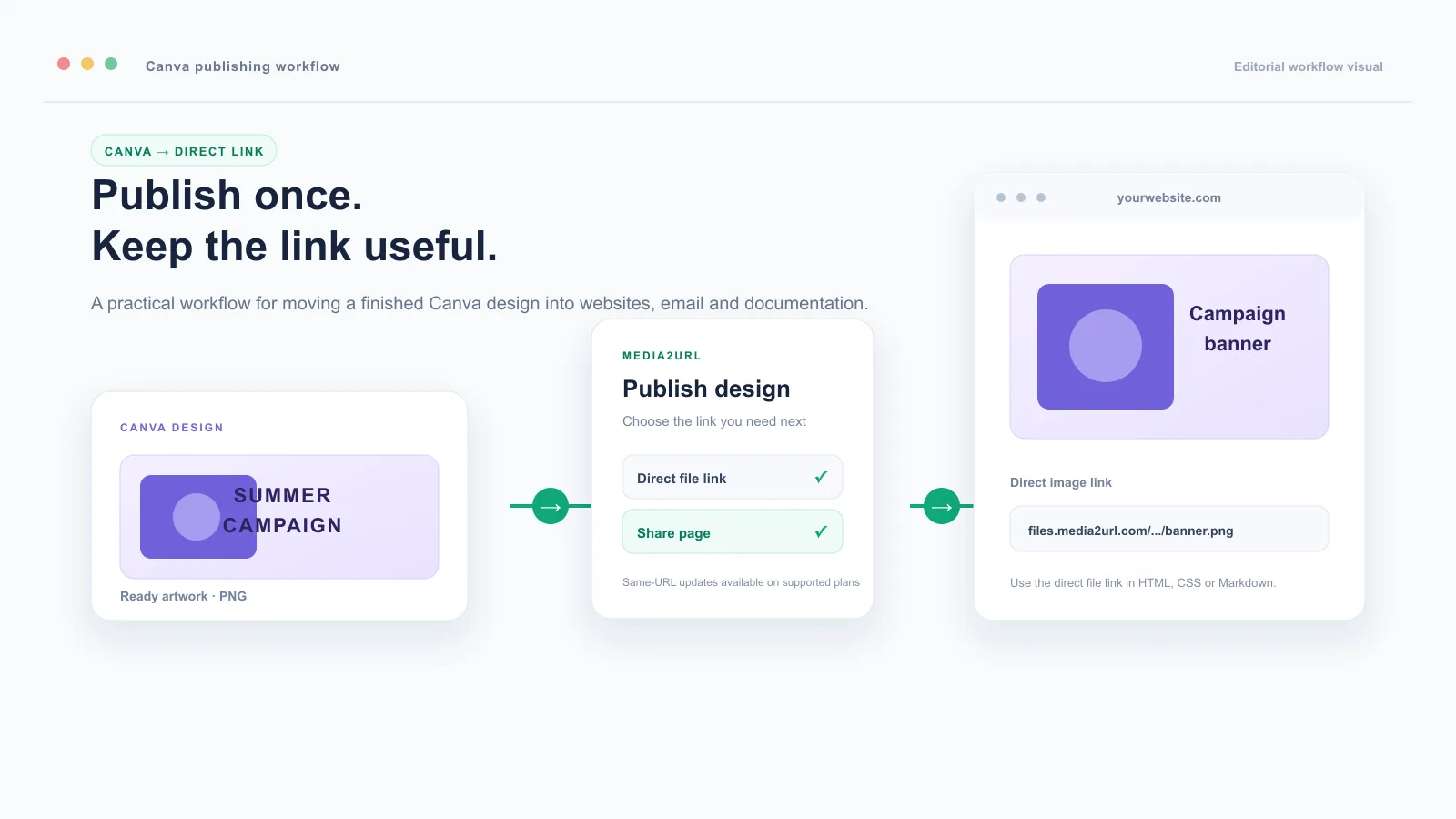
A Canva design may be ready in a few minutes, but using it outside Canva can take much longer. You may need the design inside a website, HTML email, Markdown file, CSS code, Discord message, or online document. The usual process is to download the design, upload it to another service, copy the new link, and repeat everything when the design changes.
That process becomes frustrating when a banner has already been added to several pages. A small change such as correcting a date or replacing an offer can leave you searching through old files and external links.
The Media2URL Canva integration helps keep that workflow in one place. You can publish a Canva design as a direct image link, copy a share page for people, and update a managed publication later without replacing the public URL when the available account controls support it.
A Canva share link and a direct file link are different
A Canva share link normally opens a Canva page or preview screen. It is useful when someone needs to view the design or make a comment. It is not the same as a direct image link.
A direct file link opens the image file itself. This is the type of link that works inside an HTML image tag, a CSS background, a Markdown document, or a forum post.
| Where you want to use the design | Link to use | What happens |
|---|---|---|
| Website, HTML, CSS, or Markdown | Direct file link | The image loads from the file address. |
| Sending the design to a client | Share link | The person opens a Media2URL preview page. |
| Clickable image on a website | Direct file link inside a share link | The image loads directly and opens the preview when clicked. |
| Discord, forums, or documentation | Direct file link | The image can appear inside the supported platform. |
This difference matters because placing a share link inside an HTML image tag usually displays a webpage instead of the image. When that happens, the image may appear broken even though the link itself opens correctly in a browser.
Choose the right Canva export before publishing
The best format depends on how the design will be used. A logo with a transparent background needs different treatment from a full-size promotional banner.
| Format | Suitable for | Reason |
|---|---|---|
| PNG | Logos, transparent graphics, text-heavy designs, and sharp shapes | It keeps transparency and usually protects small text better. |
| JPG | Photographs, full-background banners, and simple promotional graphics | It can produce a smaller file when transparency is not needed. |
A smaller file is not always a better file. Open the exported image once and check the small text, thin borders, and logo edges before publishing it. A design that looks sharp inside Canva may lose quality after compression.
Give the asset a title that will still make sense after several months. “Banner” is difficult to find later, while “Homepage summer campaign banner 2026” gives useful context when the library becomes larger.
Connect Media2URL inside Canva
Open the Canva design that you want to publish. From the left sidebar, open Apps and search for Media2URL. Select the app and connect it to your Media2URL account when Canva shows the authorisation screen.
After the connection is complete, the Media2URL panel should appear inside the Canva workspace. Depending on the current app version, you may see options such as Publish and Library.
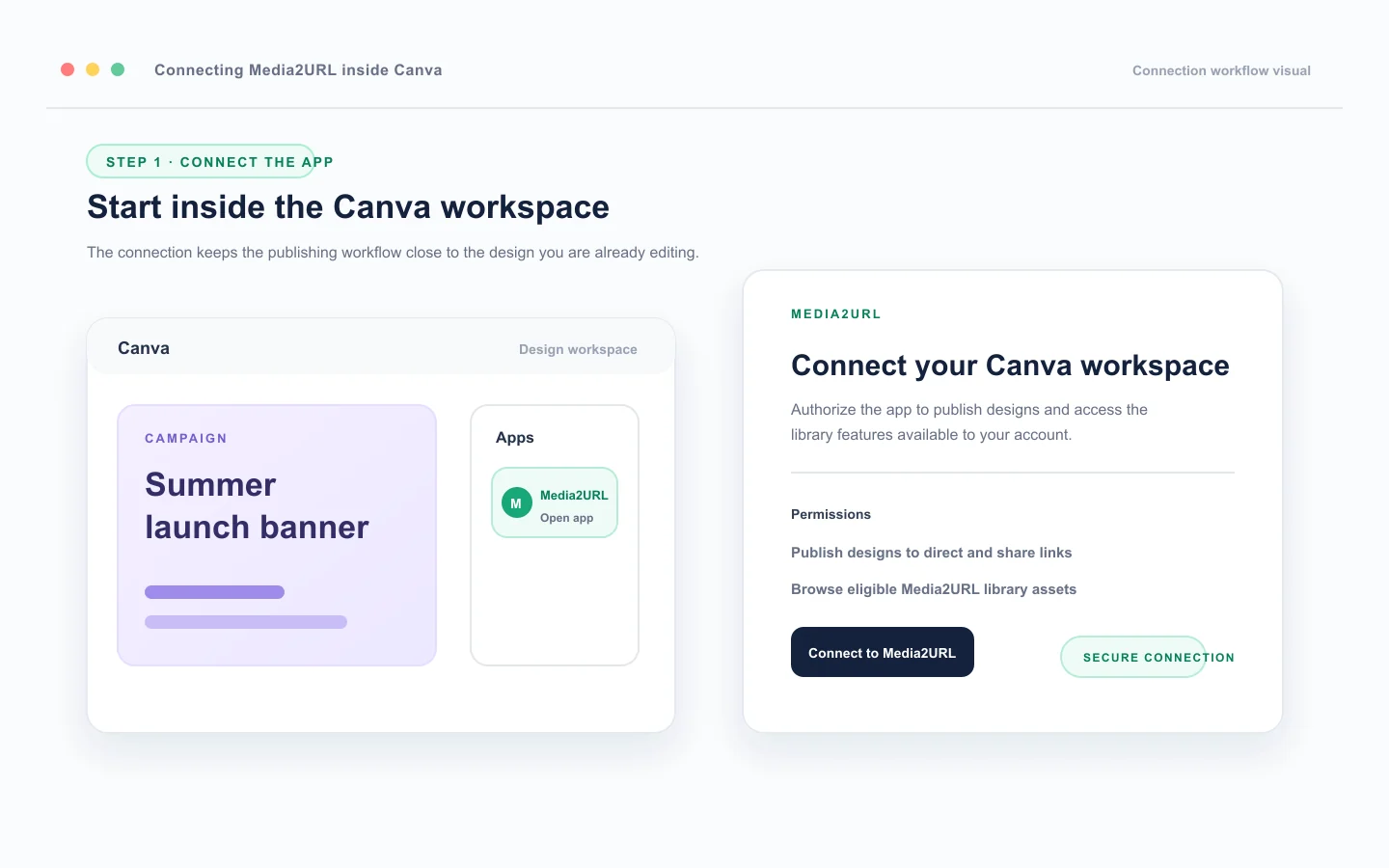
If the app does not appear after authorisation, refresh the Canva design and open the Apps panel again. It is also worth checking that you are connected to the Media2URL account that owns the required files and plan access. An app connection can succeed while the wrong account remains active in another browser tab.
Publish the Canva design to a direct link
Open the Publish section in the Media2URL panel. Enter an asset title and choose the output format. The title helps you recognise the file later, so it should describe the purpose of the design rather than only its colour or size.
Click Publish to Media2URL and wait for the upload to finish. The app should then show the links created for the design.
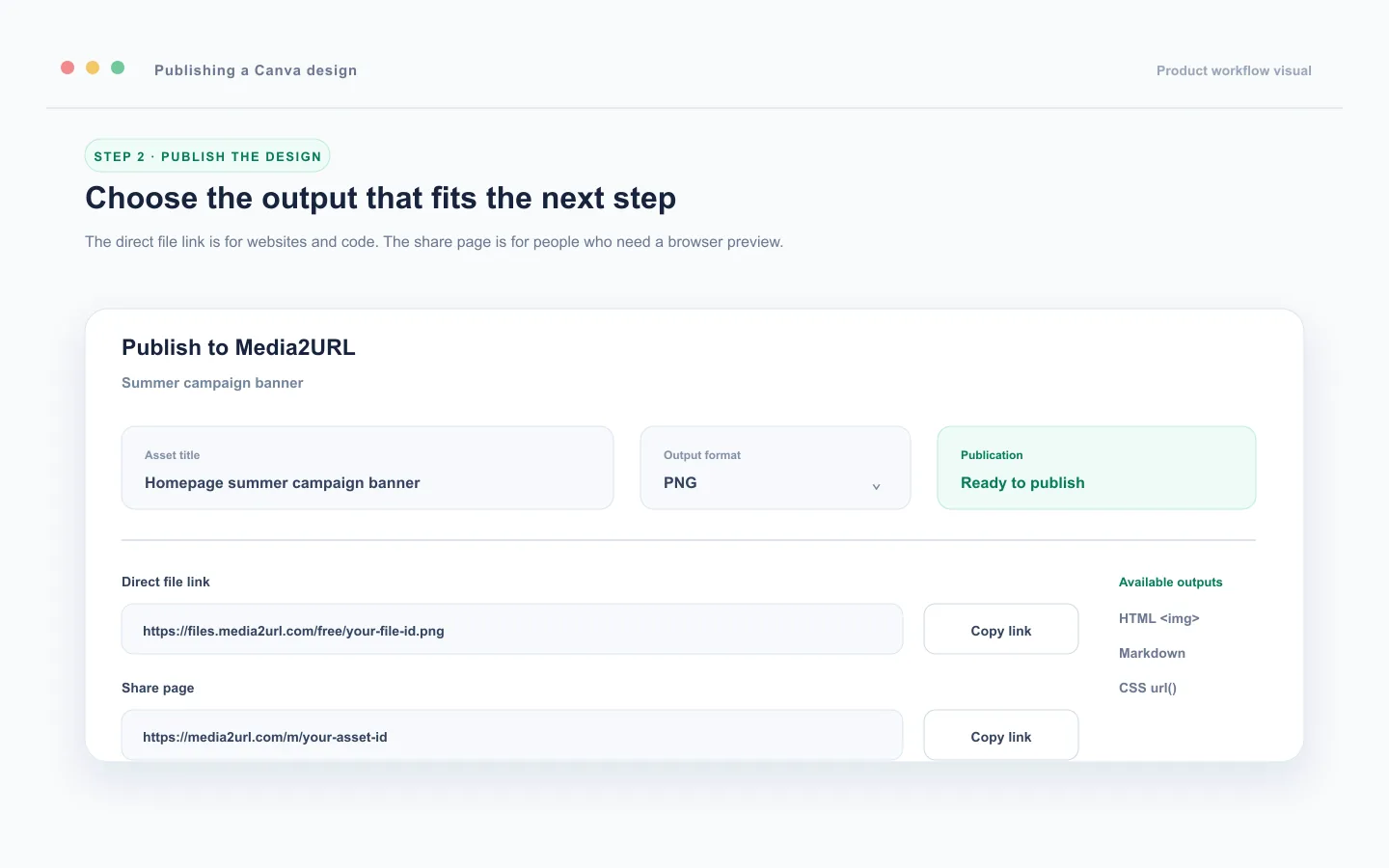
The result normally includes a direct file link for technical use and a share link for people. The direct file address may look similar to this:
https://files.media2url.com/free/your-file-id.png
The share address may look similar to this:
https://media2url.com/m/your-asset-id
Open the direct file link in a new browser tab before using it on another website. The image itself should load in the browser. If a Media2URL preview page appears, you have probably copied the share link instead of the direct file link.
Use the direct link in HTML, Markdown, and CSS
A website can use the direct file link inside an image element. If you also want visitors to open the Media2URL preview page when they click the image, place the direct file link inside a normal link element.
<a href="https://media2url.com/m/your-asset-id">
  <img
    src="https://files.media2url.com/free/your-file-id.png"
    alt="Summer campaign banner for the Media2URL homepage"
  >
</a>
The src value loads the image. The href value controls the page that opens after someone clicks it. The alt text should describe the actual design because it helps visitors who cannot see the image and gives screen readers useful information.
Markdown uses the same direct file link for the image. You can make the image clickable by placing it inside another link.
[](https://media2url.com/m/your-asset-id)
A CSS background also needs the direct file address:
.homepage-banner {
  background-image: url("https://files.media2url.com/free/your-file-id.png");
}
The share link should not be used inside background-image because CSS needs the image file itself. Email services may still ask readers to allow external images. That behaviour belongs to the email application and does not necessarily mean the Media2URL link is broken.
Update the design without changing the public URL
The same-URL update is useful when one design is already being used in many places. Imagine that a sale banner is present on your homepage, blog, email template, and product documentation. If you upload the corrected design as a new file, every old location may continue showing the previous version.
The managed publication workflow keeps the existing public address connected to the current version of the asset.
Open the same Canva design and launch the Media2URL app again. From the Publish section, choose the available option for updating an existing managed publication or keeping the same URL. Select the existing managed asset and confirm the update when the account provides that control.
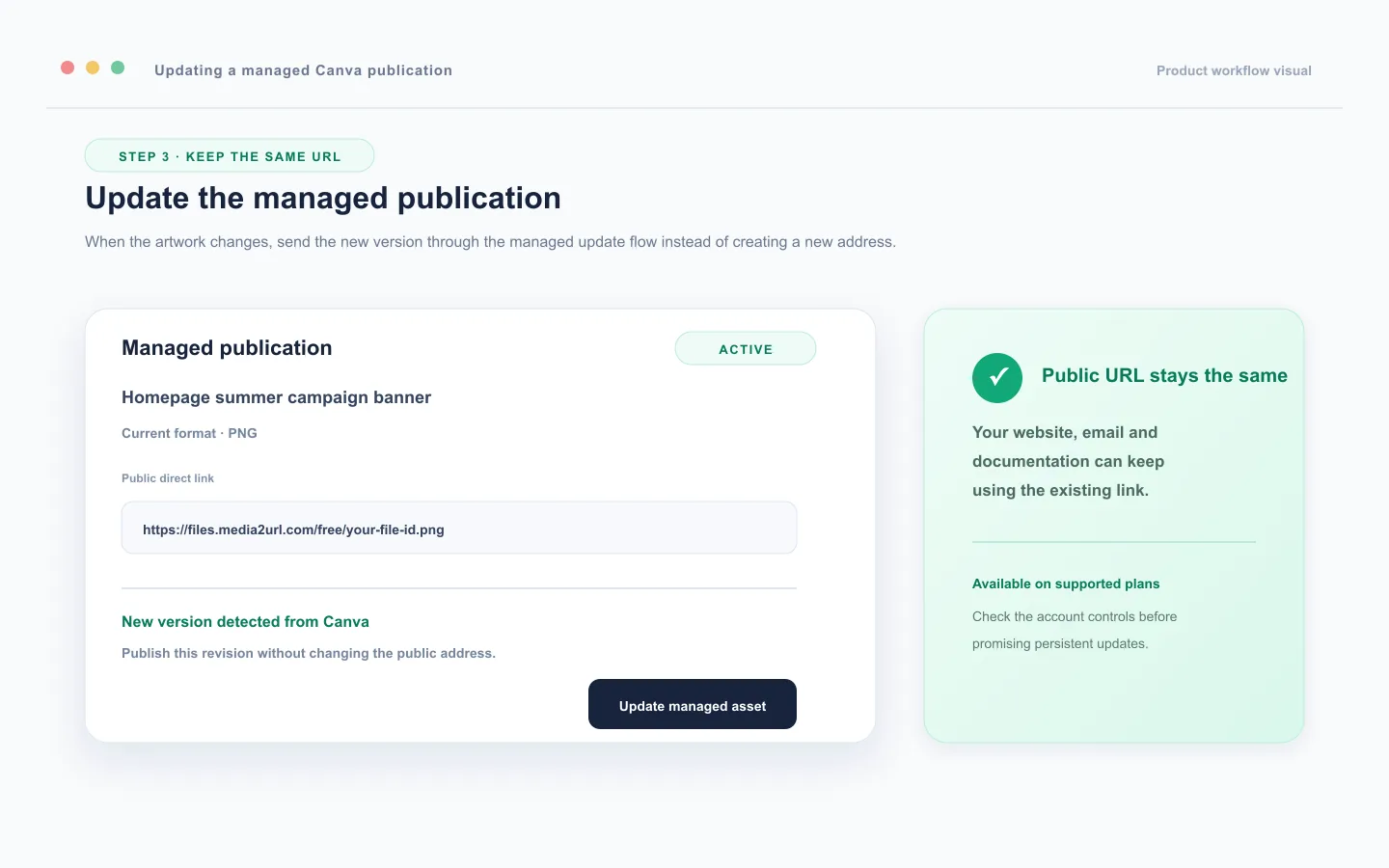
The new version replaces the active file while the public direct link stays unchanged. Websites and documents using that address do not need to be edited again.
Media2URL can also keep earlier versions in version history where the account plan provides that feature. This is useful when a campaign date was changed by mistake or when you need to restore the previous banner after a promotion ends.
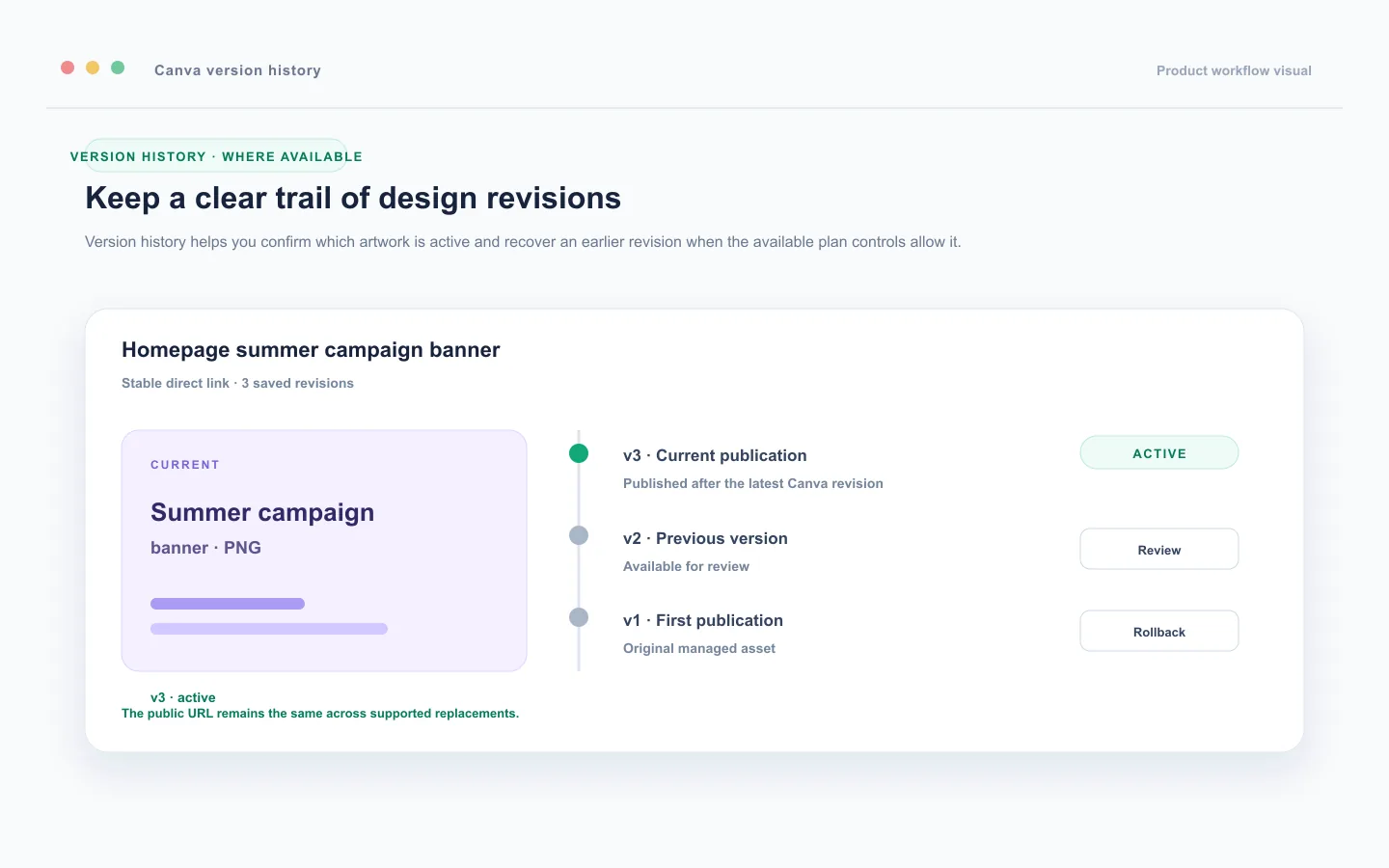
The first publication must be created as a managed asset for this workflow to work. If you choose a normal new publication every time, Media2URL will create a separate file with a different address. Editing a Canva design alone does not automatically change an unrelated file that was uploaded earlier.
The exact availability of persistent hosting, version history, and same-URL replacement depends on the active Media2URL plan and the controls shown in your account. Check the current pricing page before promising a fixed number of publications or a specific retention period to readers.
Check the updated image when an old version still appears
A browser or delivery cache may continue showing the previous image for a short time after an update. This does not always mean that the replacement failed.
Open the direct link in a private browser window or refresh the page without using the normal browser cache. If the new design appears there, the update has worked and the earlier copy was being stored locally.
When the old image continues appearing across different browsers for a long time, return to the Media2URL app and check whether the managed asset shows the new version as active. Version history can also confirm whether the update was recorded.
Add Media2URL files back into Canva
The workflow can also work in the opposite direction. Open the Library section inside the Media2URL app and search for an existing asset by its title. When you find the required image, choose Add to Design to place it on the active Canva canvas.
This is helpful when a logo, product image, campaign banner, or approved background is already stored in Media2URL. You do not need to download the file, save another local copy, and upload it again just to use it in a new design.
Common problems and what they usually mean
| Problem | Likely reason | What to check |
|---|---|---|
| The Media2URL app is not visible | The app is not connected in the current Canva account. | Refresh Canva and check the active account. |
| The link opens a preview page instead of the image | The share link was copied. | Copy the direct file link from the publish result. |
| The image looks blurry | The wrong format or excessive compression was used. | Recheck the export format and small design details. |
| The old design still appears after an update | Browser or delivery cache is showing an earlier copy. | Test the direct link in a private browser window. |
Keep public links for suitable files
A public direct link can be opened by anyone who receives the address. It should not be used for private client work, confidential documents, unreleased product information, or files that should only be seen by selected people.
Use the access option that matches the purpose of the file. An unlisted link can reduce accidental discovery, but it should not be treated as fully private if someone can forward the address. A file can also stop working if it is deleted, restricted, or allowed to expire.
Only publish designs that you have the right to host and share. This is especially important when a Canva design contains licensed photographs, customer information, brand material, or content supplied by another person.
Review the Privacy Policy, Terms of Service, Security, and Report Abuse pages when you need the platform rules.
Continue with the Canva integration
This guide explains the available Canva publishing, library, and plan-boundary features. The direct links guide is useful when you need to troubleshoot a file URL after it has been published.
A simple Canva workflow is easier to maintain when the first publication is treated as a managed asset. Publish the design once, use the direct file address wherever the image is needed, and return to that same publication when the artwork changes.
Frequently Asked Questions
Can I use a Media2URL direct link inside HTML?
Yes. Use the direct file address inside the src attribute of an image element. Use the Media2URL share address separately when the image should open a preview page after a click.
Does editing the Canva design automatically update the old URL?
No. The design must be connected to a managed Media2URL publication and sent through the supported update option. A new upload creates a separate publication with a separate address.
Can I update a design after downloading it from Canva?
You can upload the new file, but it will not automatically replace the old URL unless you select the existing managed asset through the supported update workflow. Uploading it as a new file creates a new link.
Is the direct link permanent?
The link remains available while the managed asset stays active under the applicable storage, access, and retention rules. Deleting the asset, allowing it to expire, or changing its access settings can stop the link from working.
Can I use the link in an email?
Yes. The direct file link can be used inside an HTML email. Some email applications block remote images until the reader allows them, so the recipient may need to select an option such as Display images before the design appears.