

Why an Image URL Does Not Work in HTML and How to Fix It

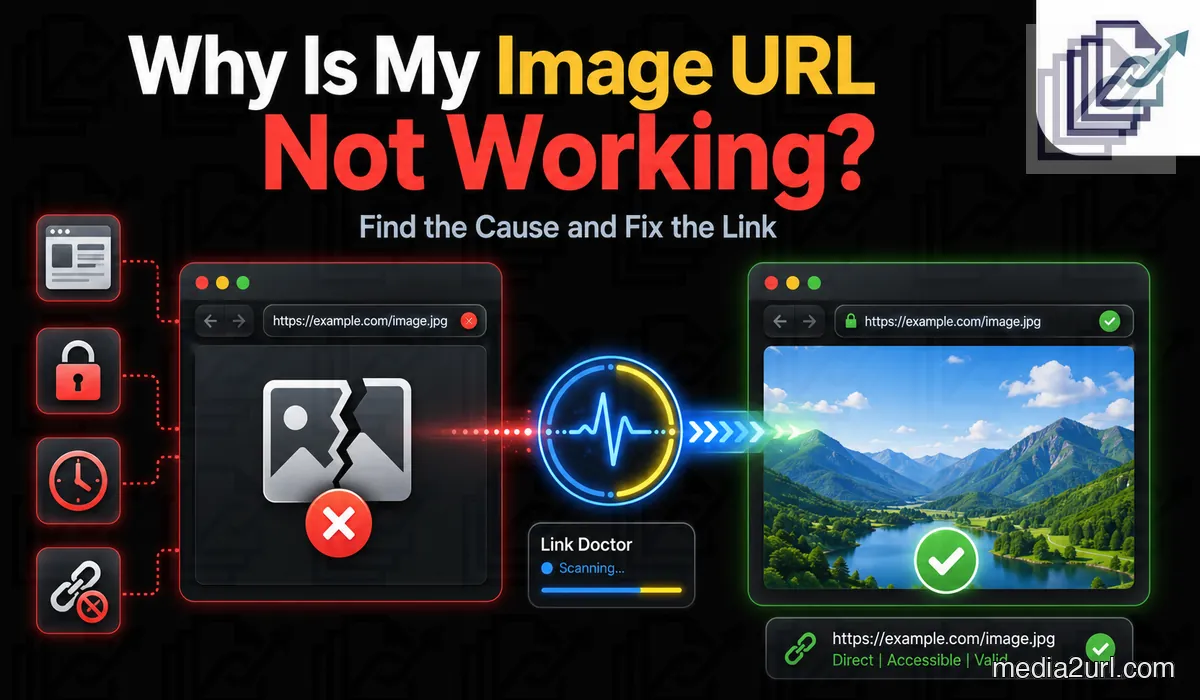
You paste an image URL inside an HTML <img> tag. The same address opens perfectly when you paste it into a browser tab, but the image on the website is still blank or broken.
That usually means the image file itself is not the problem. The browser may be receiving a webpage instead of an image, the host may be refusing requests from your site, the URL may have expired or your own website may be blocking the external image.
There is also an important difference between opening an image in a browser, displaying it through <img>, and letting JavaScript read that image. A link can succeed in one of those situations and fail in another.
The fastest way to solve the problem is to stop guessing and check the actual request the browser is making.
Quick answer
If an image URL does not work in HTML, first open the URL in a private browser window. You should see the image itself rather than a login page, gallery, preview screen or error page.
If the link looks correct, open your browser's Network panel and reload the page. Check the image request's HTTP status, response type and final URL. Chrome DevTools exposes status codes, MIME type and the request initiator directly in the Network panel.
A working image normally needs an accessible response that the browser can decode as an image. If the request succeeds there but the image still does not appear, check your HTML, Content Security Policy, mixed-content rules, srcset and any hotlink protection used by the image host.
Why a broken image matters more than it looks
Images are often one of the most important visible resources on a webpage. HTTP Archive's 2025 Web Almanac found that an image was the Largest Contentful Paint (LCP) element on 85.3% of desktop pages and 76% of mobile pages.
The same dataset found that the median page transferred around 1.06 MB of image data on desktop and 0.91 MB on mobile.
A broken image therefore is not only a visual problem. When the missing file is a hero image, product photo or other major page element, it can affect the entire user experience.
1. You copied a webpage instead of the image
This is the first thing I would check.
A URL can display an image while still pointing to a webpage that contains that image:
https://example.com/view/photo
The actual file may live at another address:
https://files.example.com/photo.jpg
Both addresses can look correct when opened manually. The difference becomes clear in the response. The first may return HTML for a viewer page, while the second returns image data.
That is why the filename or the way the page looks is not enough. Check what the server actually returns.
How to check whether the URL is really an image
First, open the URL by itself. If you see a gallery, toolbar, login page or navigation around the image, you probably copied the page URL rather than the media URL.
If you are not sure, open DevTools and check the request in the Network panel. Chrome shows the HTTP status and MIME type of each request, which makes it much easier to distinguish an image response from HTML or an error page.
Do not depend on .jpg, .png or another extension alone. Modern CDN URLs may not include a visible filename at all.
2. The image works only because you are signed in
An image may look public when you test it from the same browser you used to upload it. Your browser may already have a login cookie or another permission that allows the request.
Someone visiting your website does not have that account session.
Open the URL in a private browser window. If you now see a login screen, 403 response or permission message, the website is not receiving the same public access you saw while signed in.
Do not try to work around a private file by copying internal URLs or authentication tokens. Change the source's sharing settings or upload a separate copy that you are allowed to make public.
3. The image URL was designed to expire
Some image URLs are intentionally temporary. The address may contain a signature, timestamp or expiry parameter because access is being granted only for a limited period.
For example, Amazon S3 presigned URLs remain valid only for their configured lifetime. AWS allows console-generated presigned URLs from 1 minute to 12 hours, while URLs created through the CLI or SDK can be configured for up to 7 days under normal Signature Version 4 conditions. They may expire earlier when the credentials used to create them expire or are revoked.
Google Cloud Storage V4 signed URLs also contain an explicit expiration value, with a maximum documented lifetime of 7 days.
Google Photos API baseUrl values are another example. Google's documentation states that they remain active for 60 minutes (as detailed in our Google Photos Direct Link guide).
https://cdn.example.com/photo.jpg?expires=1720000000&signature=example
Query parameters do not automatically mean a URL is temporary, but expiry and signature values are a reason to check the host's documentation before treating the address as a permanent embed.
4. The file no longer exists at that address
A direct image URL depends on the route continuing to resolve to the file.
If the image is deleted, moved or removed by the host, check the request's status rather than relying on the broken-image icon.
A 404 Not Found means the server did not find the requested representation or does not wish to disclose that it exists. A 410 Gone is more specific and indicates that the resource is no longer available and the condition is expected to be permanent.
When you own the page, update or replace the image URL rather than repeatedly retrying an address that no longer resolves.
What the image request status usually tells you
| Status | What to investigate |
|---|---|
| 200 | Request succeeded. Check MIME type, browser policy and whether another source is actually being selected. |
| 301 / 302 / 307 / 308 | The URL redirects. Check where it finally ends. |
| 401 | Authentication is required. |
| 403 | The server understood the request but refuses access. |
| 404 | The file or route was not found, or the server does not disclose it. |
| 410 | The resource is intentionally no longer available. |
| 429 | The client has made too many requests and may be rate-limited. |
| 5xx | The host or upstream server has a server-side problem. |
5. The image host blocks hotlinking
An image can open normally in a browser tab and still be refused when another website tries to embed it.
This is commonly called hotlink protection. The image host checks where the request came from and can refuse requests that originate from another website.
Cloudflare's Hotlink Protection is a real example. Its documentation says the feature checks the HTTP Referer and can deny an image request when the referring site is not the image owner's domain.
This explains why opening the URL directly is not always a complete test. A direct browser navigation may send a different request context from the <img> request coming from your webpage.
If you control the image host, change the hotlink rule or allow the required domain. If you do not control it, use a host that permits the type of embedding you need.
6. The image host has temporarily limited delivery
A public image may stop working when the hosting account reaches a traffic, bandwidth or request limit.
Depending on the host, the request may return an error page, a 429 Too Many Requests response, a 403 Forbidden, or another platform-specific failure rather than the expected image.
Check the host's usage dashboard and current plan limits before changing the HTML. If the URL worked yesterday and suddenly fails everywhere today, the host is worth checking before the code (as seen with Dropbox daily bandwidth limits).
7. The image URL redirects somewhere else
A browser normally follows redirects, so you may never notice that the address you pasted is not the final file URL.
That becomes a problem when another application handles redirects differently or when the redirect ultimately reaches a login page, expired file or HTML response.
Chrome DevTools shows redirects as request initiators and lets you inspect the final status and MIME type.
Dropbox raw=1 links are one real example of a media-sharing workflow that uses a redirect before the supported file is rendered.
8. The URL returns the wrong kind of response
A URL ending in .jpg does not prove that the server returned a JPEG.
The request may instead return:
Content-Type: text/html
That often means the address reached a preview page, login screen, error page or another HTML response.
Chrome's Network panel exposes the MIME type of the requested resource directly.
Similarly, a CDN URL without .jpg or .png can still be a perfectly valid image address when the server returns image data correctly.
So check the response headers, not only the text of the URL.
9. The image displays, but JavaScript or canvas cannot use it
This is where CORS is often misunderstood.
A cross-origin image can be displayed directly to the user without giving scripts unrestricted access to its contents. The Fetch Standard specifically allows no-cors responses to be used for displaying image content while preventing the embedding page's scripts from directly reading that response.
The problem appears when JavaScript needs to inspect the image or when the image is drawn into a canvas and the page later tries to read or export the pixels (canvas.toDataURL()). HTML defines the crossorigin attribute specifically so images from servers that permit cross-origin access can be used safely with canvas.
So do not diagnose every broken <img> as "a CORS problem".
If the image itself does not appear, first check the URL, status, permissions, CSP and host restrictions. If the image appears normally but your editor, canvas export or JavaScript processing fails, then CORS becomes a much stronger suspect.
10. Your own website's Content Security Policy blocks the image
Sometimes the image server is working perfectly. Your own site is the one refusing to load it.
A website can use the Content Security Policy img-src directive to define which sources are allowed for images. If the external image domain is not included in that policy, the browser can block the request even though the same image URL works when opened directly.
For example:
Content-Security-Policy: img-src 'self' https://images.example.com;
An image hosted on another unlisted domain would be blocked by that policy.
When this happens, the browser console normally gives you a CSP violation message. Add the required trusted image source to the policy rather than changing a perfectly valid image URL.
11. An HTTPS page is trying to load an insecure HTTP image
A secure HTTPS page should not quietly depend on insecure resources.
Mixed-content rules define how browsers handle resources loaded over an unencrypted connection inside an HTTPS page. Modern policies may upgrade some image requests to HTTPS automatically or block them when a secure version cannot be used.
If your page uses https:// but the image URL starts with http://, replace it with a valid HTTPS image URL whenever the host supports one.
Do not fix this by downgrading the webpage to HTTP.
12. The image format is not suitable for the browser or platform
JPEG, PNG and WebP remain extremely common on the web. In HTTP Archive's 2025 performance dataset, JPEG accounted for about 57% of LCP images, PNG for 26% and WebP for 11%. AVIF had reached around 0.7% in that dataset.
A modern browser may support a format that a particular CMS, email editor or website builder still refuses to accept. That is why "my browser can open it" and "this platform accepts it" are not always the same test.
When compatibility matters more than keeping an unusual source format, create a web-friendly JPEG, PNG, WebP or other format supported by the destination.
13. The URL contains an invalid or incorrectly copied character
A manually copied URL can contain spaces, missing percent-encoding, line breaks or punctuation that accidentally became part of the address.
For example:
https://example.com/my photo.jpg
may need to be represented as:
https://example.com/my%20photo.jpg
URL standards use percent-encoding to represent characters that cannot safely appear in a particular URL component. Copy the address directly from the hosting service rather than rebuilding a long CDN or signed URL by hand.
14. The HTML itself points to the wrong place
Check the image element:
<img src="https://example.com/photo.jpg" alt="Photo">
Common mistakes include:
- Missing quotation marks
- Using
hrefinstead ofsrc - Copying an incomplete URL
- Placing surrounding Markdown syntax inside the HTML tag
Also inspect the actual element in DevTools after the page has rendered. A CMS, template or JavaScript framework may have changed the src value after your original HTML was generated.
15. The browser is loading a different image from srcset or <picture>
You may be fixing the URL in src while the browser is actually choosing another image.
HTML allows srcset, sizes and <picture><source> to provide several image candidates. The browser selects from that source set based on factors such as candidate descriptors and display conditions.
<img src="photo.jpg" srcset="photo-small.jpg 480w, photo-large.jpg 1200w" alt="Photo">
The failing request may be photo-large.jpg, not photo.jpg.
In DevTools, inspect the actual Network request instead of assuming the src attribute is the file the browser chose.
16. The field is not designed for external image URLs
Some editors accept only files uploaded into their own media library. Others accept a direct URL but reject gallery pages, redirects or unsupported domains.
Check what the field asks for: a local file upload, direct image URL, embed code or HTML block. A correct image link placed in the wrong type of field will still fail.
17. Advanced: A stricter cross-origin security policy blocks the resource
Some advanced web applications use cross-origin isolation policies. Under Cross-Origin-Embedder-Policy (COEP), a cross-origin resource requested in no-cors mode may need a suitable Cross-Origin-Resource-Policy (CORP) response header before the browser allows it to be embedded.
Most ordinary websites will never encounter this. It becomes relevant in cross-origin-isolated applications and specialised browser workloads. If DevTools mentions COEP or CORP, treat that as a separate security-policy problem rather than changing the image filename.
The 60-second test I would use first
If I were checking a broken image on a live webpage, I would do these checks in this order:
- Open the image URL in a private window: If you see a login page, preview page or error, fix the source before touching the HTML.
- Open DevTools → Network and reload the page: Filter for
Imgor search for part of the filename. - Check Status: A 403, 404, 410, 429 or server error already tells you where to investigate.
- Check Type / Content-Type: Make sure the response is an image MIME type rather than
text/html. - Check the final URL and redirects: The address may end somewhere different from where it started.
- Look at the Console: CSP, mixed-content, CORS and browser security failures are often explained there.
- Inspect the element: Check whether
srcset,<picture>or JavaScript is making the browser request another URL. - Try a minimal HTML page: If the same URL fails inside a plain
<img>element, the issue is probably the resource or response rather than your site's layout.
Test the URL in the smallest possible HTML page
<!doctype html>
<html lang="en">
<head>
  <meta charset="utf-8">
  <title>Image URL Test</title>
</head>
<body>
  <img src="PASTE_IMAGE_URL_HERE" alt="Image URL test">
</body>
</html>
Save this as test.html and open it in a browser.
If the image fails here too, the problem is probably not your site's CSS or layout. Check the request itself.
If it works here but fails on your real website, focus on your site's CSP, srcset, framework logic, builder restrictions or other page-level policies.
When you do not want to inspect every header manually
If the URL is public, Link Doctor can provide a quick second check before you move or re-upload the image.
It can inspect the HTTP status, follow redirects, show the final content type and report relevant CORS behaviour. That is particularly useful when the URL works when clicked but behaves differently inside another website or browser tool.
Link Doctor should not replace browser DevTools when the problem comes from your own page, such as CSP, srcset or HTML syntax. Those issues exist in the webpage rather than the external image URL.
| Check | Useful for |
|---|---|
| HTTP status | Missing, blocked or failing file |
| Redirect path | Preview links and intermediate routes |
| Final content type | Image response versus HTML page |
| CORS information | Browser-script and canvas workflows |
| Final URL | Seeing where the request actually ends |
When the source URL is the problem
If the external address is private, temporary, hotlink-blocked or tied to a preview page, changing the HTML may never make it a good long-term source.
When you own the image or have permission to host another copy, upload the file through Image to Link and use the direct hosted image URL intended for web use.
Keep the original source wherever you normally manage it. The separately hosted copy only needs to solve the website-delivery problem.
Once the image is hosted correctly, supported URL transformations can provide another width, height, crop, quality level or eligible WebP/AVIF output without another manual upload.
Final answer
An image URL can open successfully in your browser and still fail inside HTML because those are not always the same request.
Start by checking whether the URL is public and actually returns an image. Then inspect the request in DevTools for its status, content type and redirects.
If the response itself is healthy, move to the webpage. Check Content Security Policy, mixed-content rules, HTML syntax and whether srcset or <picture> is causing the browser to request another source.
Remember that CORS is a different problem in many cases. A cross-origin image may display through <img> while JavaScript or canvas access to its pixels is still restricted.
Fix the layer that is actually failing rather than repeatedly changing the URL and hoping the broken-image icon disappears.
Guide review note: This guide was reviewed on August 19, 2026 against the current HTML and Fetch standards, browser security specifications, Chrome DevTools documentation and first-party hosting documentation for temporary and hotlink-protected URLs.
Browser behaviour and hosting rules can change, so check the current documentation of the service returning the image when a production workflow depends on a particular header, permission or URL lifetime.
Frequently Asked Questions
Why does my image URL work in a browser but not in HTML?
Opening the URL manually and loading it as a page resource can produce different request conditions. The host may block hotlinking, your page may block the image through CSP, or the URL may redirect somewhere the final embed cannot use.
Does an image URL need to end in .jpg or .png?
No. A direct image URL does not have to expose a filename extension. What matters is that the request reaches accessible image data that the browser can decode. Check the Network response rather than relying on the text at the end of the URL.
Why does <img src=""> show a broken image icon?
Common causes include a missing file, private access, a preview-page URL, an expired signed link, hotlink protection, incorrect HTML, CSP restrictions or an unsupported response.
Can CORS stop an HTML image from displaying?
CORS is not required for every normal cross-origin <img> display. It becomes especially important when scripts need to read the response or when the image is used through canvas.
How can I check the HTTP status of an image URL?
Open DevTools, go to Network, reload the page and select the image request. Chrome displays the status code, MIME type and request initiator in the Network panel.
Why does an image stop working after a few hours?
It may be a signed or temporary URL. AWS S3, Google Cloud Storage and other systems can issue time-limited URLs, while Google Photos API base URLs currently last 60 minutes.
Can Content Security Policy block an external image?
Yes. A site's img-src CSP directive can restrict which domains are allowed to provide images, so a valid external URL can still be blocked by the webpage that tries to load it.
Why is the browser requesting a different image than the URL in src?
Check srcset, <picture> and any JavaScript that changes the image element. HTML allows the browser to select another source from the available image candidates.